Capacity Exchange DAO
Use AI Virtual Assistant
Table of Contents
If you are not familiar with using technology, there is an AI Virtual Assistant available to support you automatically during the process, such as guiding you to set up your devices when starting the Session.
Note about the AI Virtual Assistant on iOS operating systems
- This feature only works on iOS 10 or later.
- On iOS 15, the AI Virtual Assistant currently only responds in text.
- On iOS 17 or later, the AI Virtual Assistant can respond both in text and voice
Please follow the instructions below to use this feature:
[On Web]
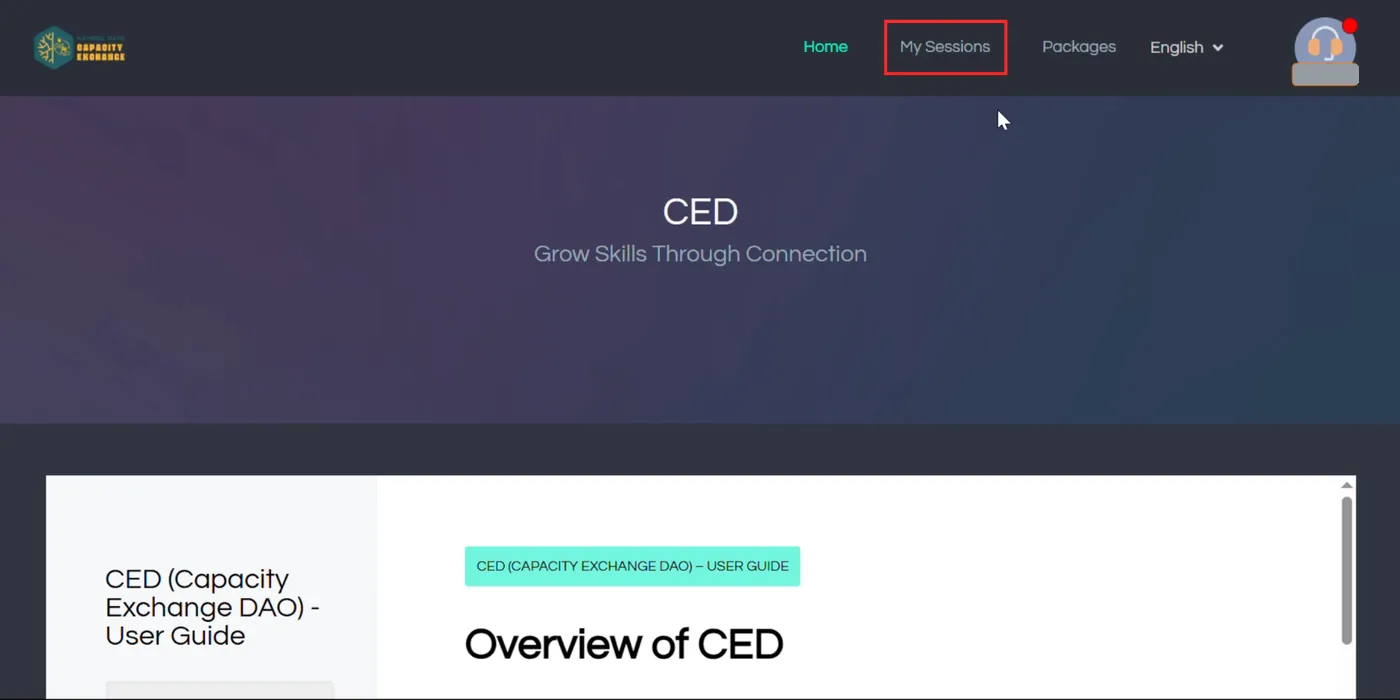
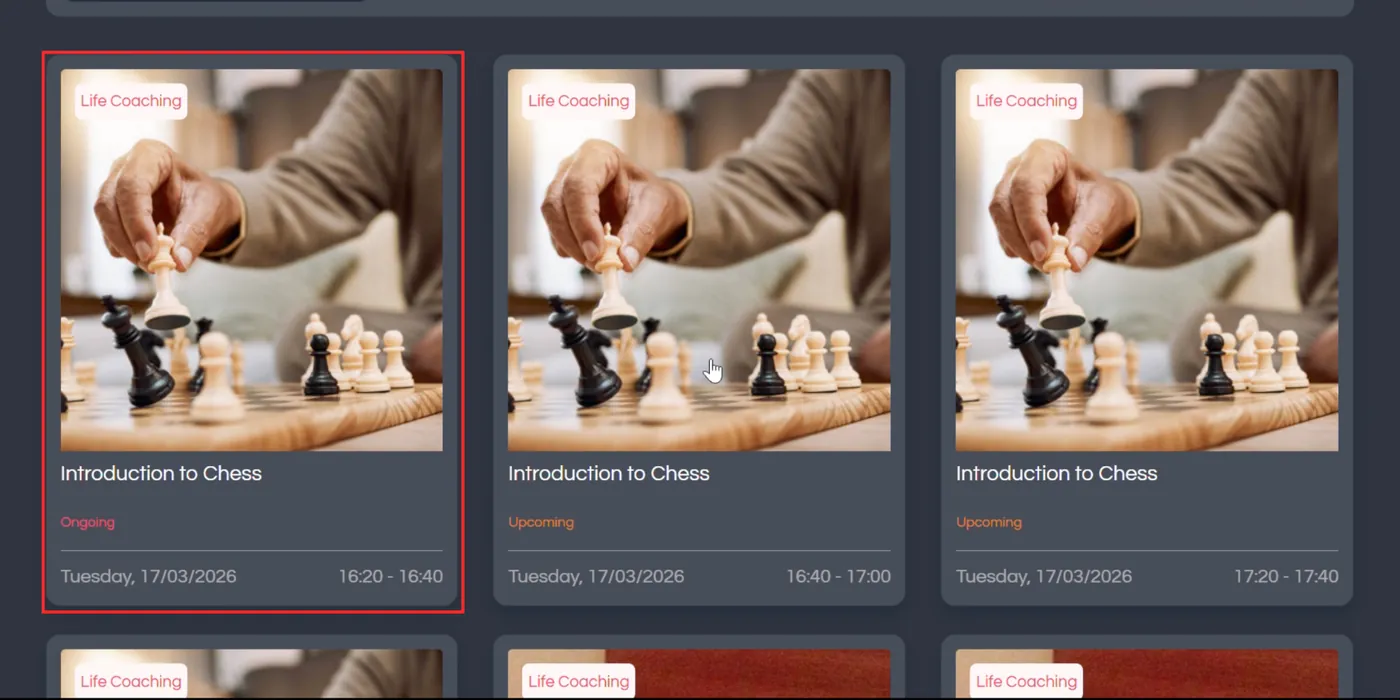
Step 1: Choose “My Sessions” to select the Session that is about to start.
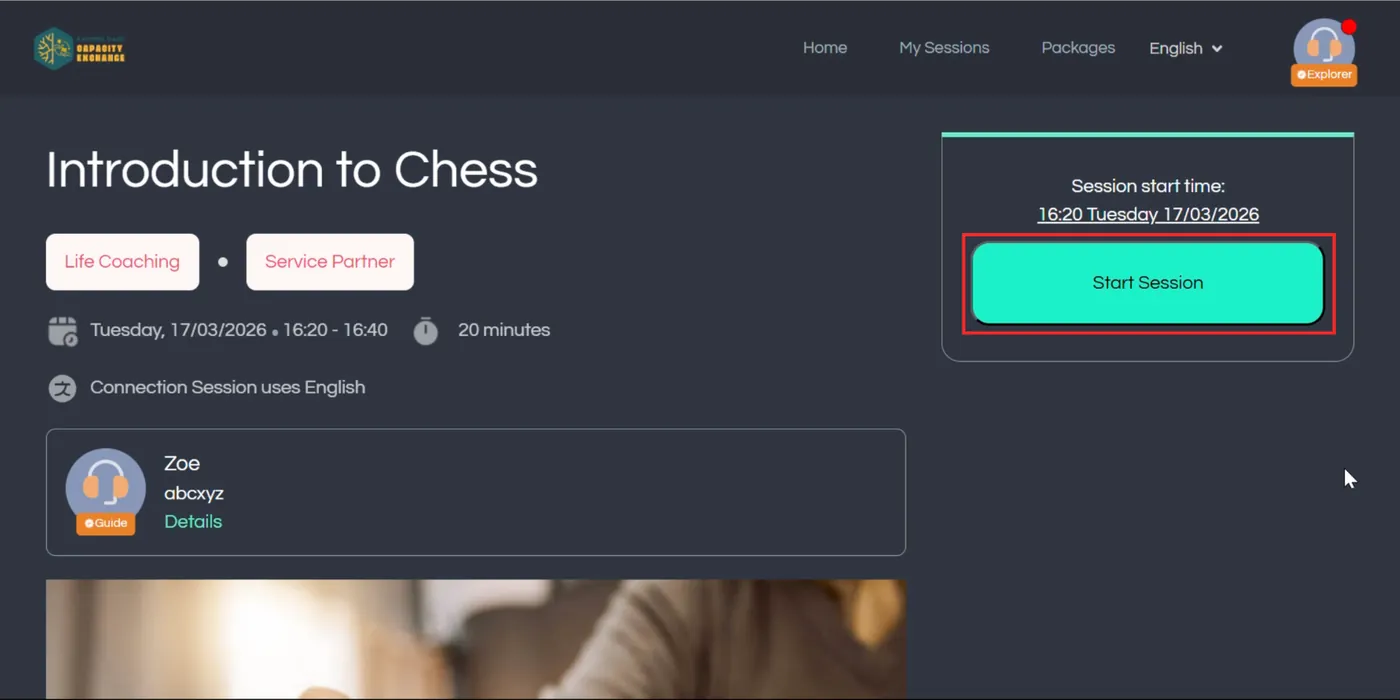
Step 2: When you tap “Start Session” to join the Session, the AI assistant will appear to assist you with any questions or help you set up your devices for the Session. (You can use this feature up to 30 minutes before the Session starts.)
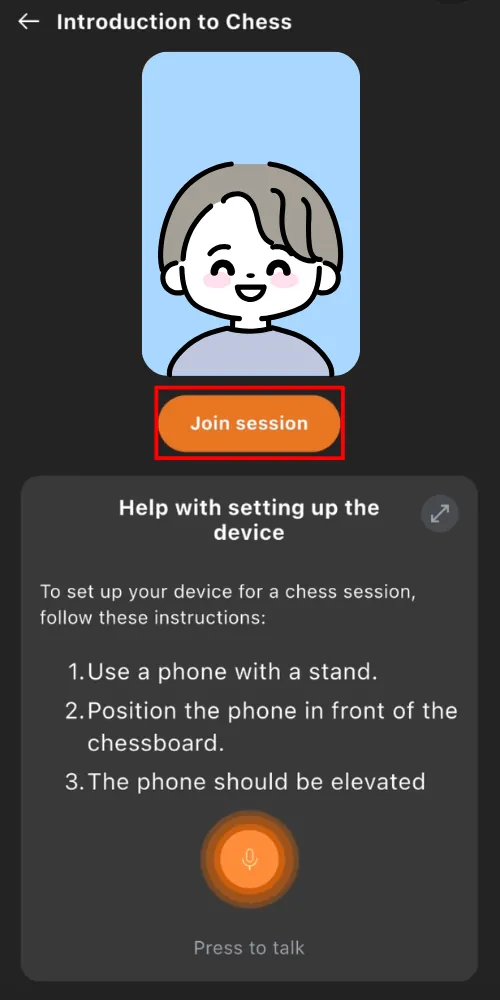
Step 3: You can press and hold the orange “Press to talk” microphone button on the screen to ask questions or make requests (if needed).
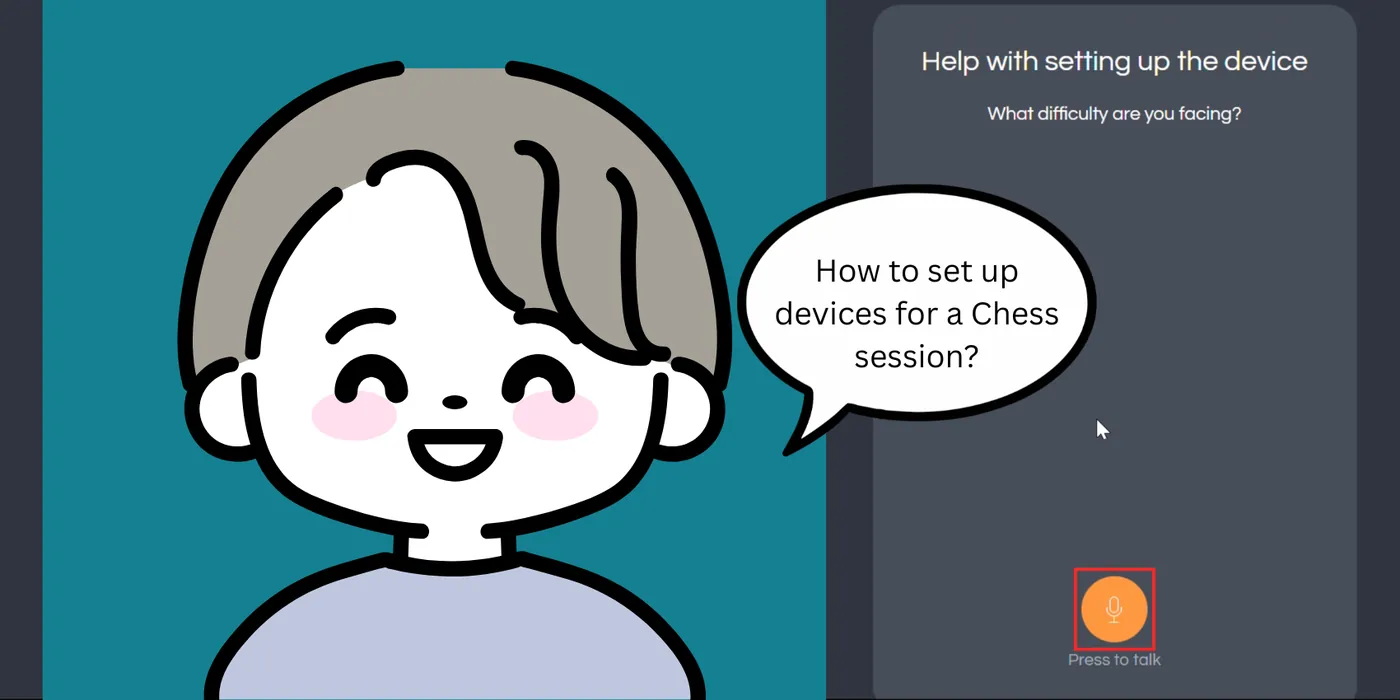
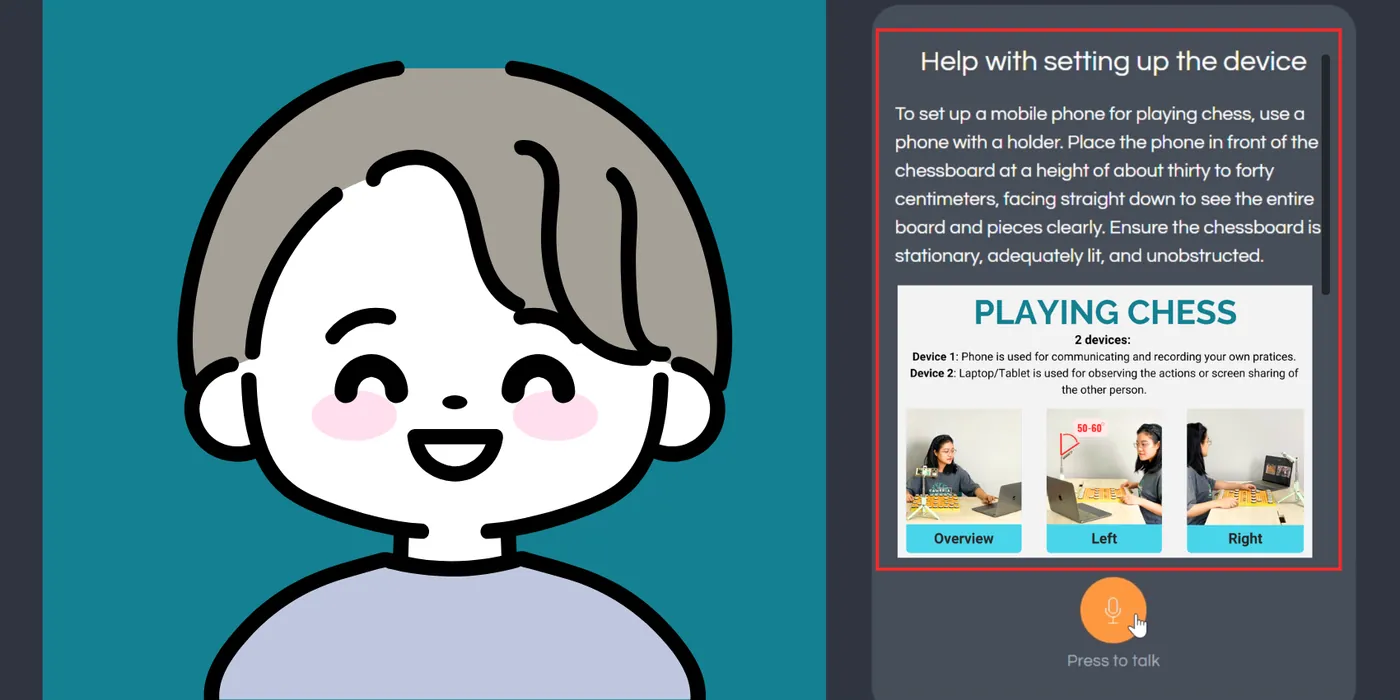
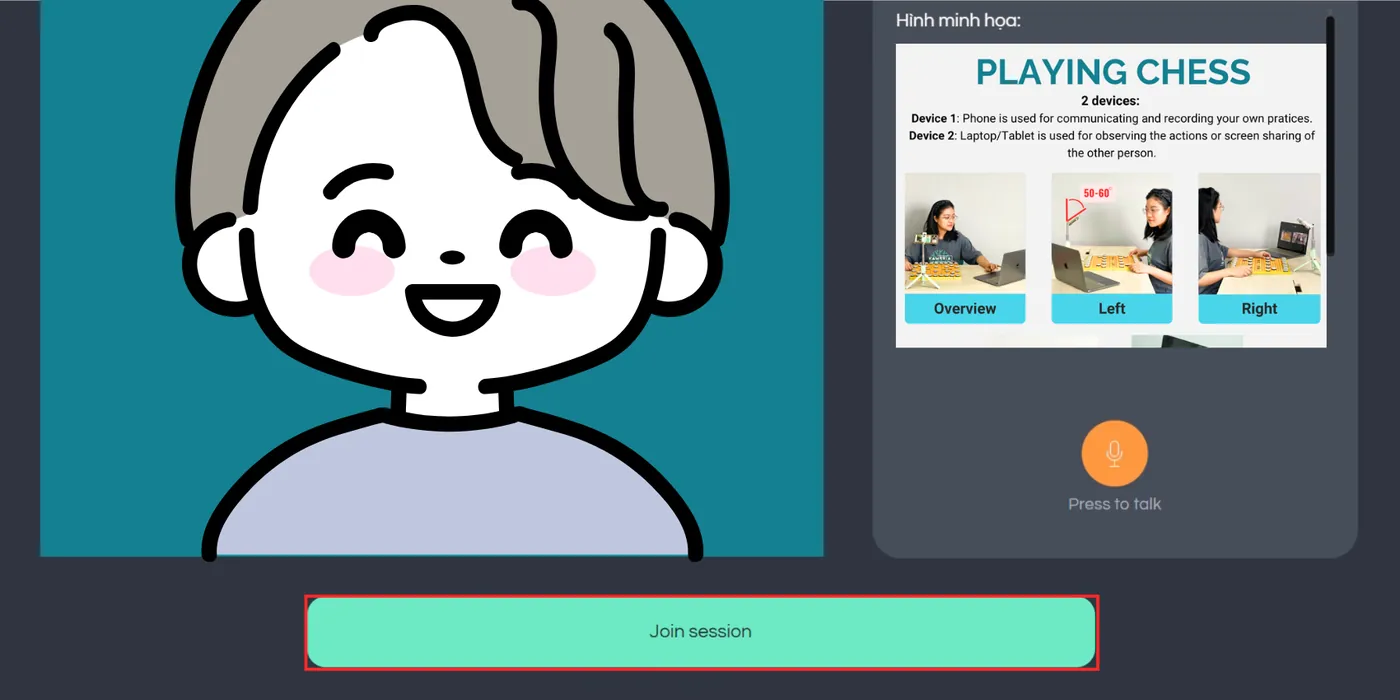
Step 4: To continue joining the Session, please press the “Join session” button.
[On App]
Step 1: Choose “My sessions”
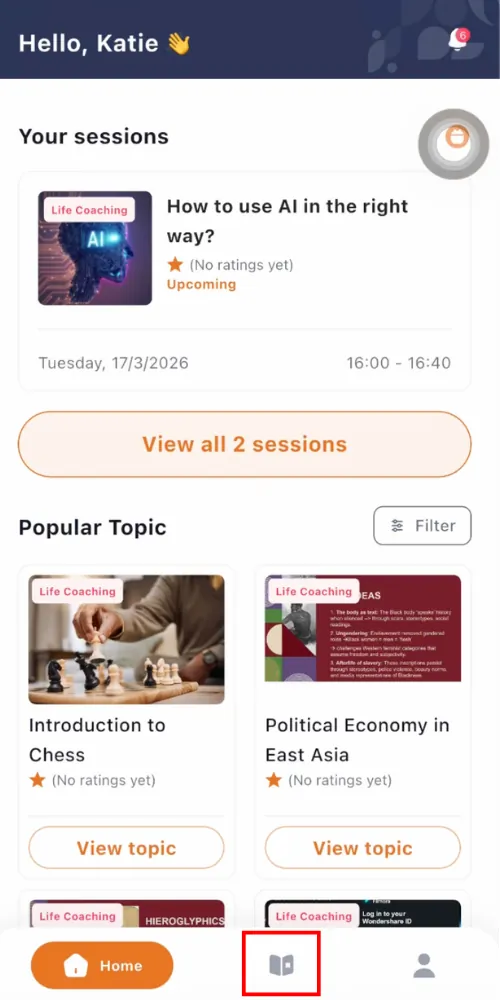
Step 2: Choose the Session that is about to start
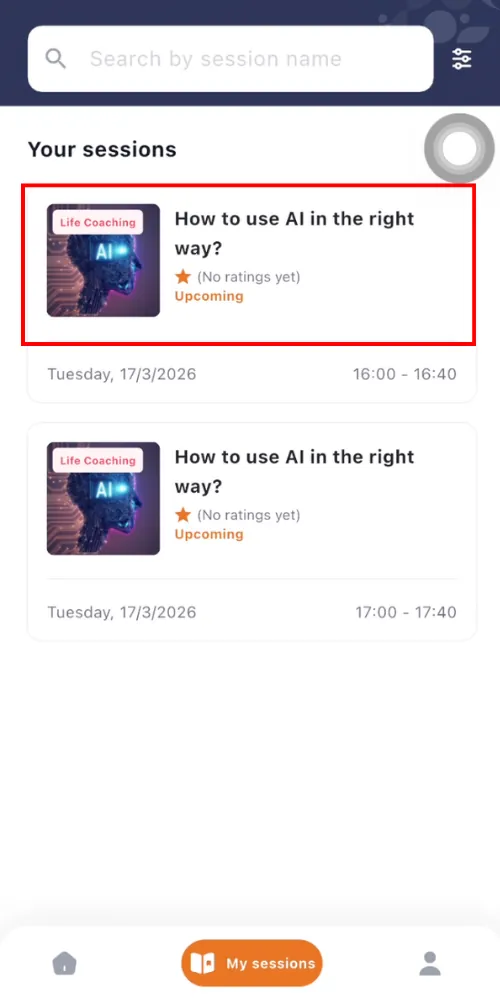
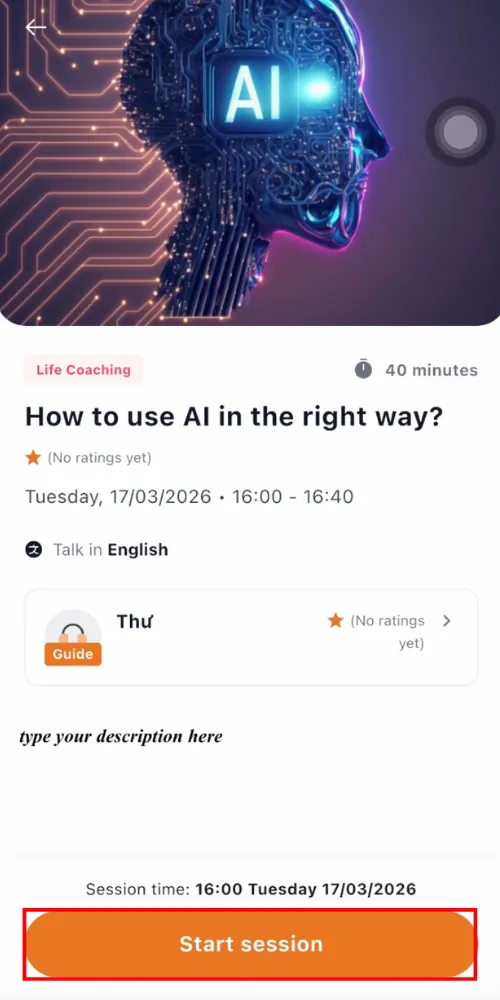
Step 3: Choose “Start session”button
Step 4: Press “Press to talk” button to share your questions or requests (if needed)
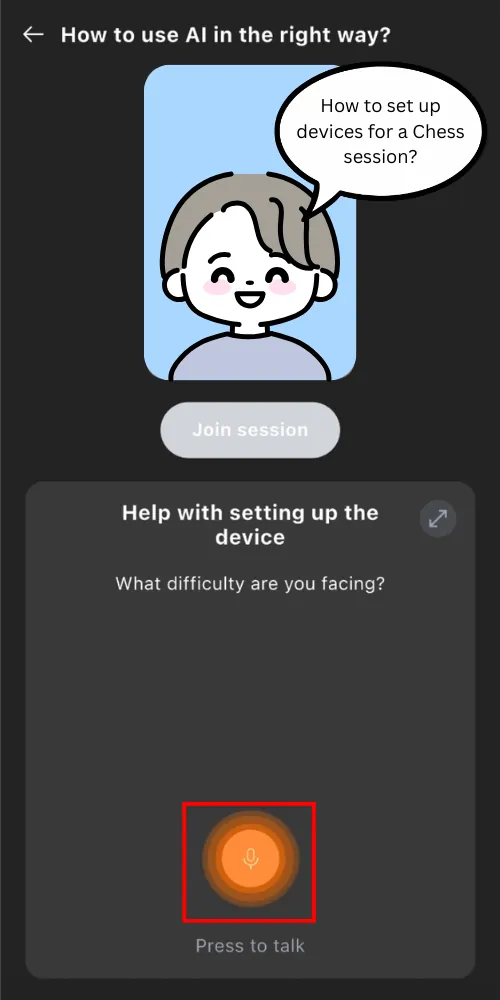
Step 5: You can then click the “Join session” button to join the Session