Capacity Exchange DAO
Register for a CED account
To join the CED community and participate in capacity-exchange Sessions as an Explorer or a Guide, you will need an email (or phone number, depending on the app design) to create your account and log in to the CED App.
Please follow the steps below to register your CED account.
Registration in CED App
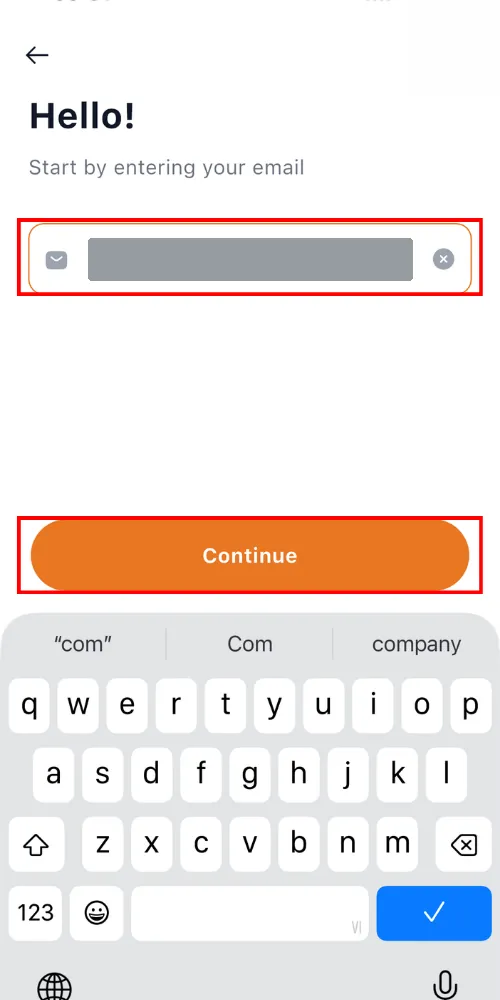
Tap the orange “Start now” button to begin using the App. This will take you to the registration screen.

Enter your registered email or phone number, then tap “Continue” to proceed.
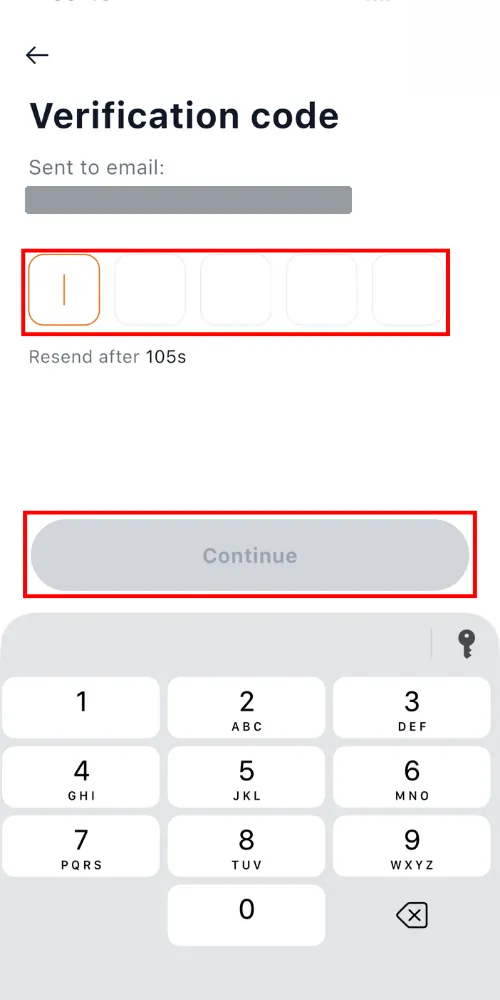
Check your email/phone for the verification code. You will receive a verification code shortly.
- Enter the code in the Verification Code field.
- Note: If you do not receive the code, please reach out to CED Support for assistance.
- After entering the code, tap “Continue”.
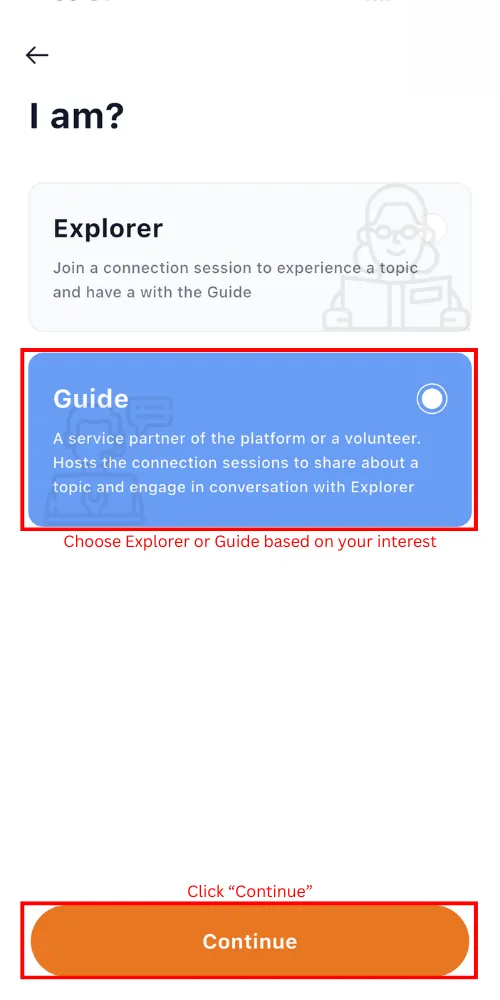
Select your role: Explorer or Guide.
* CED allows every user to choose their participation role:
- Explorer – Join connection sessions to explore a topic and converse with a Guide.
- Guide – Host sessions to share knowledge, experience, or skills with Explorers.
* Then tap “Continue”.
Note: Every user must have at least one active role, but you can adjust or add roles later in your account settings.
* Enter your Full Name and create a password, then re-enter it to confirm.
* Select the Community that you belong to (if any).
* Once all fields are completed, tap “Sign Up”.
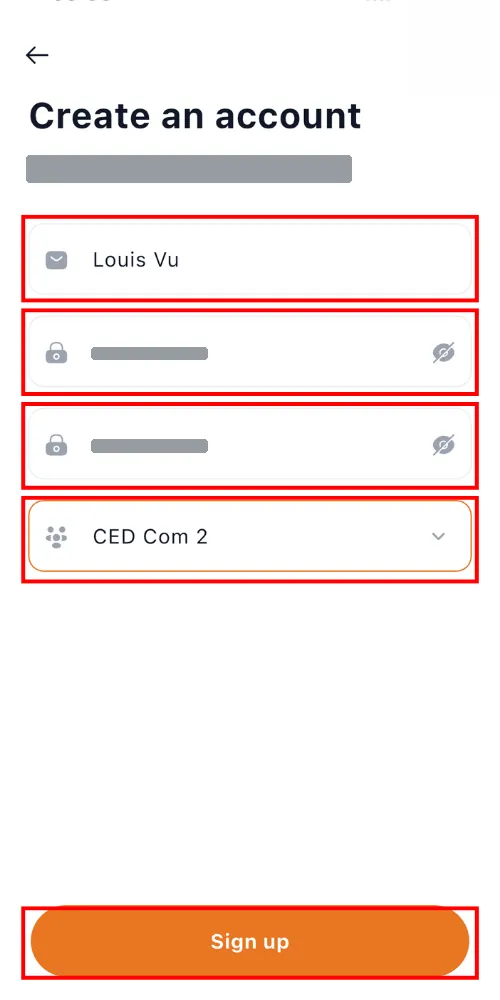
* Registration complete. You can now verify your profile and begin joining or hosting Sessions on the platform.
Registration in CED Website
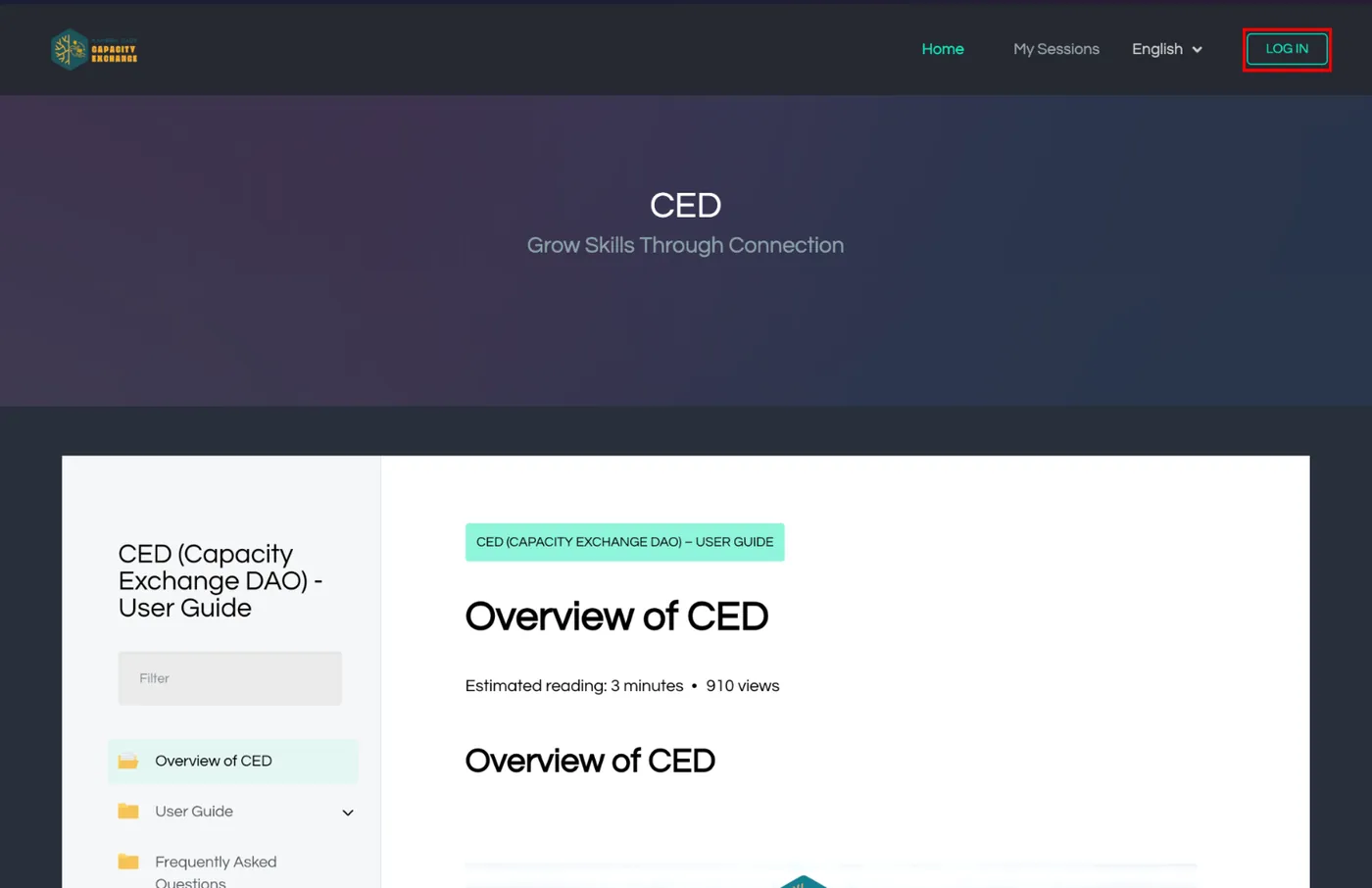
Click the “LOG IN” button.
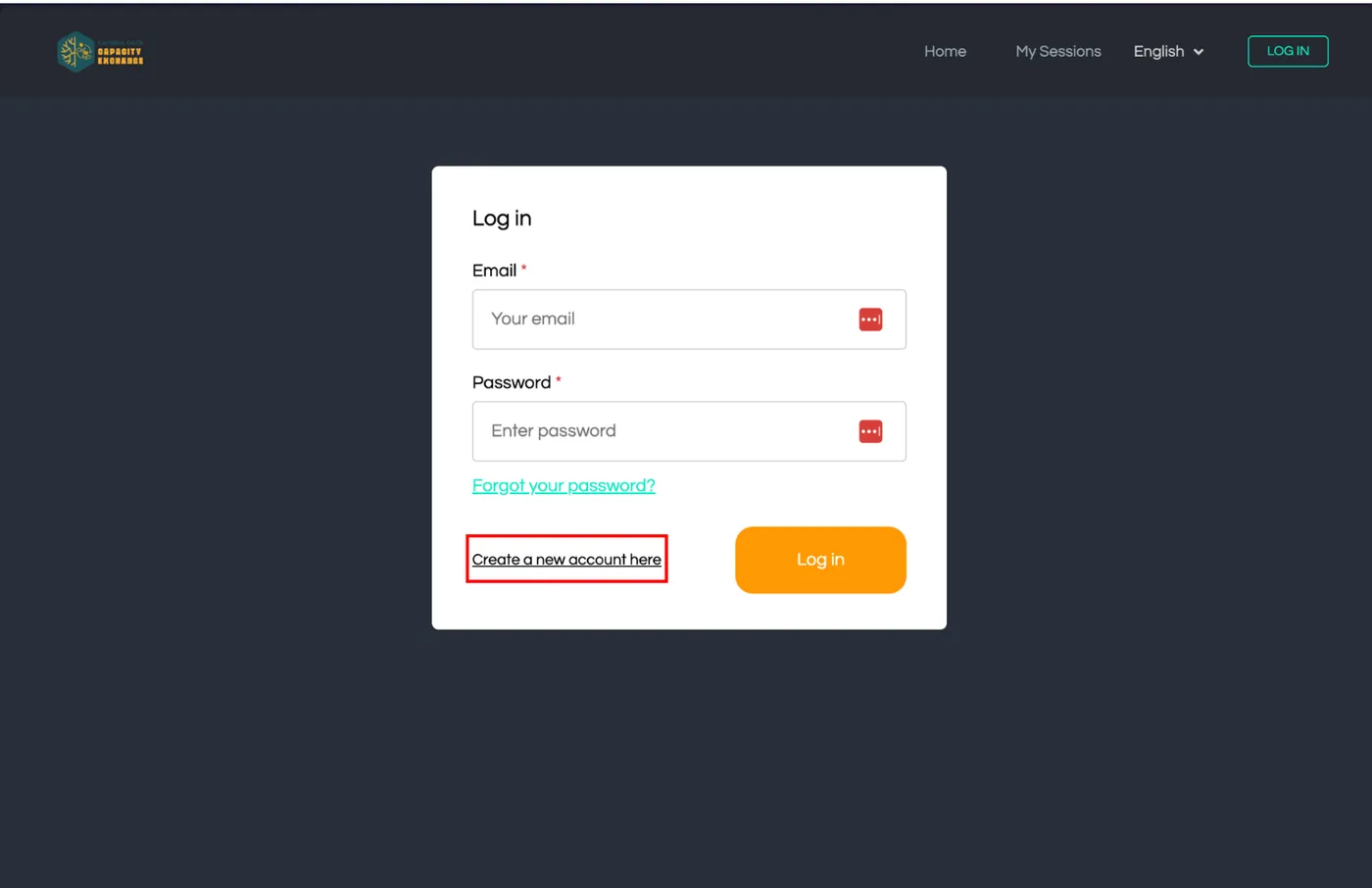
Click “Create a new account here“. This will take you to the registration screen.
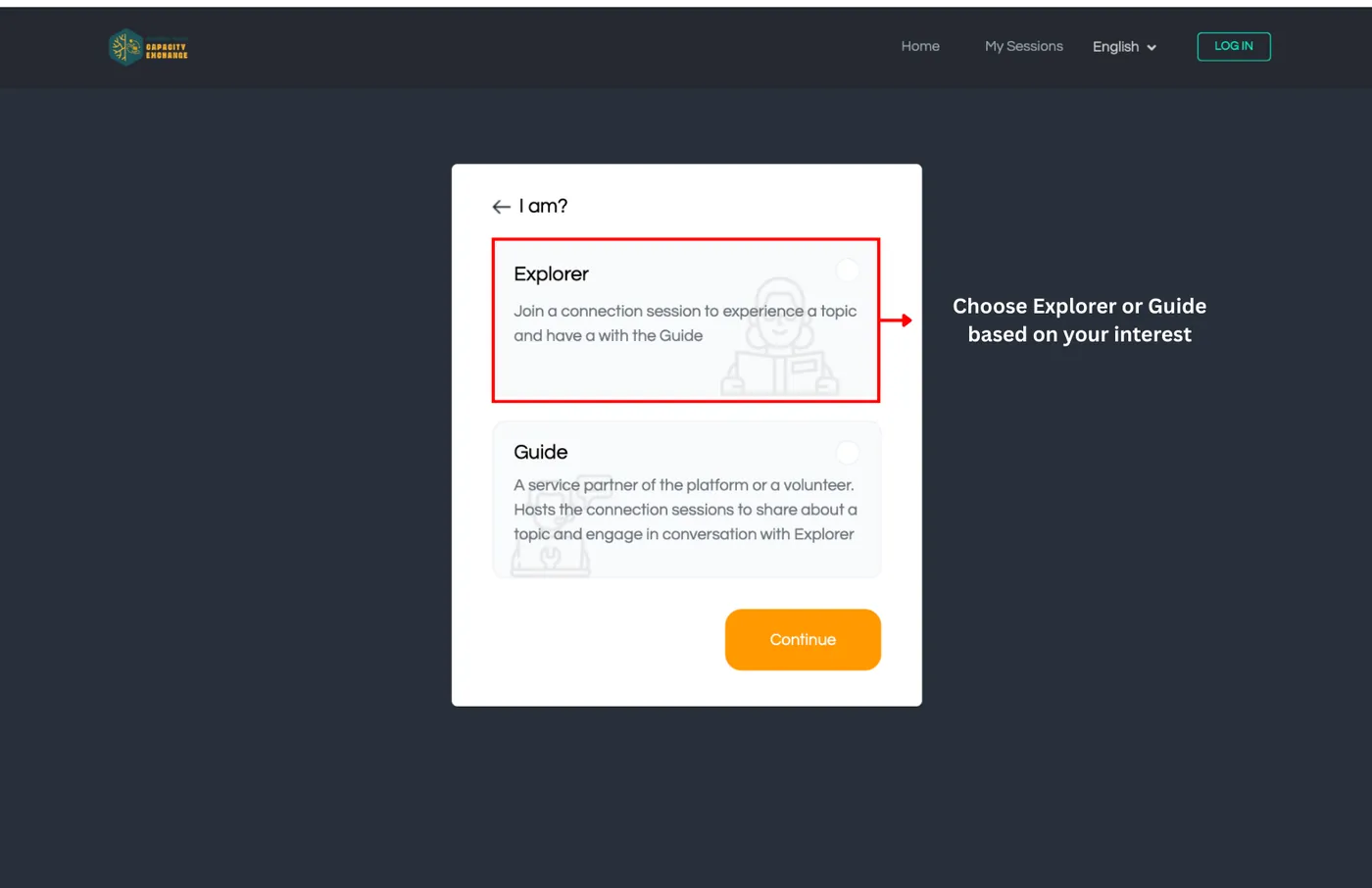
Select your role: Explorer or Guide.
* CED allows every user to choose their participation role:
- Explorer – Join connection sessions to explore a topic and converse with a Guide.
- Guide – Host sessions to share knowledge, experience, or skills with Explorers.
* Then tap “Continue”.
Note: Every user must have at least one active role, but you can adjust or add roles later in your account settings.
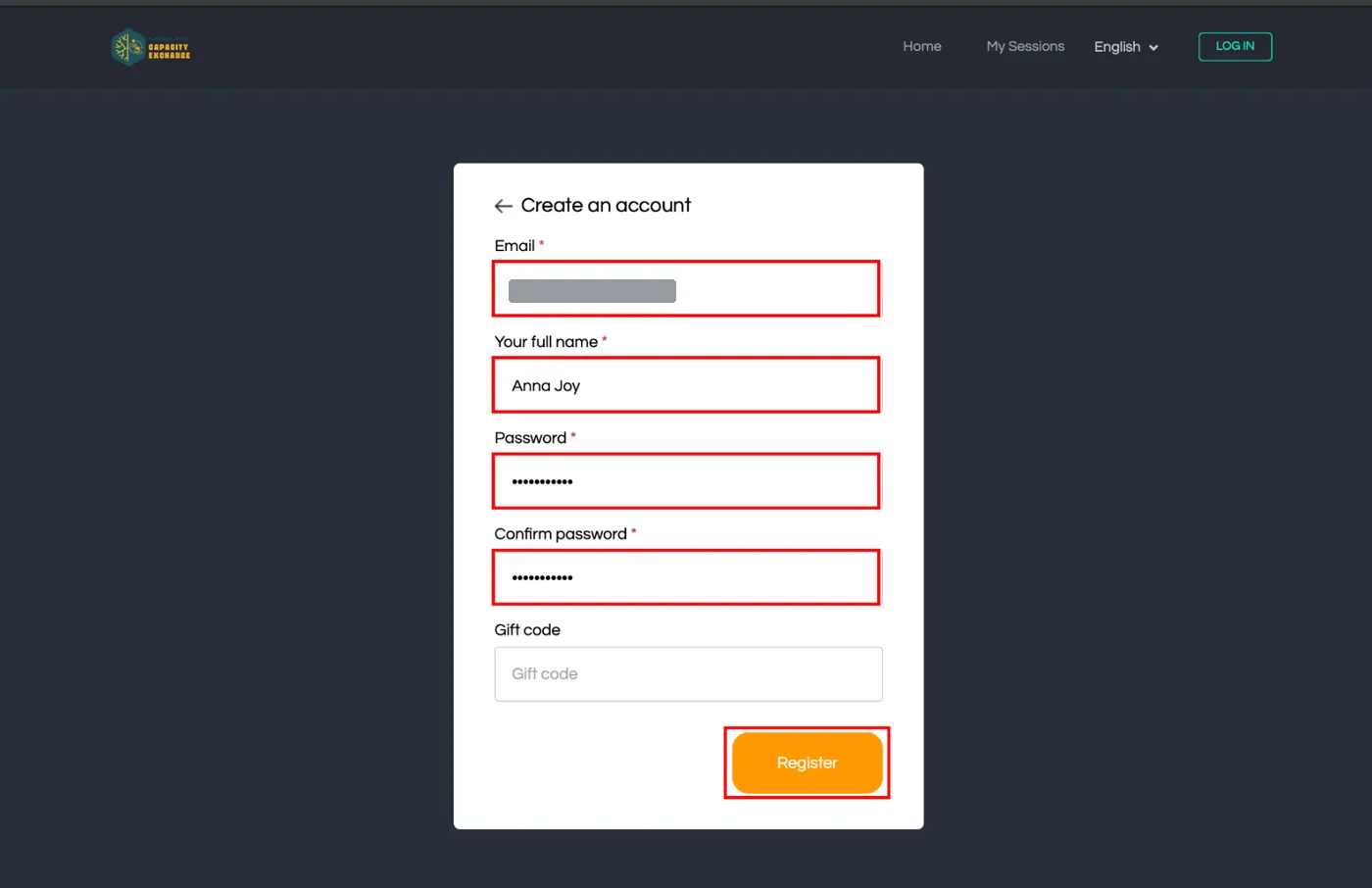
To register account:
- Enter your registered email or phone number.
- Enter your Full Name and create a password, then re-enter it to confirm.
- Once all fields are completed, tap “Register”.
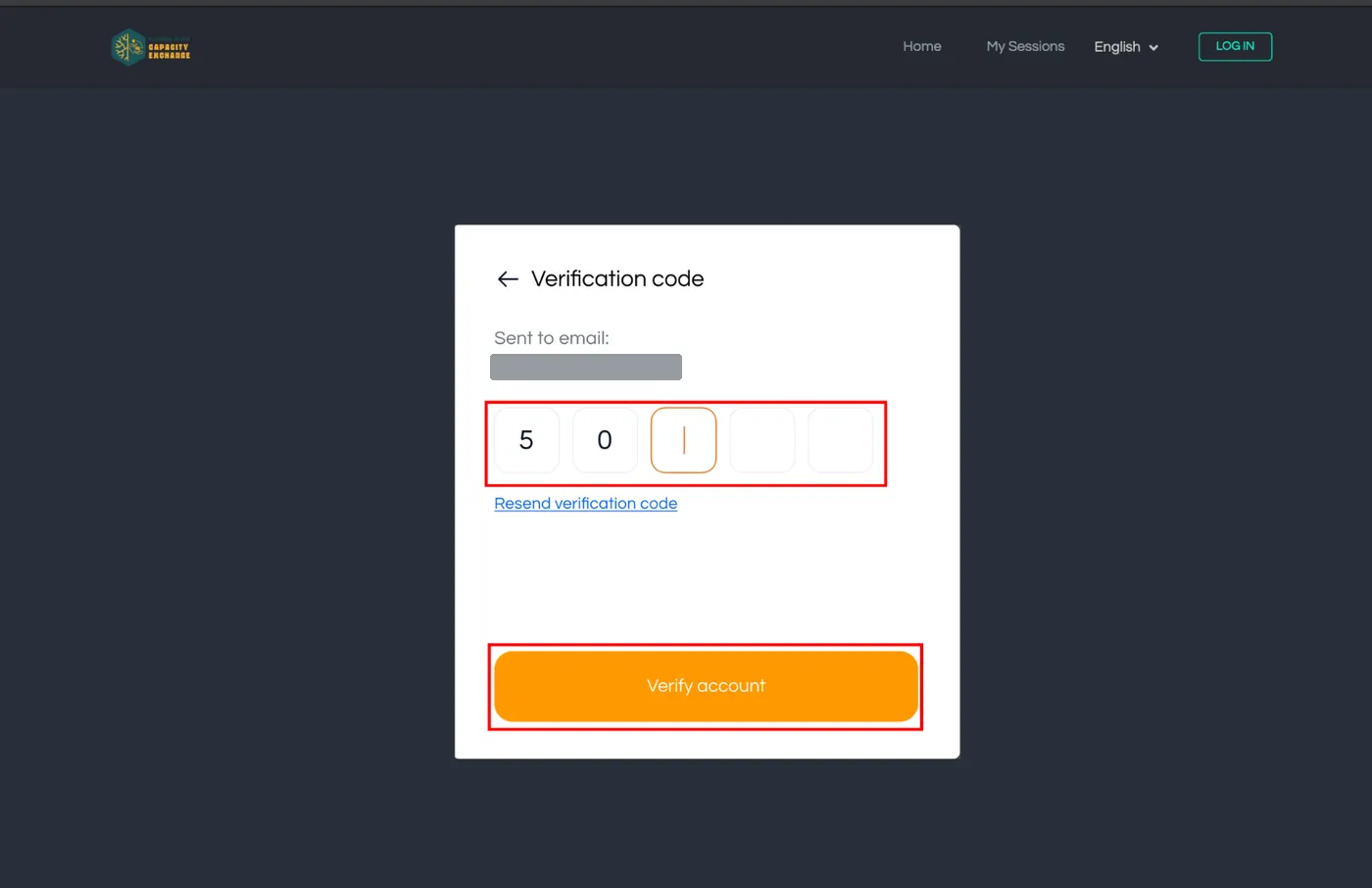
Check your email/phone for the verification code. You will receive a verification code shortly.
- Enter the code in the Verification Code field.
- Note: If you do not receive the code, please reach out to CED Support for assistance.
- After entering the code, tap “Continue”.
* Registration complete. You can now verify your profile and begin joining or hosting Sessions on the platform.