Capacity Exchange DAO
Book a Session as an Explorer
For Mobile app
This guide will help Explorer book a session on the mobile app.
At the bottom of the mobile app, Explorer selects “Home”. Explorer will see the list of available sessions displayed on the home page.
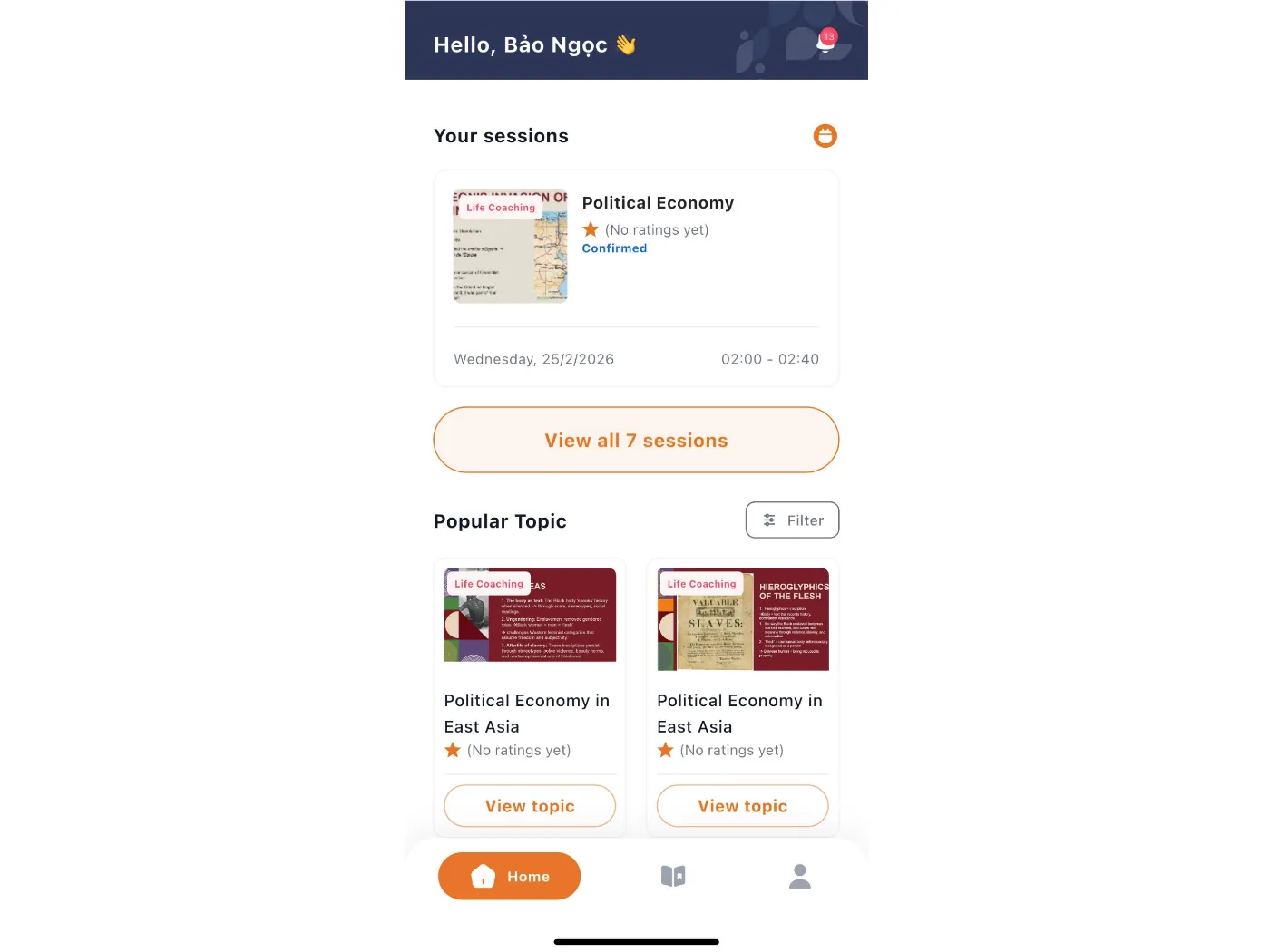
Explorer chooses any session and select “Check Schedule & Book”.

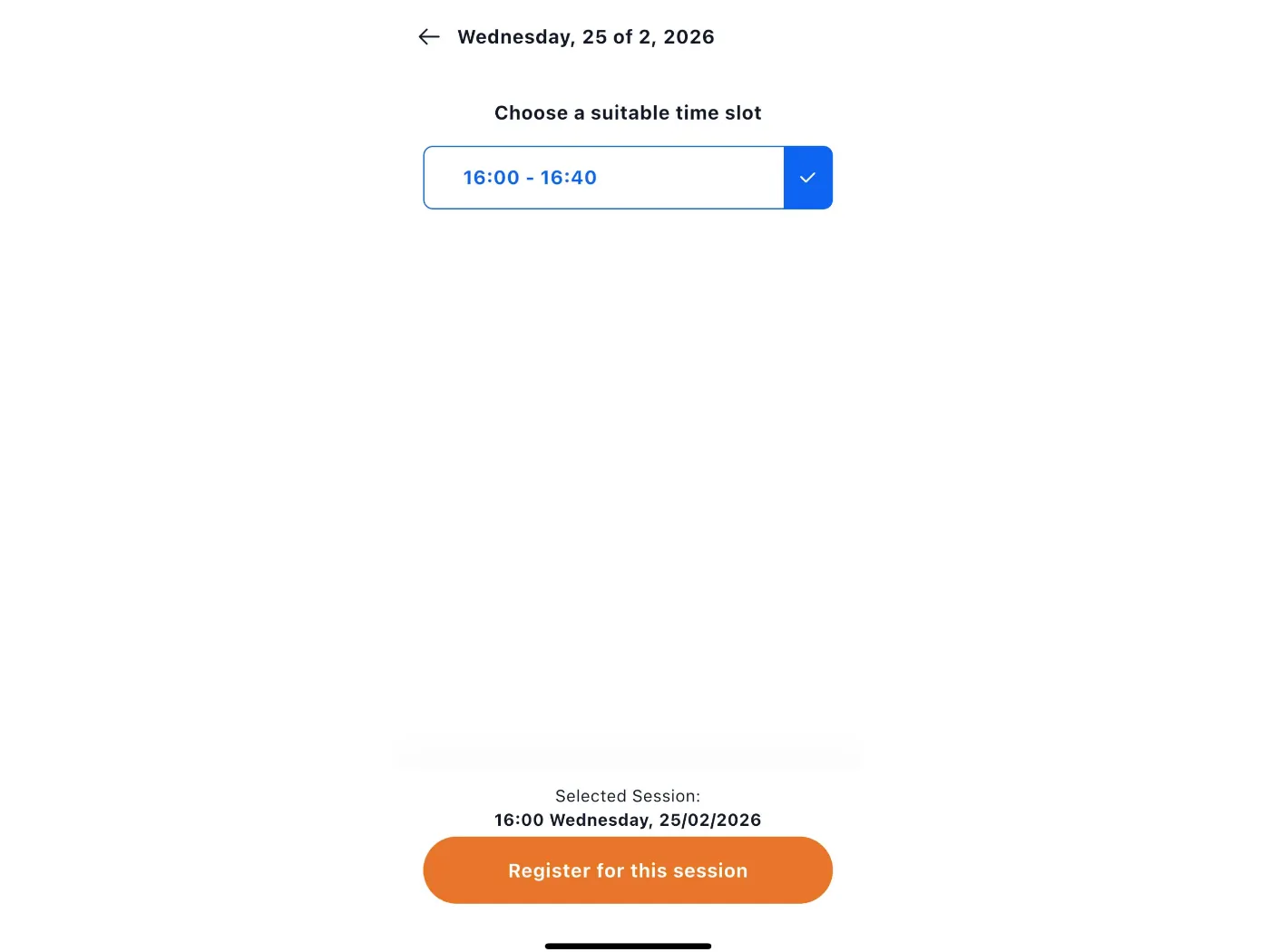
Explorer can choose preferred date & time. Then, clicks “Register for This Session”.
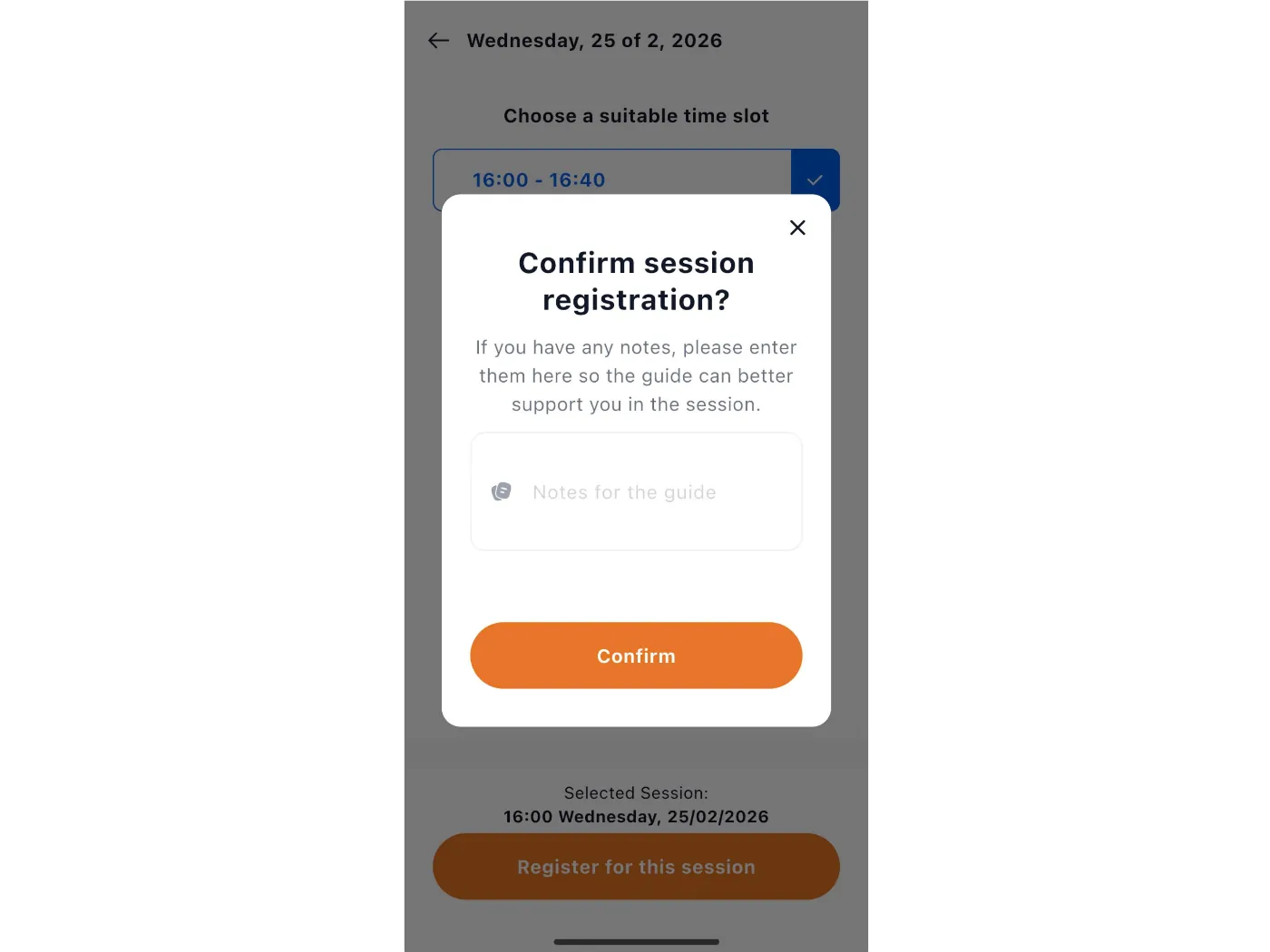
Explorer may leave a question or note for the Guide (if any). Then, clicks “Confirm.”
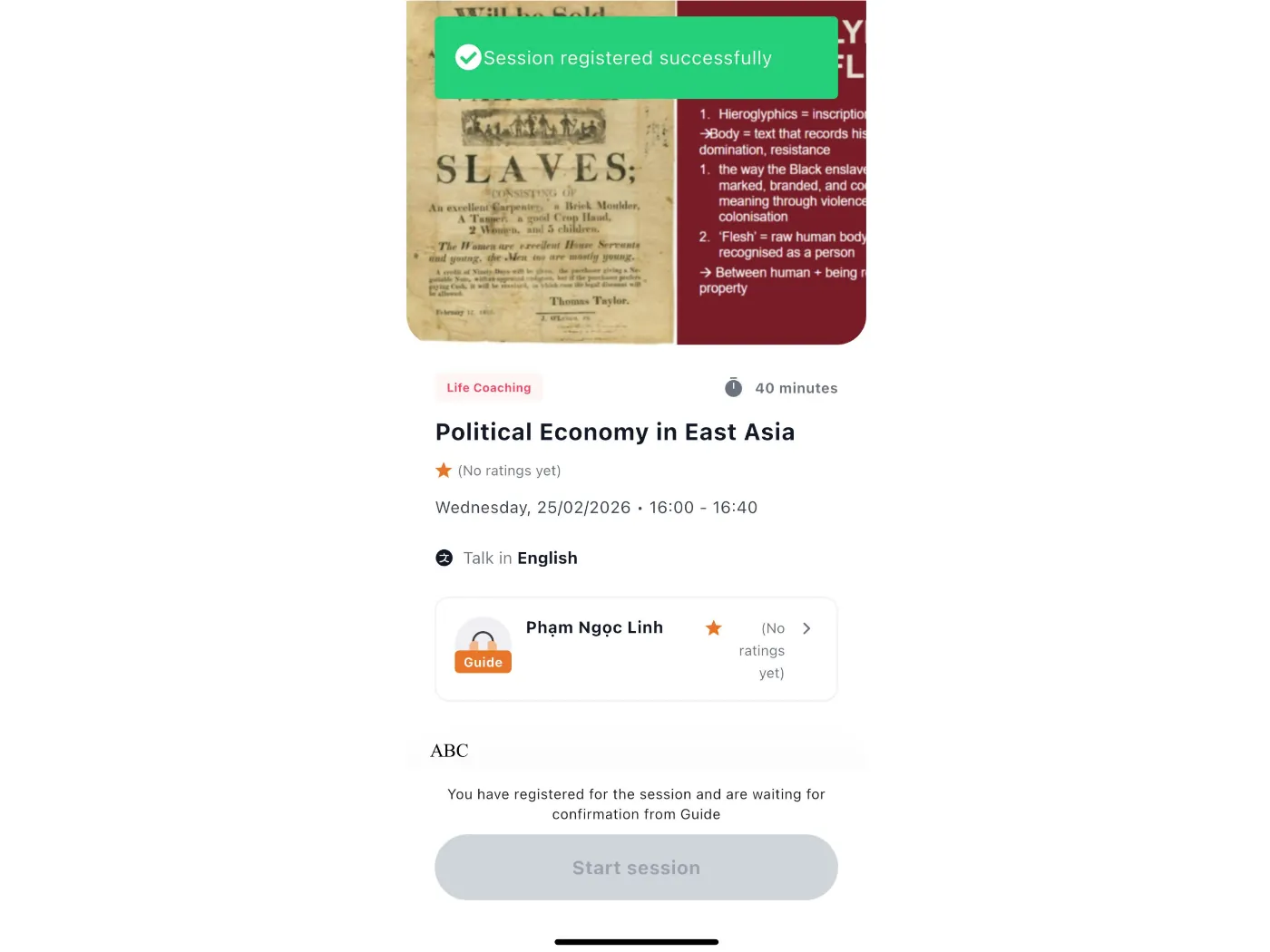
Once the registration is successfully submitted, a confirmation screen will appear. Please note that the session is not finalized until the Guide confirms it. Explorer will receive a confirmation notification via email as well as notification in the mobile app afterward.
For Web app
This guide will help Explorer book a session on the Web app.
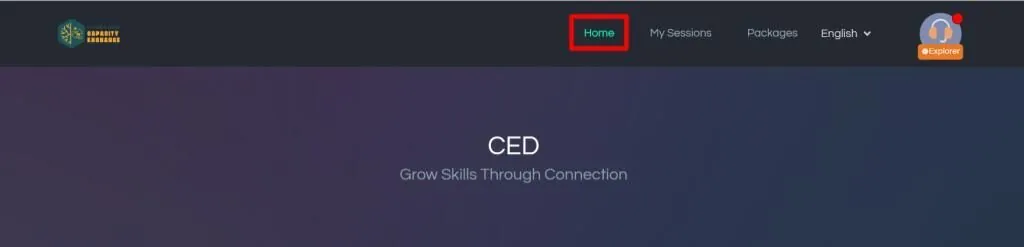
At the top navigation bar, Explorer selects “Home” and scroll down the page to see all available sessions.
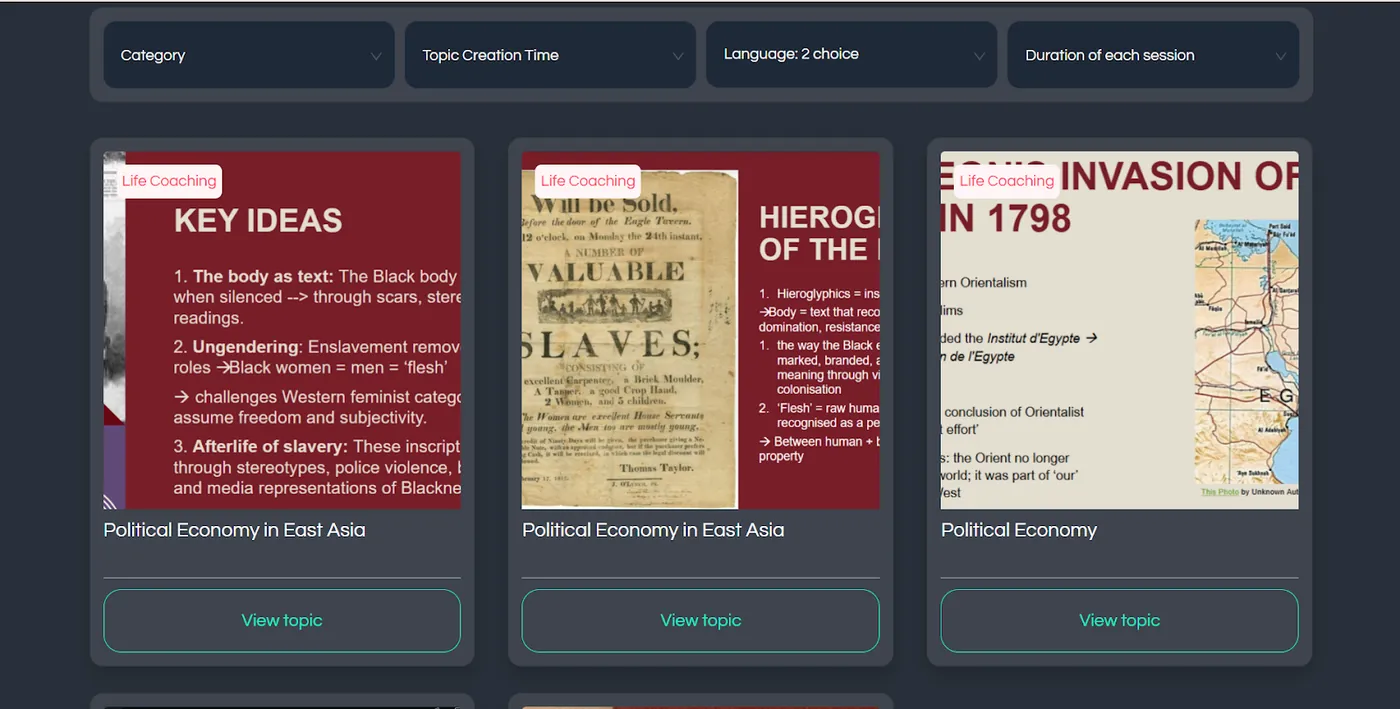
Explorer selects any session by clicking “View topic”.
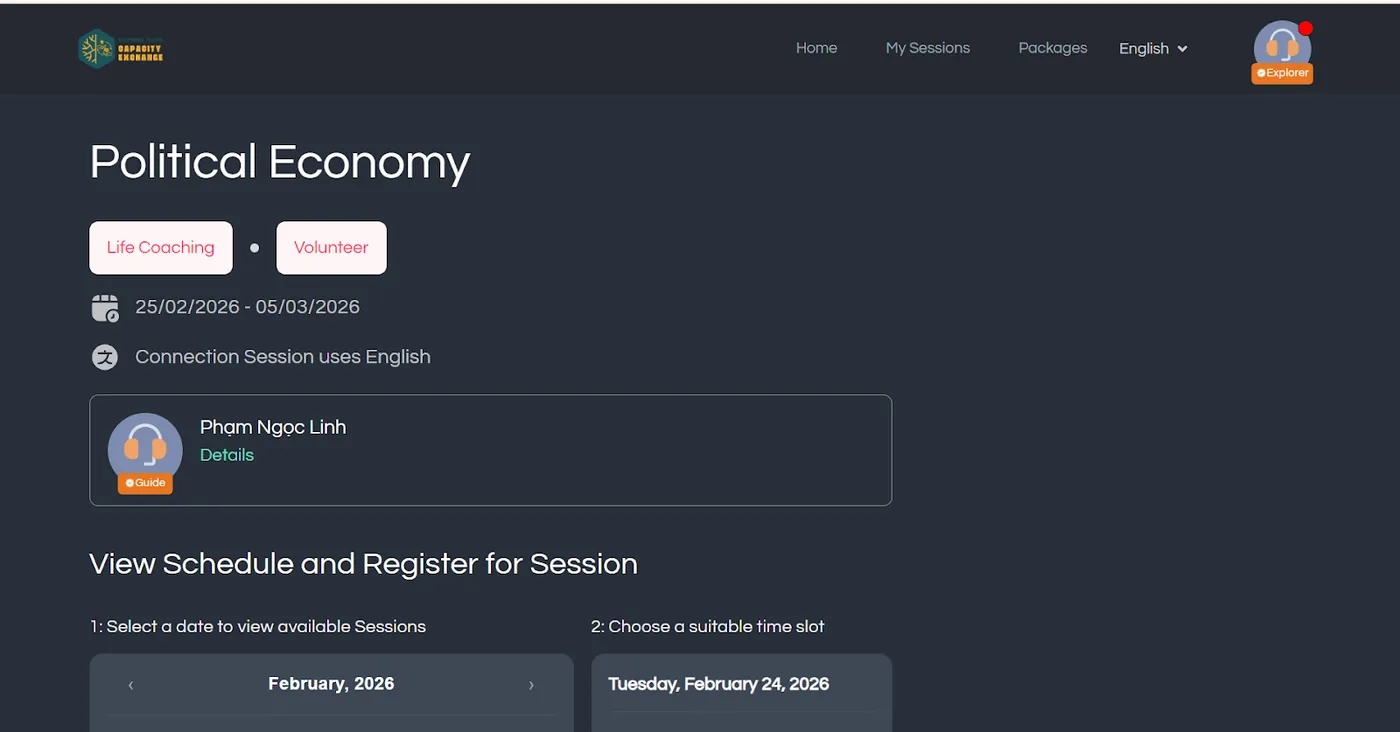
Explorer chooses preferred date & time and selects “Confirm Session registration?”
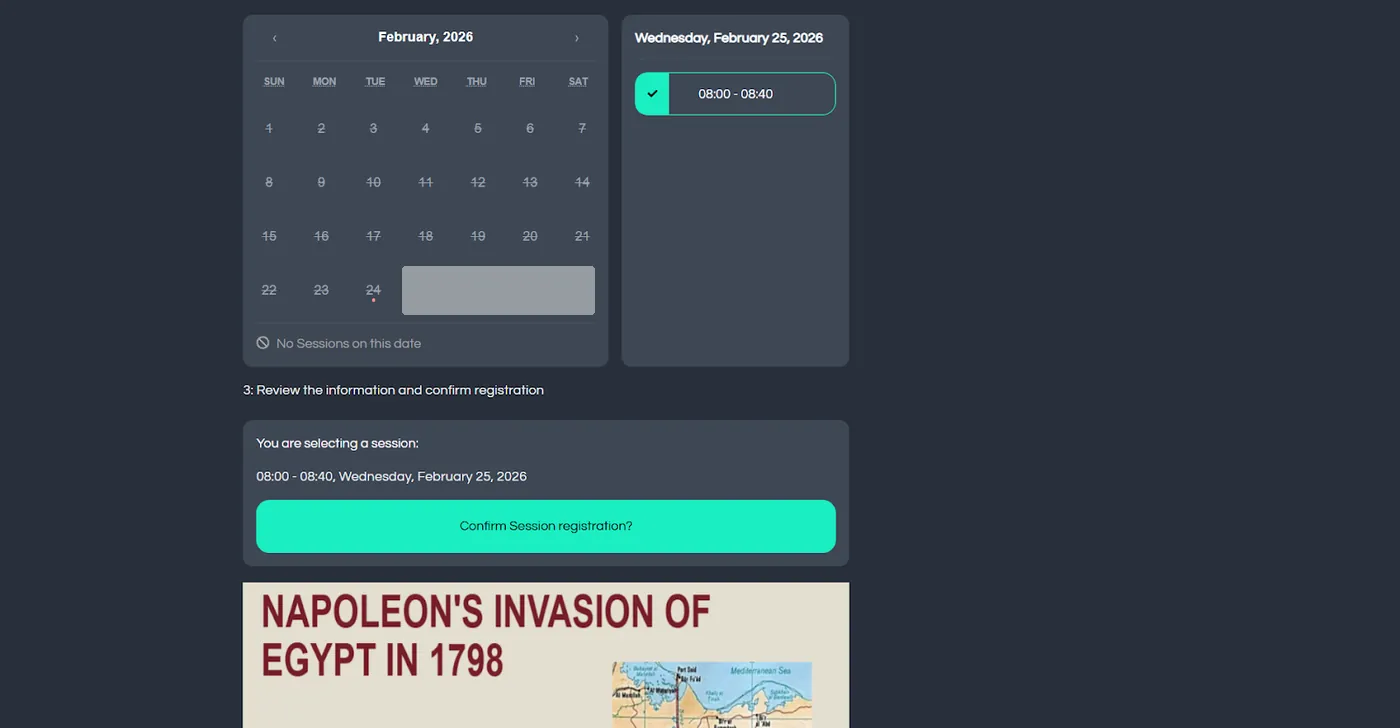
Explorer can leave any notes or issues to be aware of in the notes for the Guide field (if any) and clicks “Confirm” to complete the Session registration.
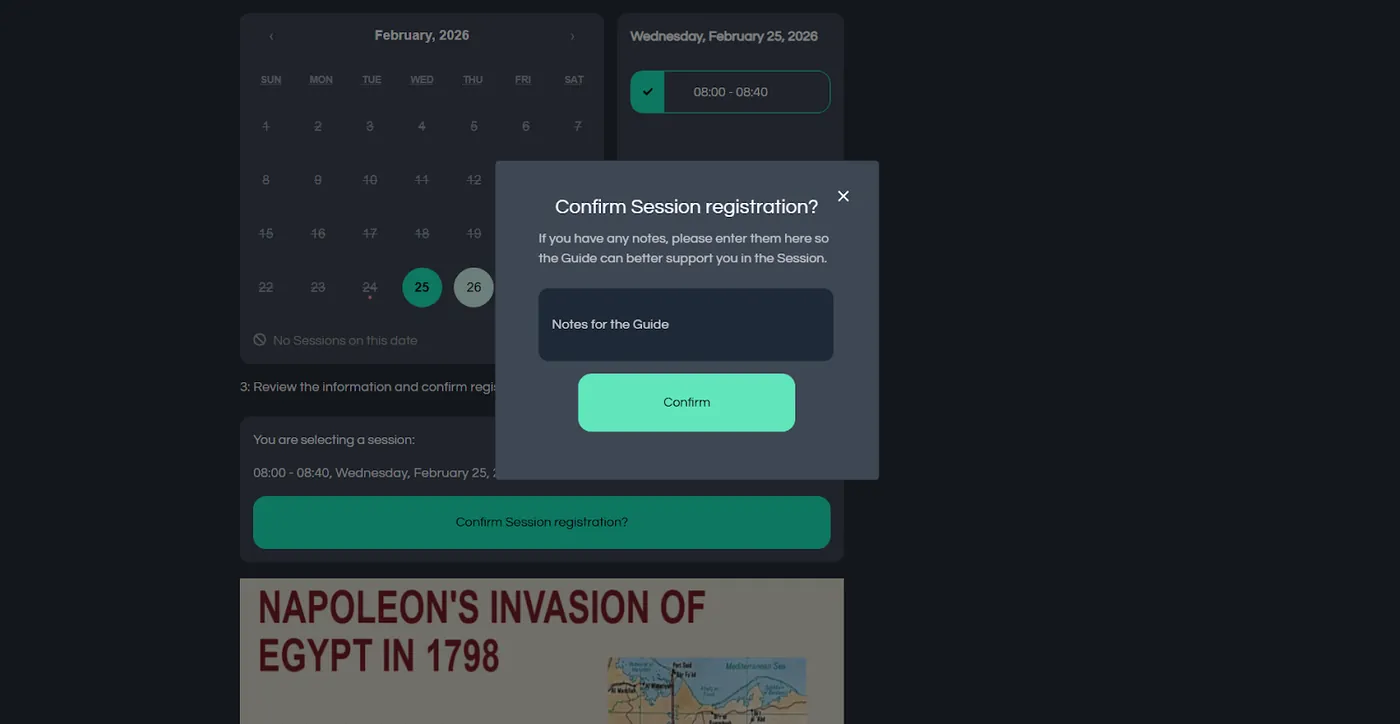
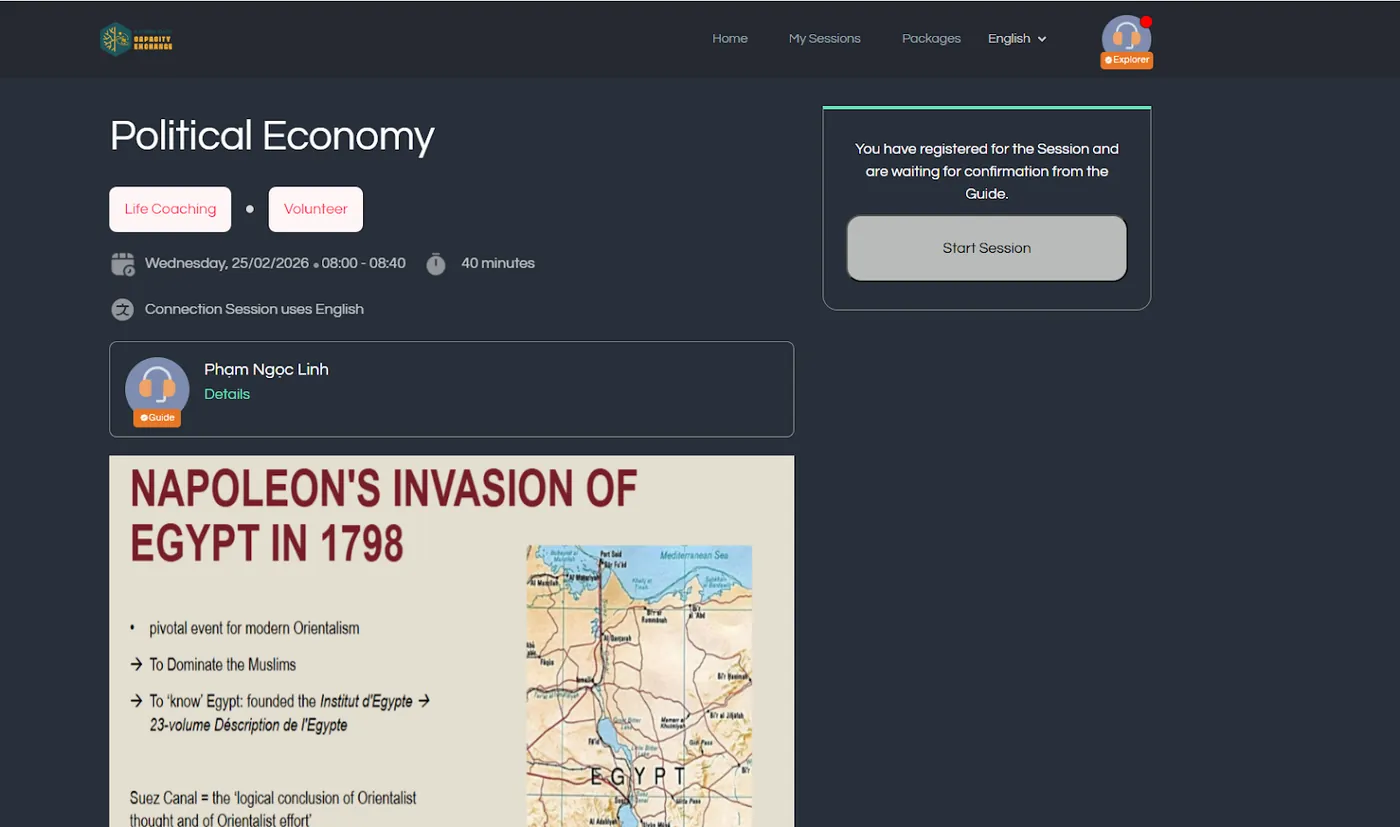
After registering, Explorer will see a confirmation screen stating that your registration has been successful and is awaiting the Guide’s confirmation to join the Session, as shown in the image.