Capacity Exchange DAO
Guide creates a session
As a Guide, you can create a session of your interest. Please follow the steps below to create a session effectively.
Create a Session in CED Website
Step 1: Log In to Guide Dashboard
- Access the web platform.
- Log in using your registered Guide account.
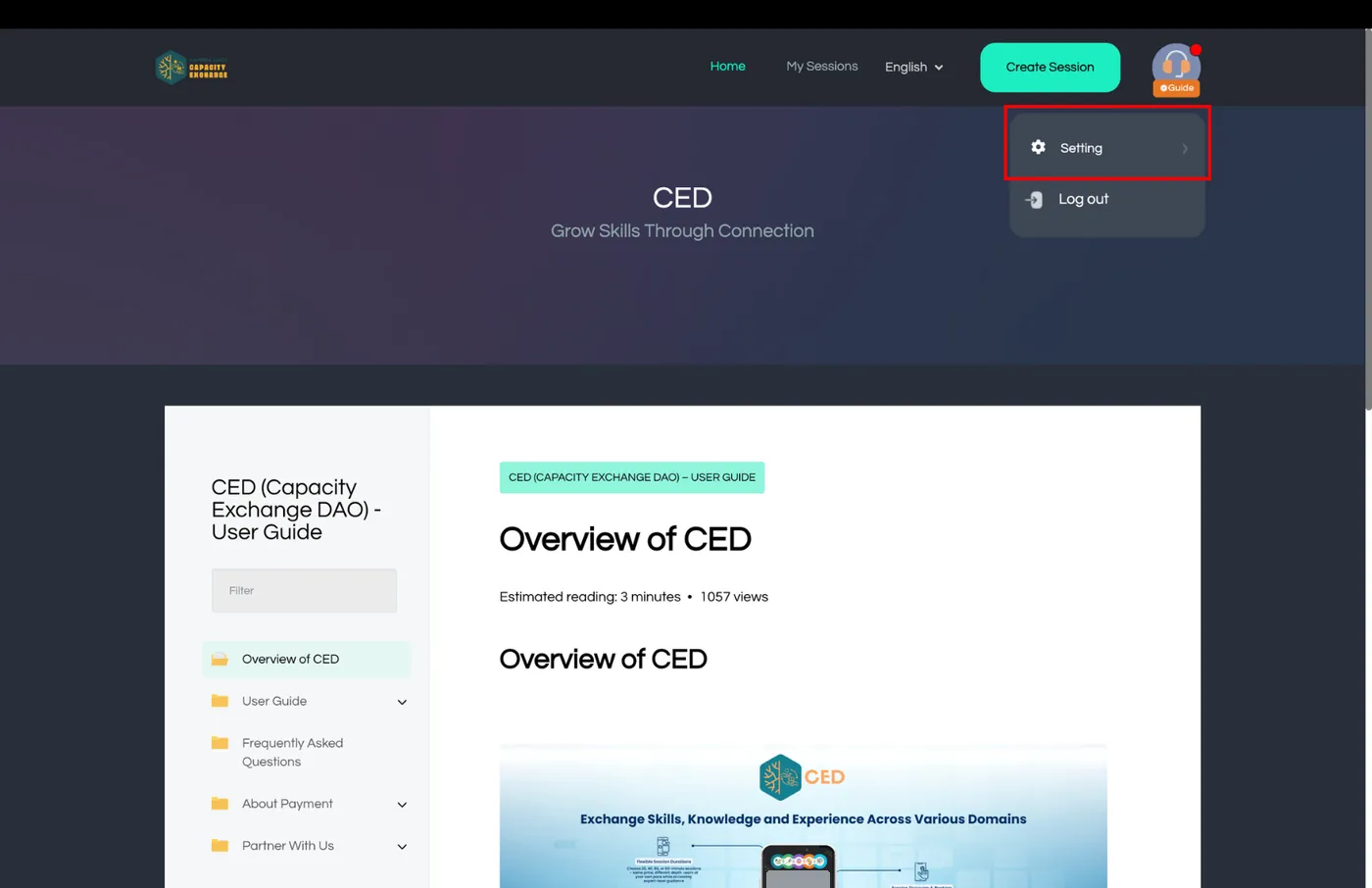
- Click on the logo at the top-right corner of the screen and select “Settings.”
Step 2: Check the Current Role
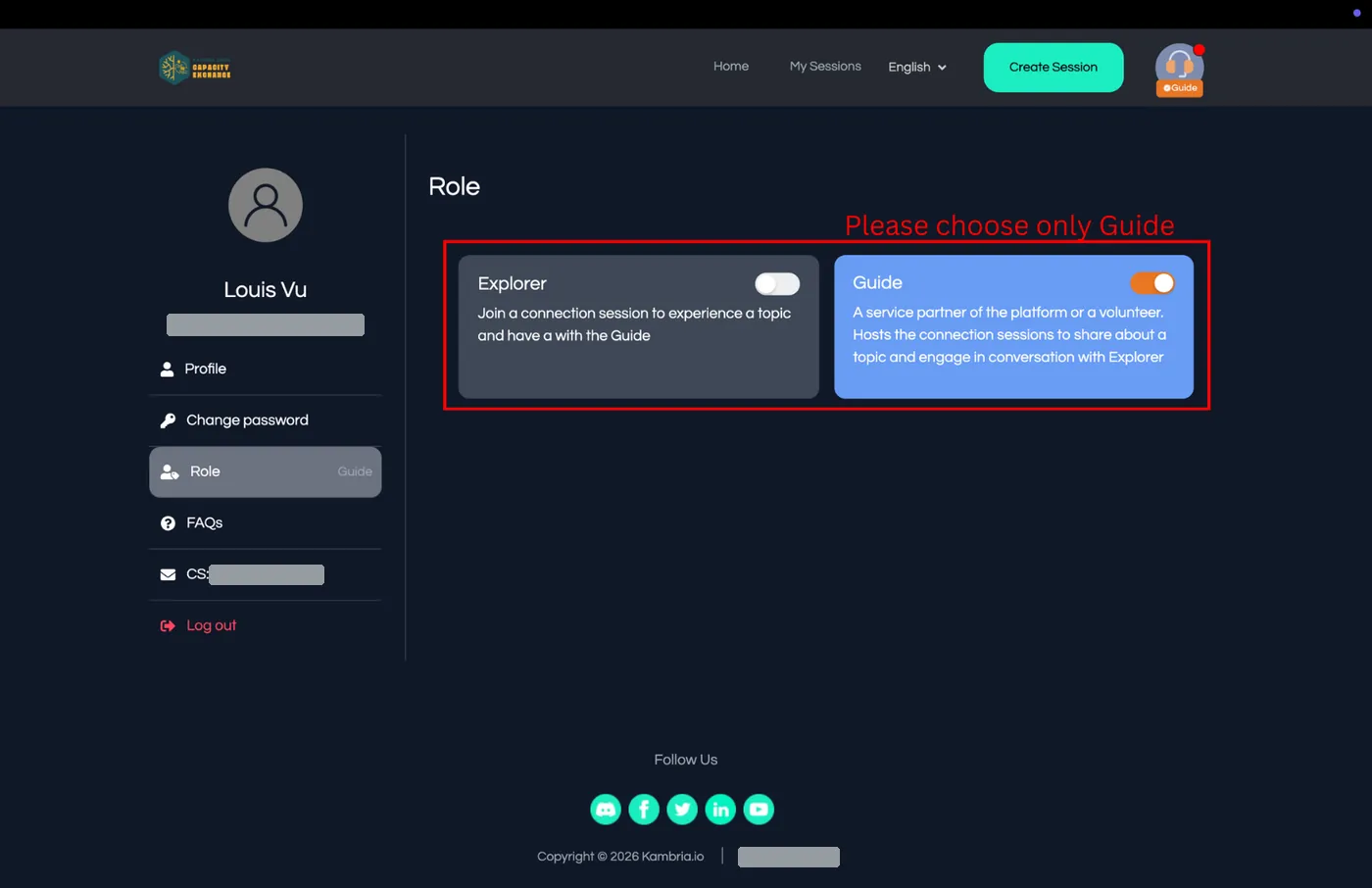
- Go to the “Role” section to check your settings.
- Make sure that Guide mode is turned on and Explorer mode is turned off.
- If both modes are enabled at the same time, you will not be able to create a session.
Step 3: Create Session
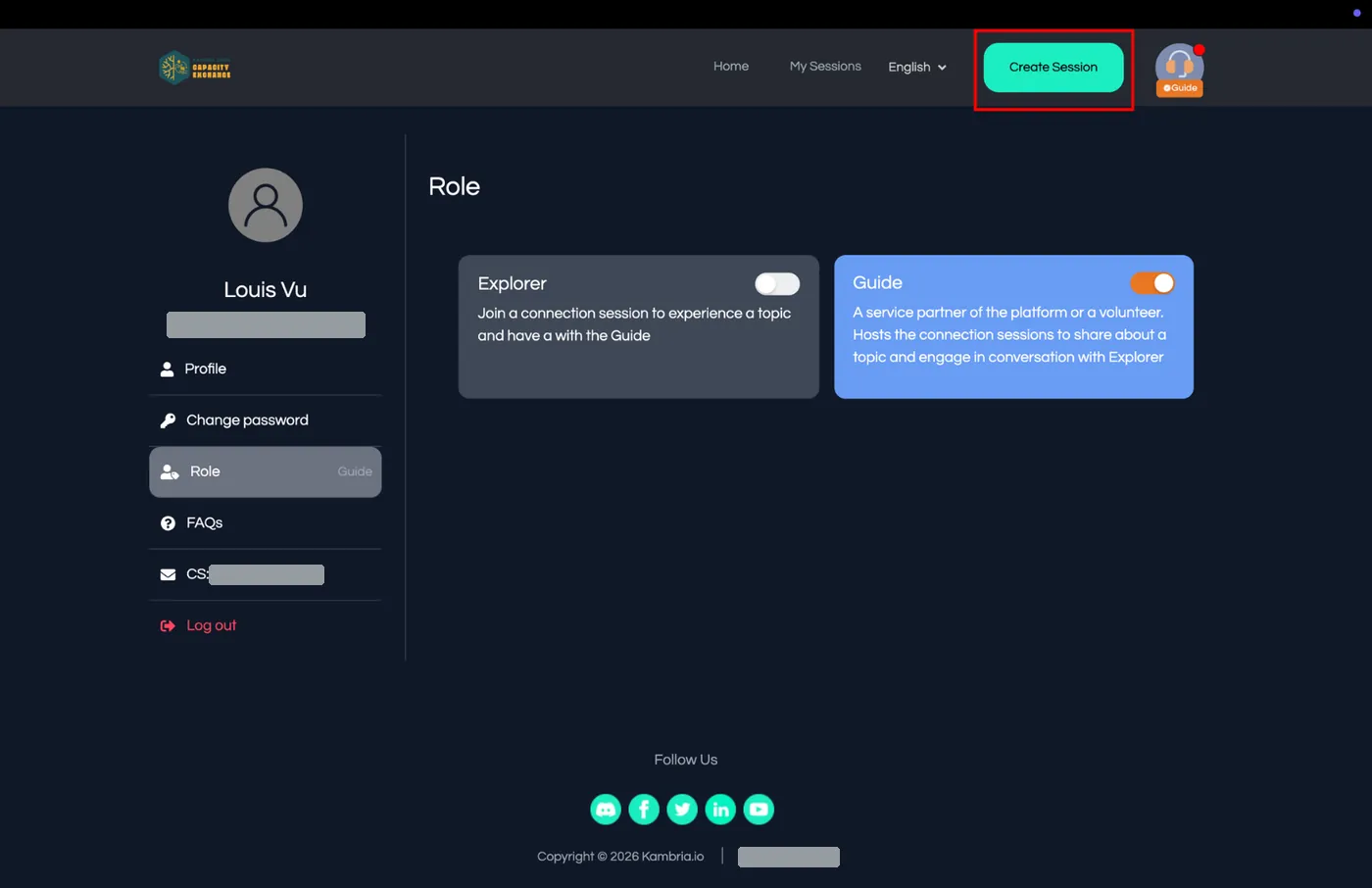
Click “Create Session” on the top navigation bar next to the logo. This will open the session creation form.
Step 4: Enter Basic Session Information
Fill in the required fields as instructed:
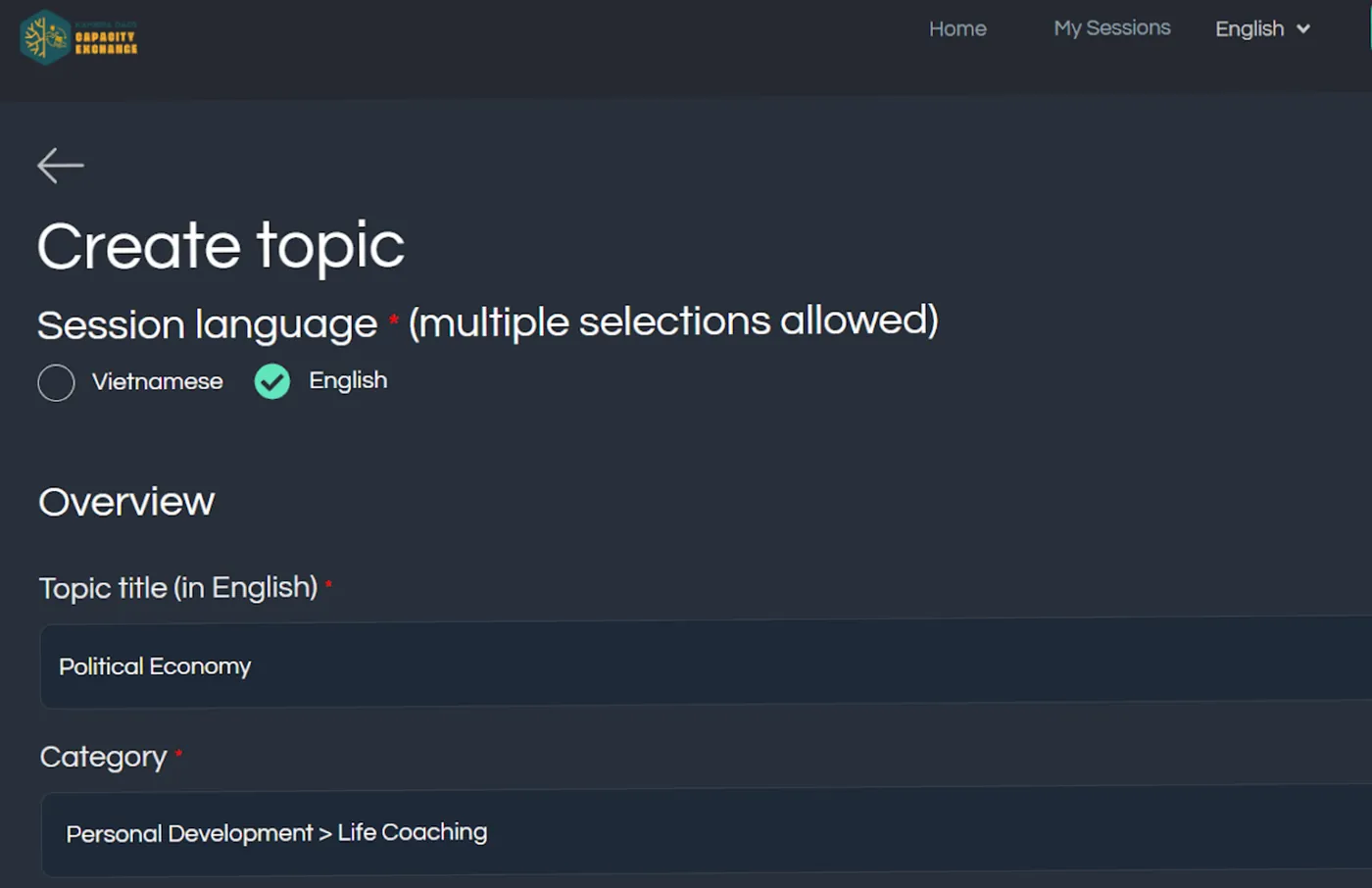
- Session language: Choose English
- Topic Title: Provide a clear and specific title
- Category: Select the most relevant category
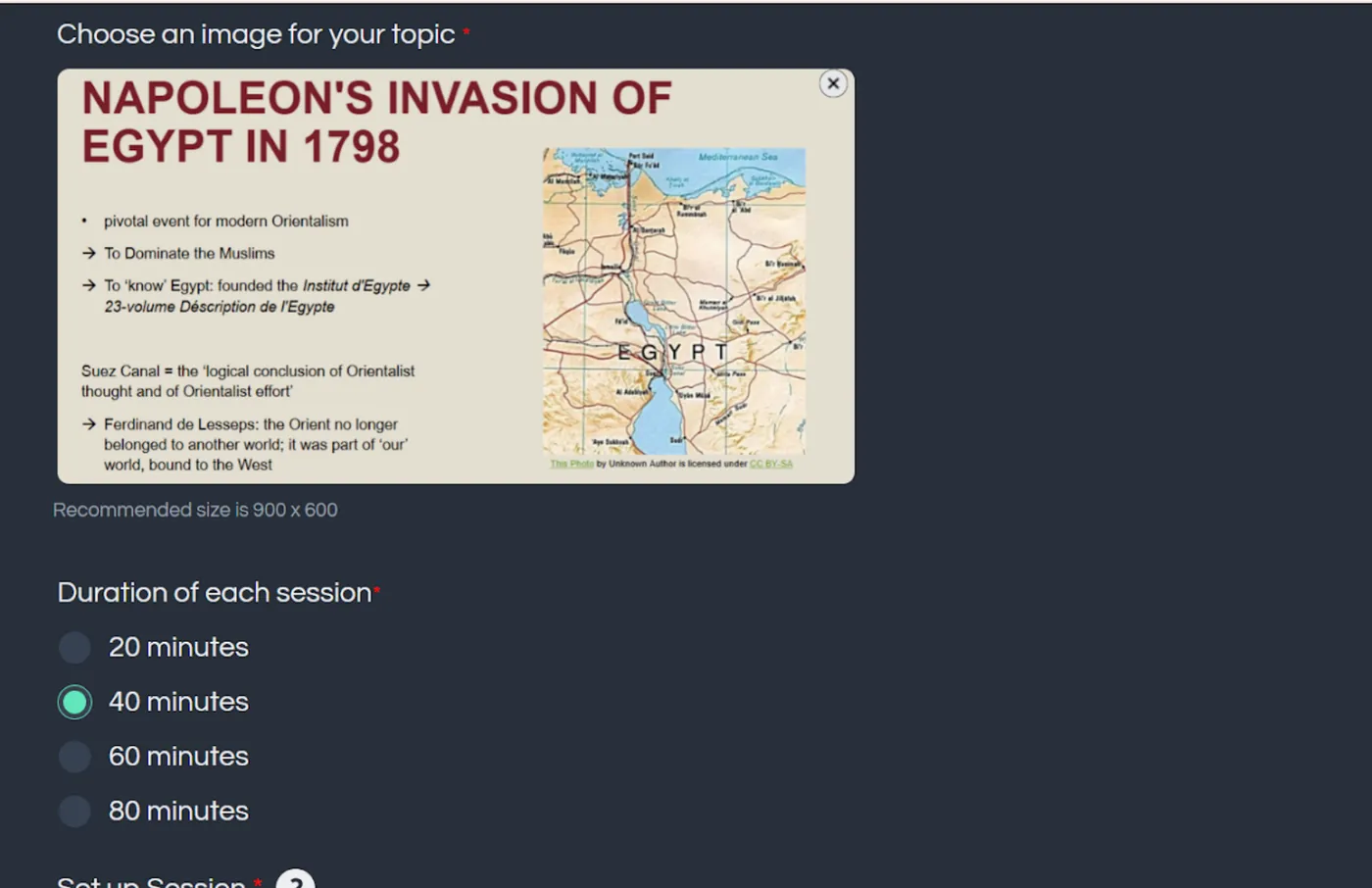
- Choose an image: Upload the image to visualize the topic details
- Select session length
Step 5: Set up Session
You can choose “Set up Session” to set a weekly recurring schedule or “Set up a standalone Session” to set up a one-time session.
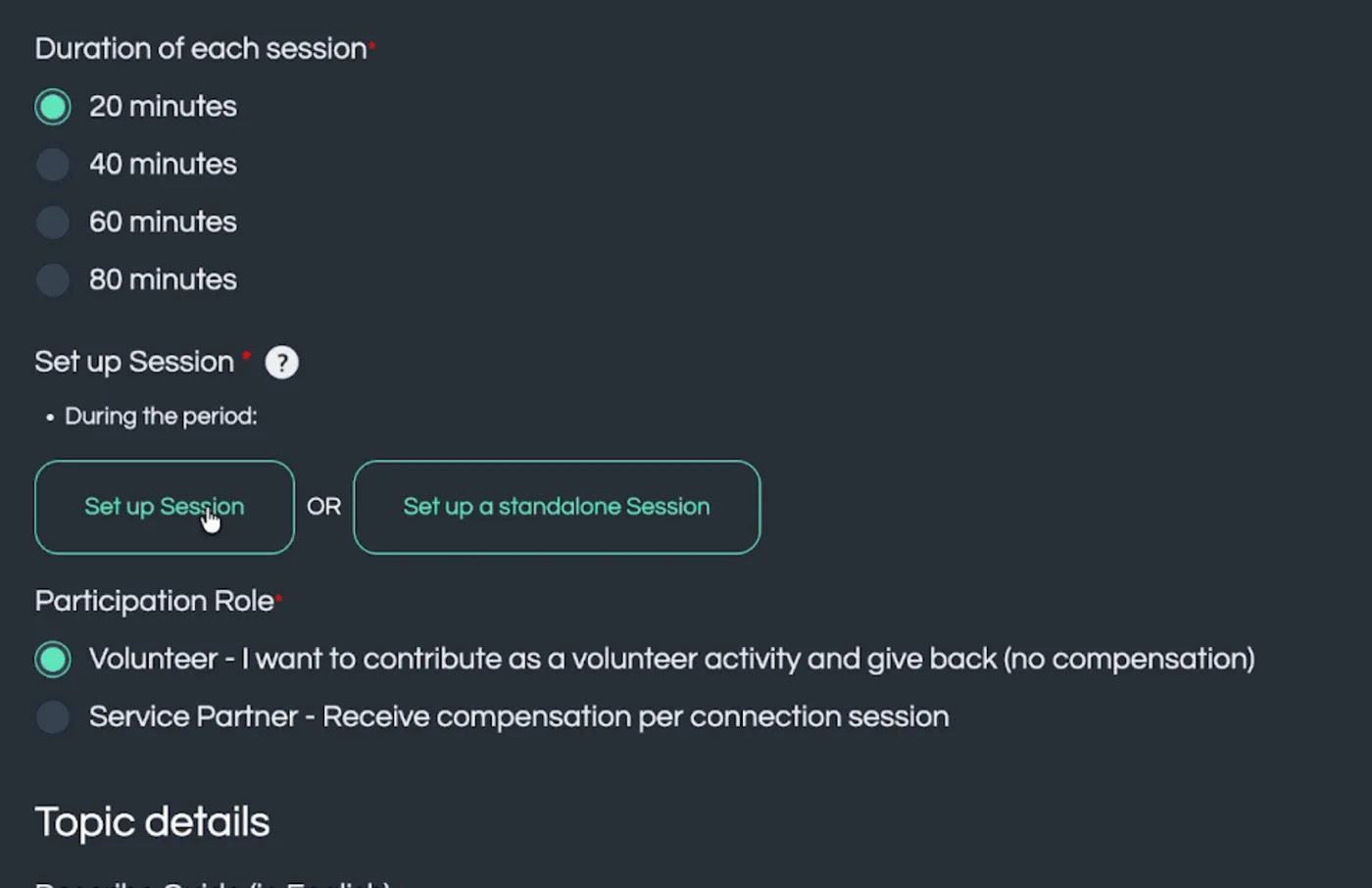
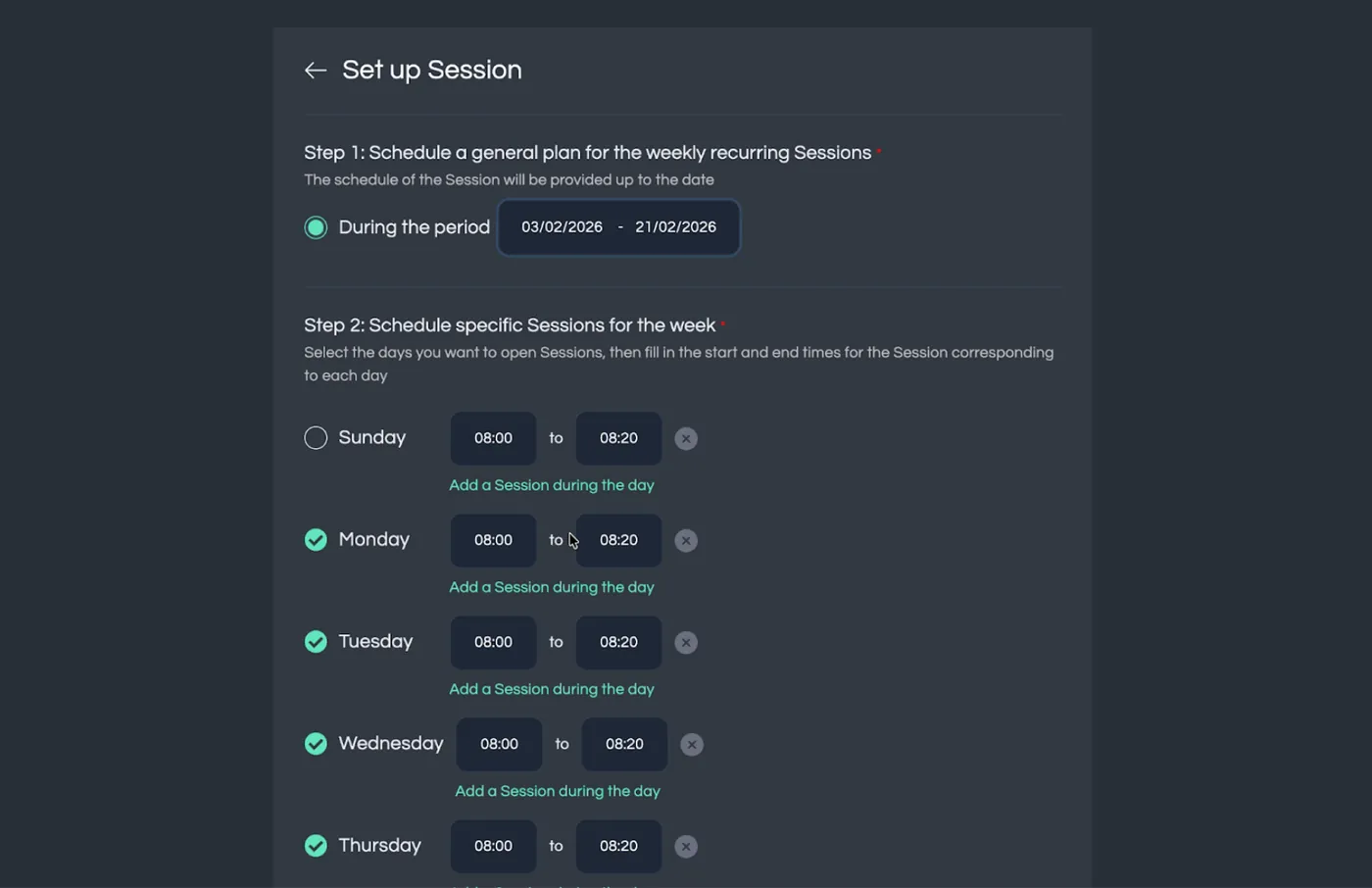
If you choose “Set up Session”:
- Choose the period of your session
- Tick on the day(s) that you want to host the session
- Create the weekly timeslot for each day. You can add more session(s) or click the “X” button to cancel unwanted session(s).
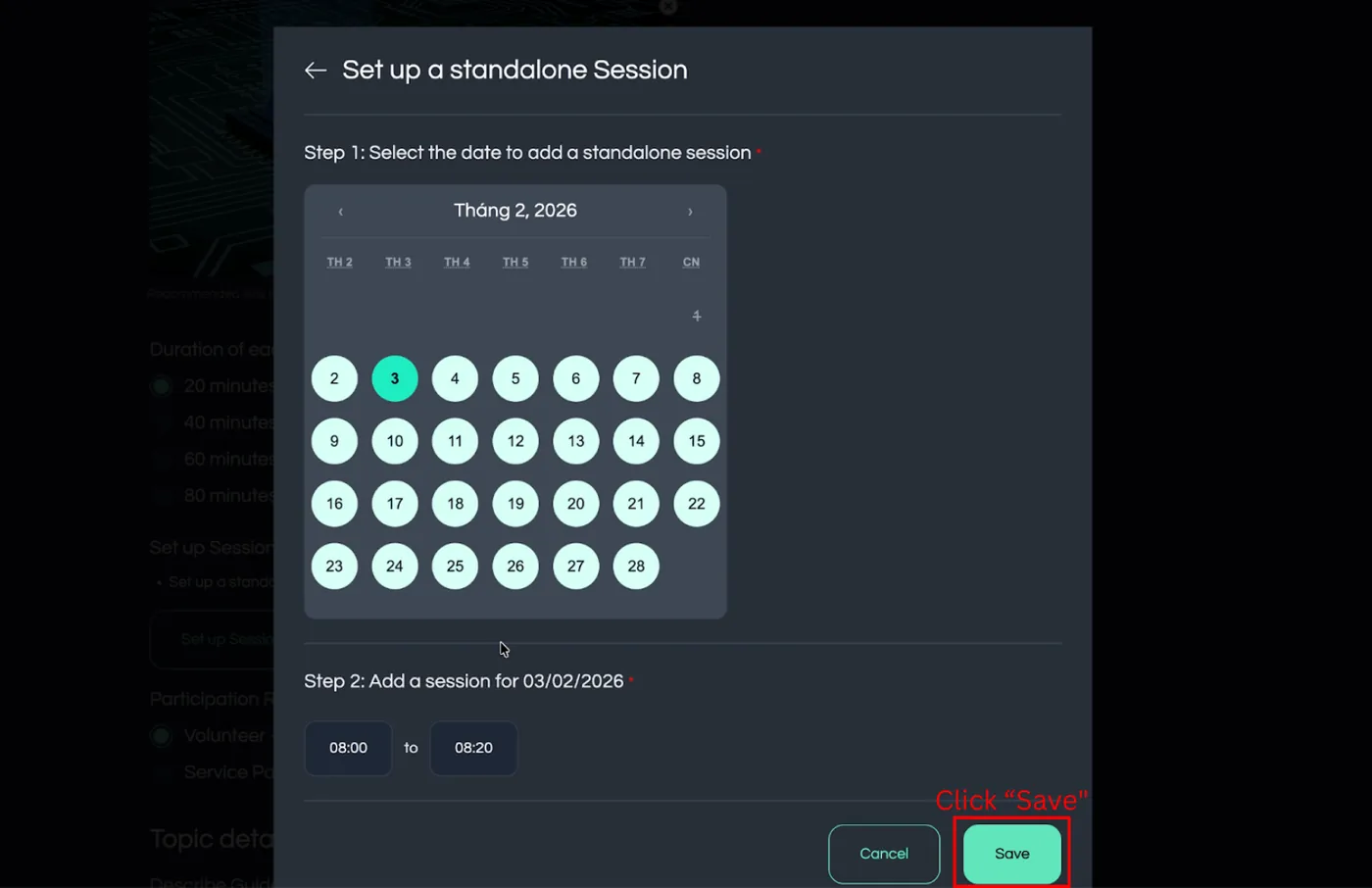
If you choose “Set up a standalone Session”:
- Select the date that you want to host a session
- Select the time for the session to start
- Click "Save"
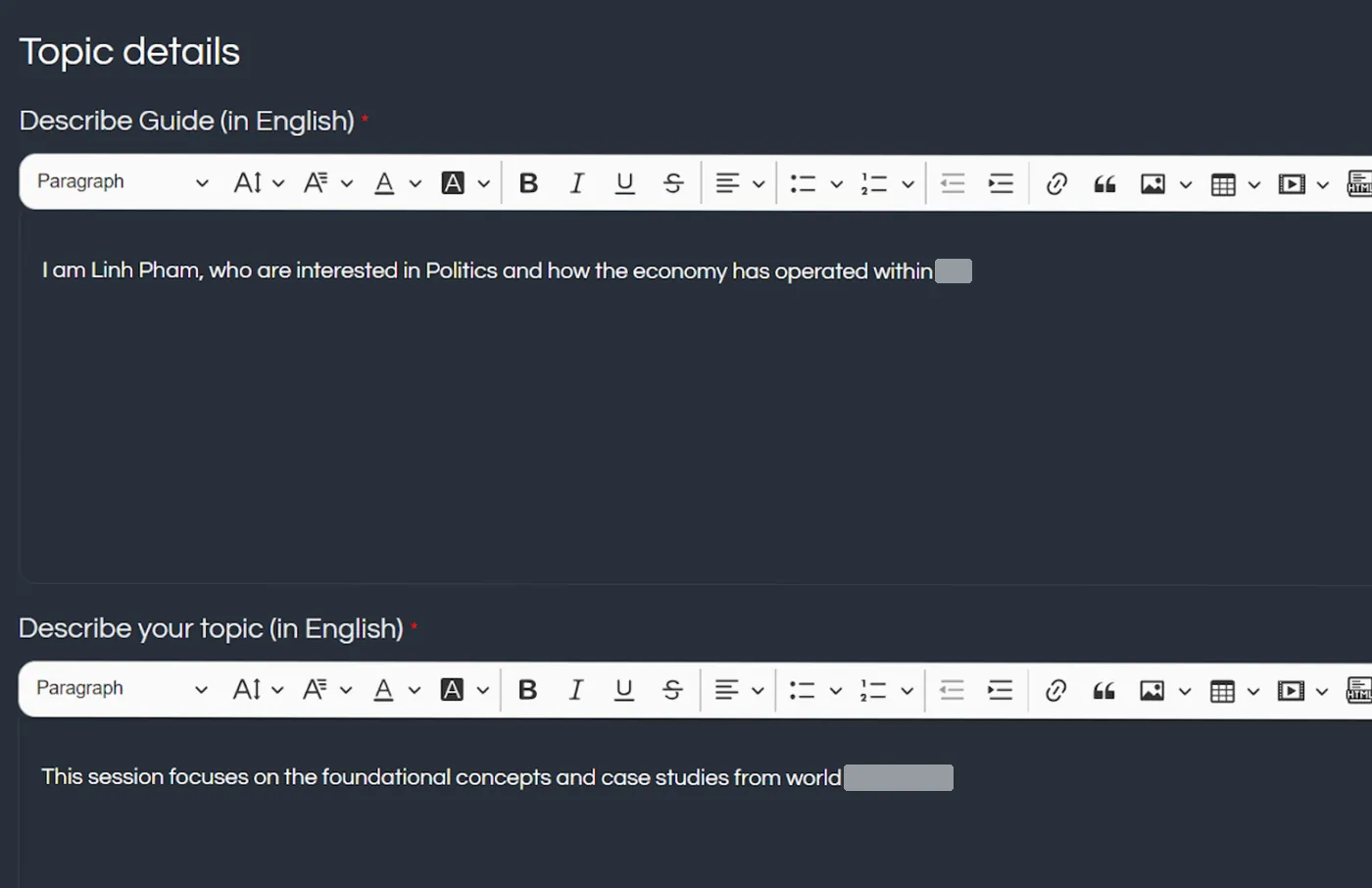
Step 6: Add Topic Details
- Introduce yourself to Explorer
- Describe the topic that you want to host
Step 7: Review & Publish
- Double-check:
- Title clarity
- Spelling and grammar
- Schedule accuracy
- Capacity settings
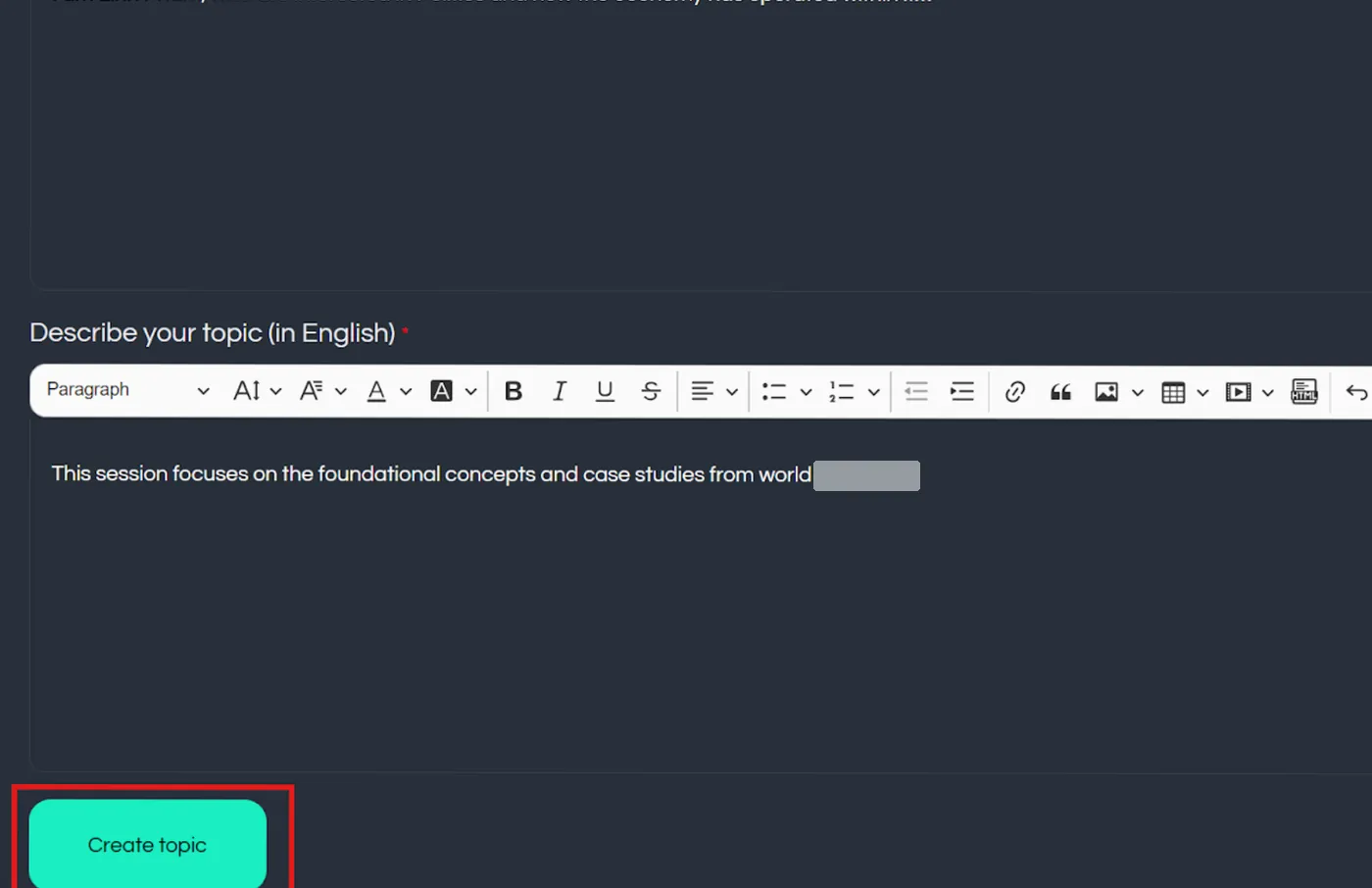
- Click “Create topic” to make the session visible to Explorers.
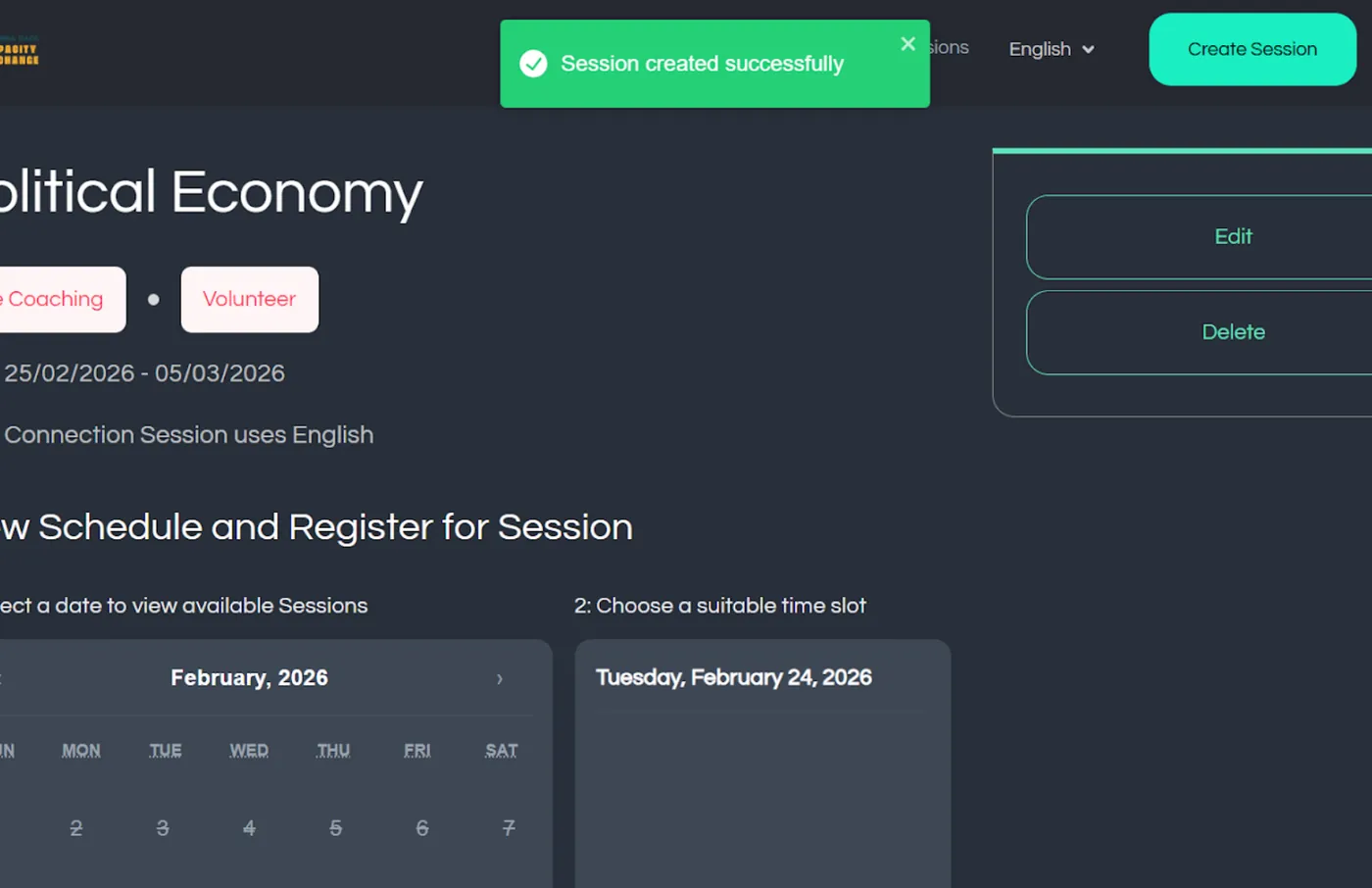
The interface of the newly created session will appear as shown.