
Capacity Exchange DAO
Instruction for verifying your account after registration
Why Verification Matters
CED is a connection-based platform where Explorers and Guides interact directly through sessions. Verification helps us build a safer and more trustworthy environment for everyone on the platform.
By verifying your account, you help CED:
- Protect your account from unauthorized access.
- Confirm that you are a real user before participating in the CED community.
- Build trust between Explorers and Guides during sessions.
- Maintain a safer community by reducing the risk of fake or abusive accounts.
Verification is part of CED's safety measures and helps us provide a more secure experience for everyone. Your verification information is handled according to Safety Instructions Guide and CED Privacy Policy.
Follow the steps below to complete your verification.
Verify your account in CED WebApp
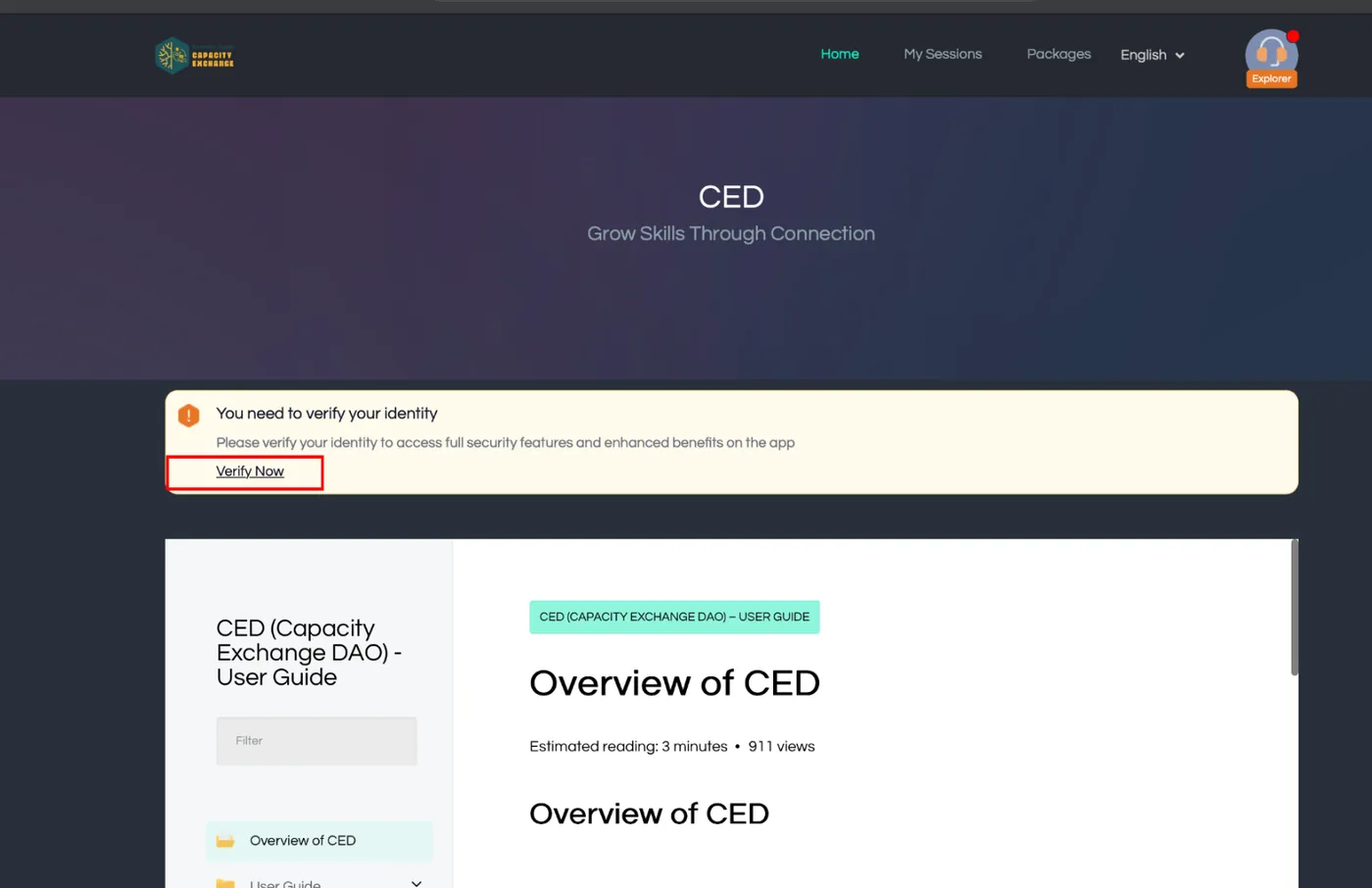
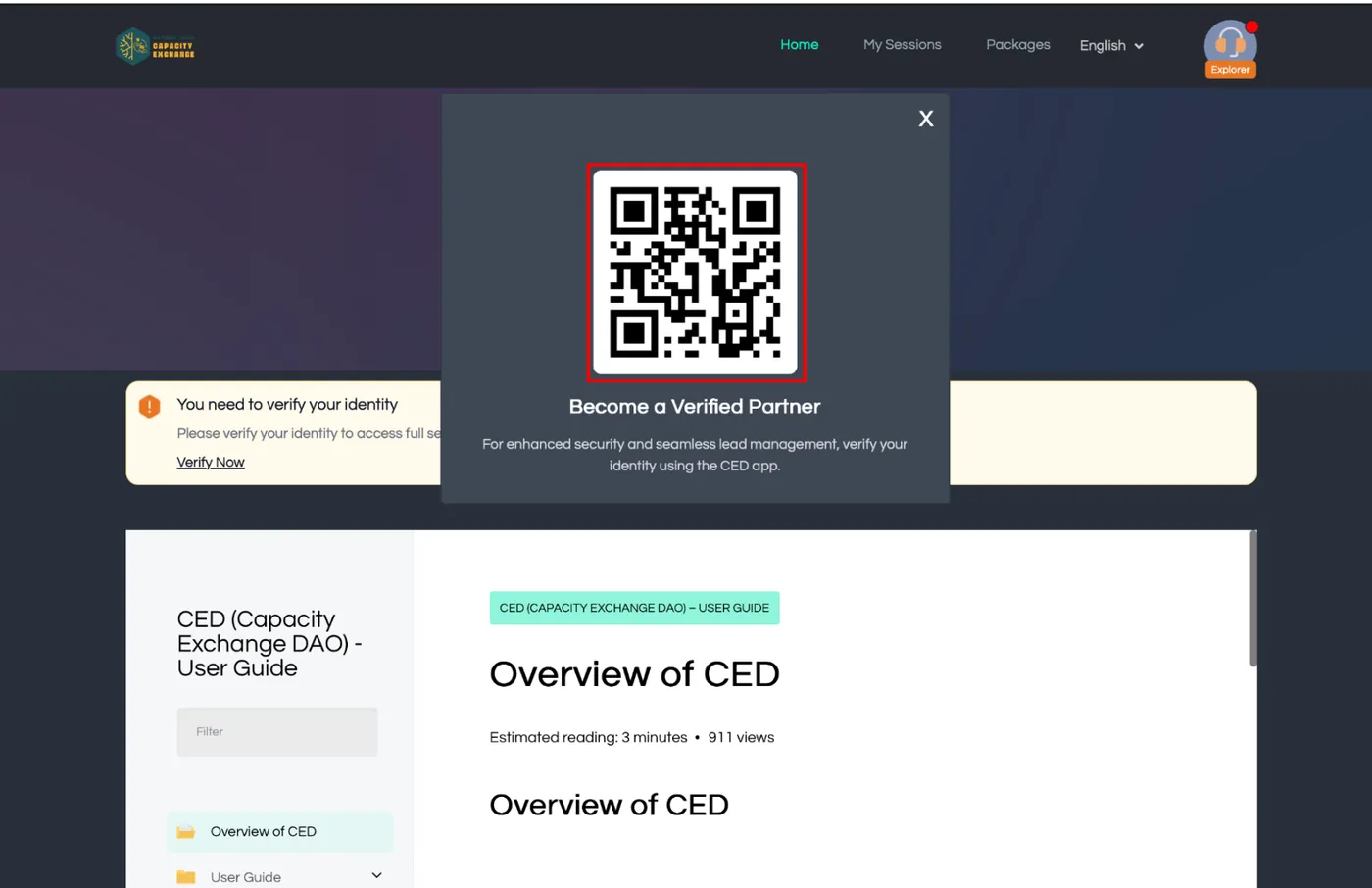
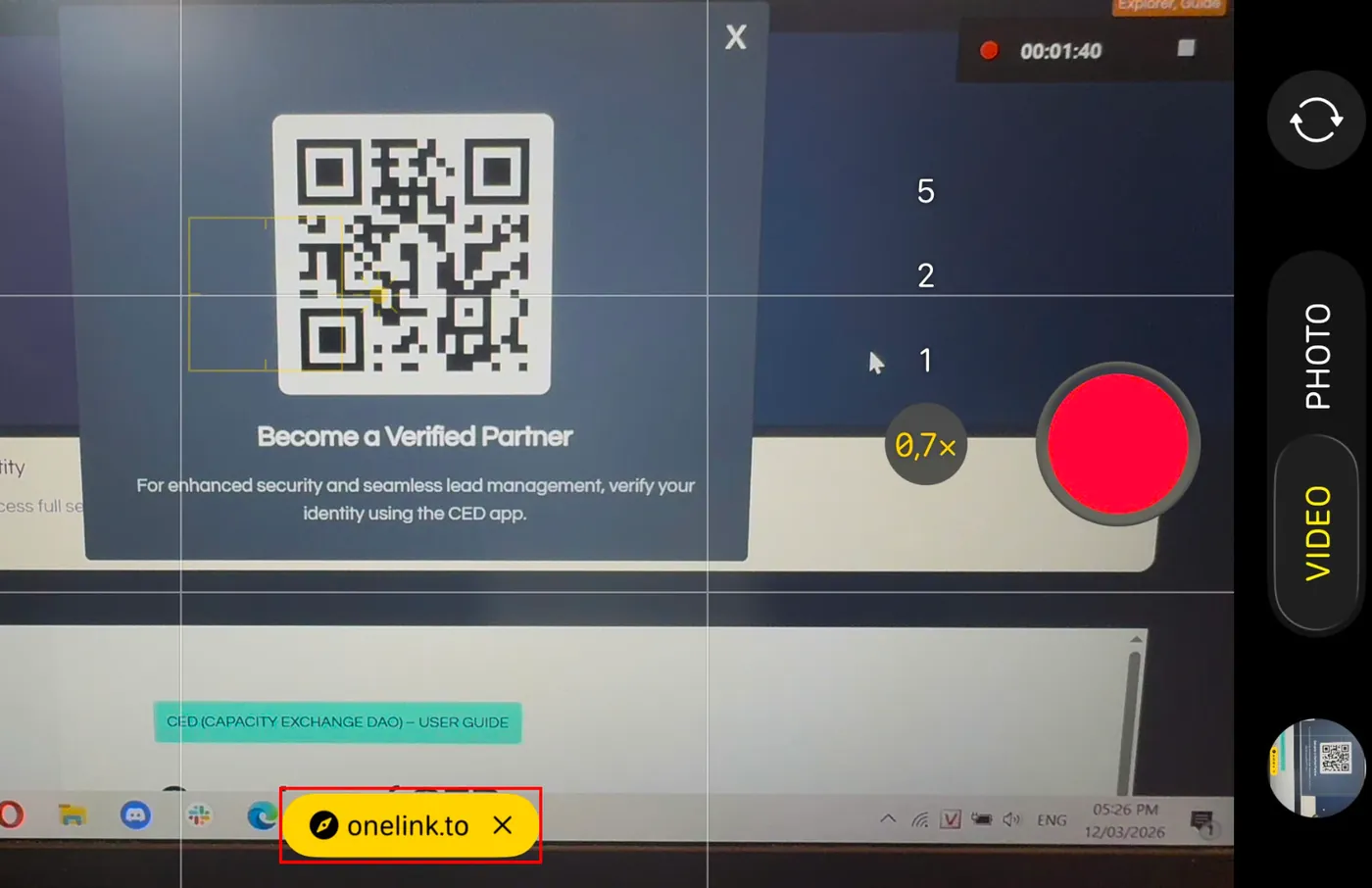
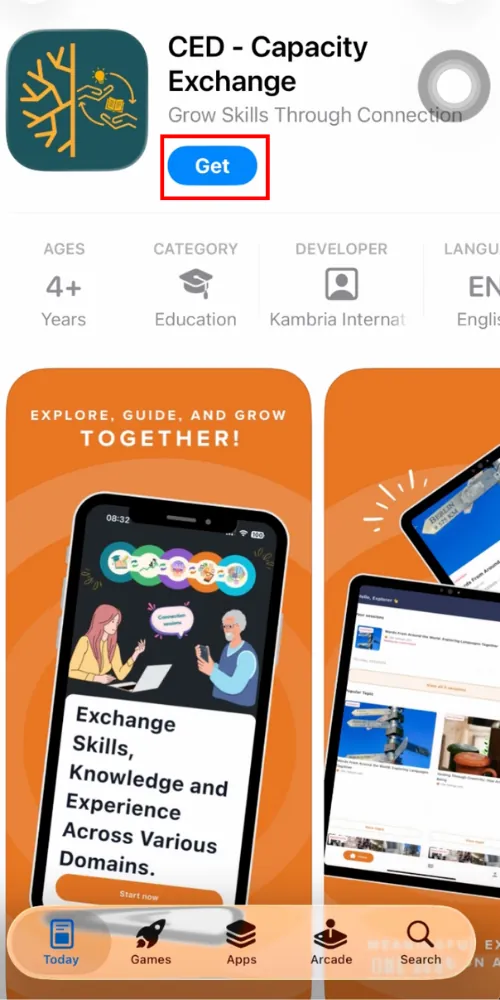

After logging in with your account created on the CED web, please continue to verify your account as instructed below:
Verify your account in CED App
Start Verification
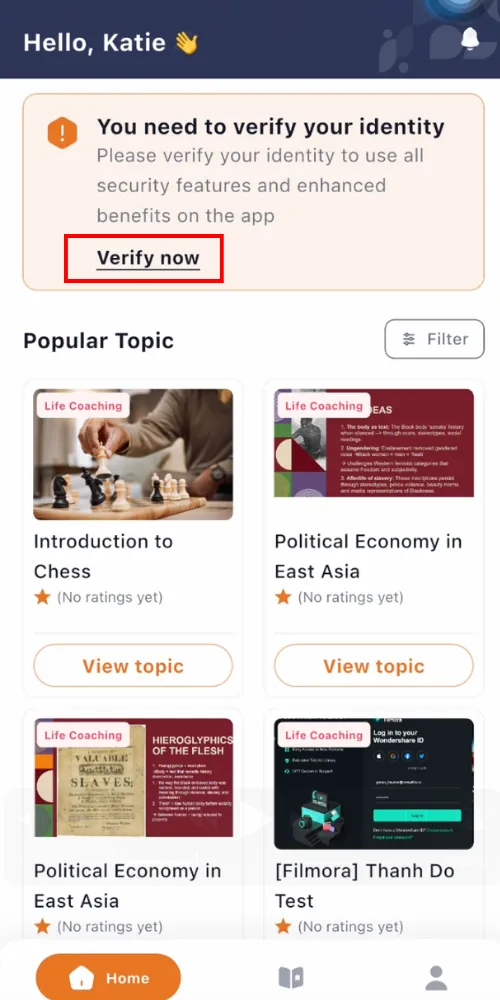
On the Home or Account page, under the section “You need to verify your identity”, select “Verify Now”.
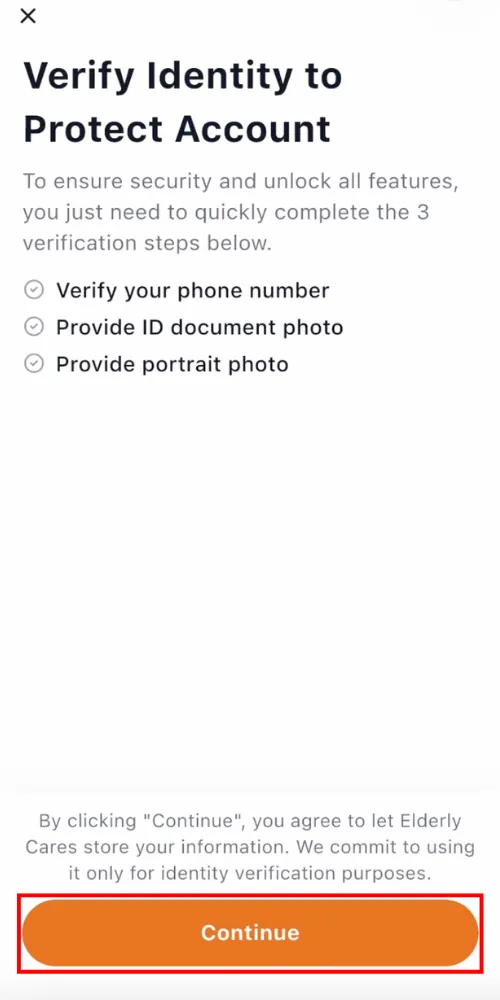
Confirm Identity Verification Request
On the “Verify Identity to Protect Account” screen, select “Continue”
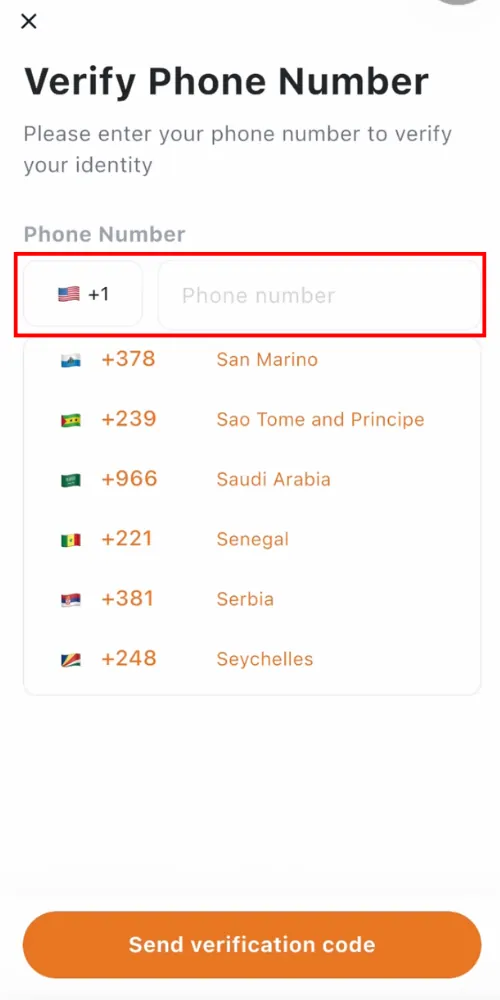
On the “Verify Phone Number” screen, select your country code (e.g, +84 for Vietnam)
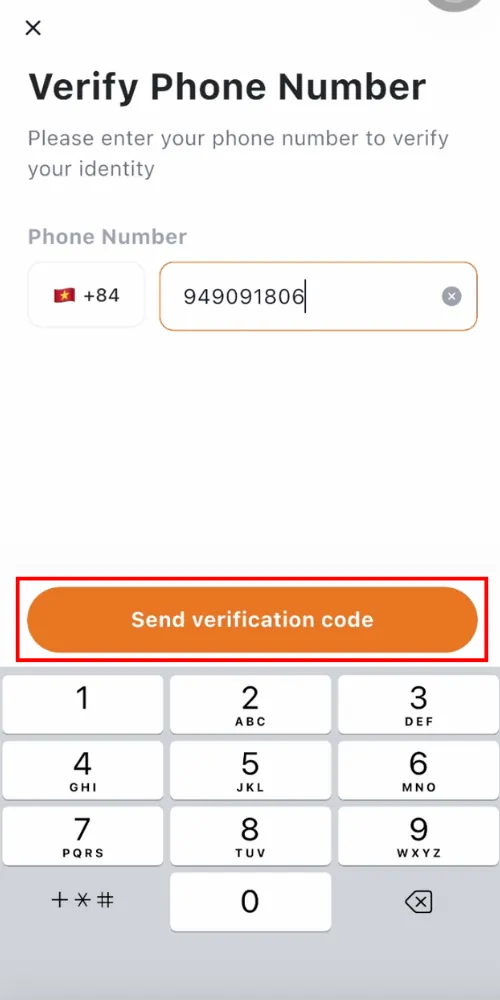
Enter your phone number. Tap “Send verification code”.
CED allows users to verify their phone number using different verification methods.
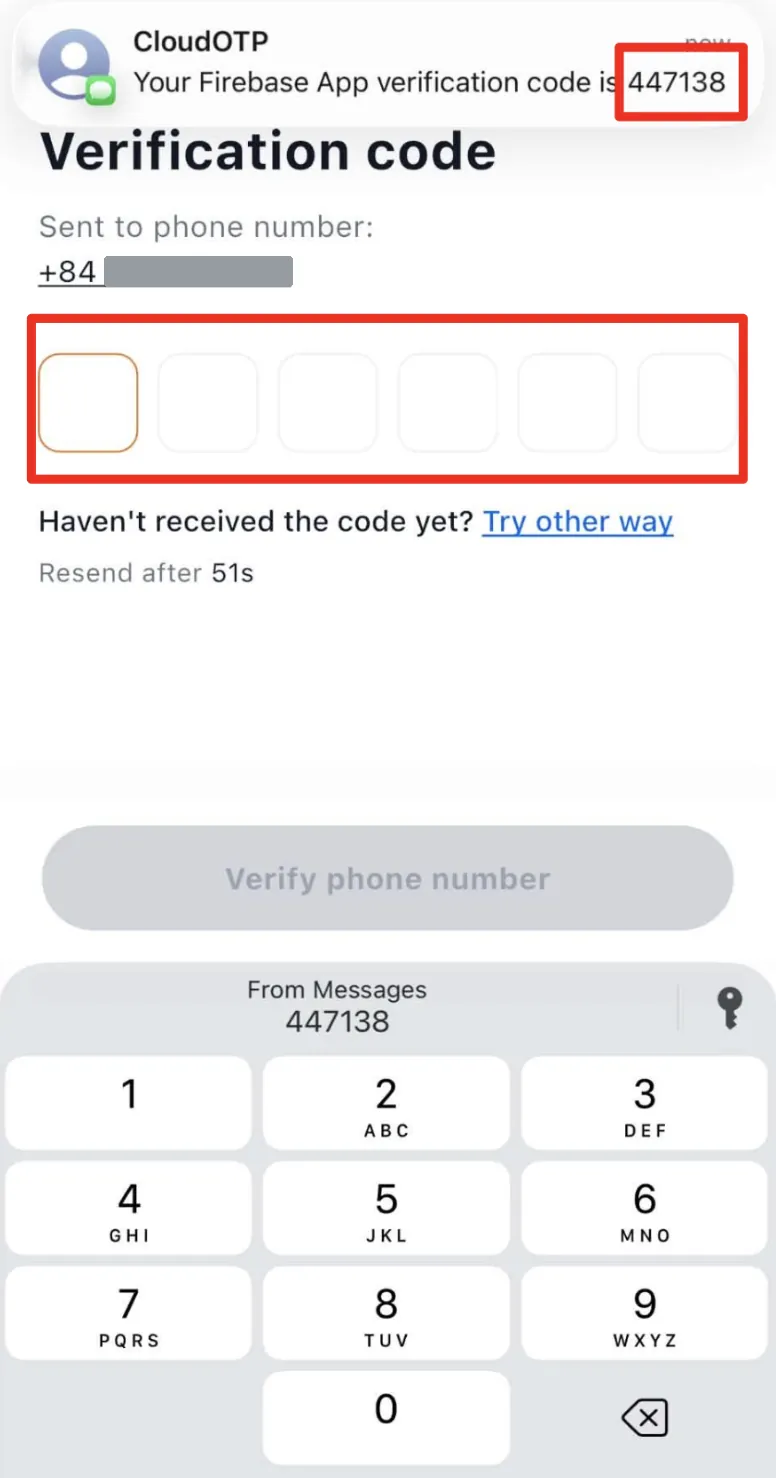
By default, you can verify your phone number using the standard OTP verification method. A 6-digit code will be sent to your phone via SMS from CloudOTP (Firebase App). Please enter the code to continue.
If you are unable to receive or complete the verification, you can select “Try other way” to verify through Telegram or WhatsApp.
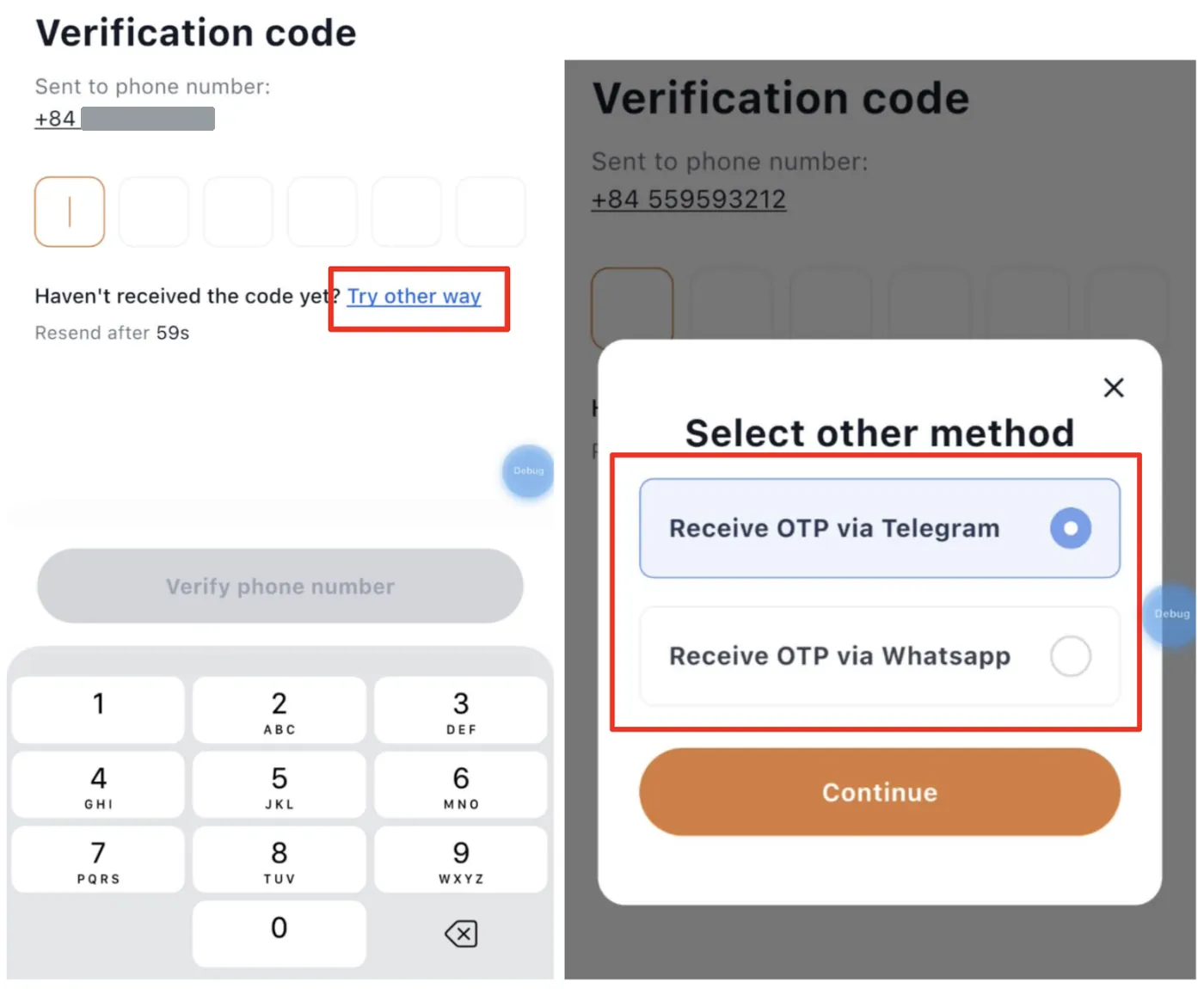
Open WhatsApp & Telegram to receive 6-digit verification code
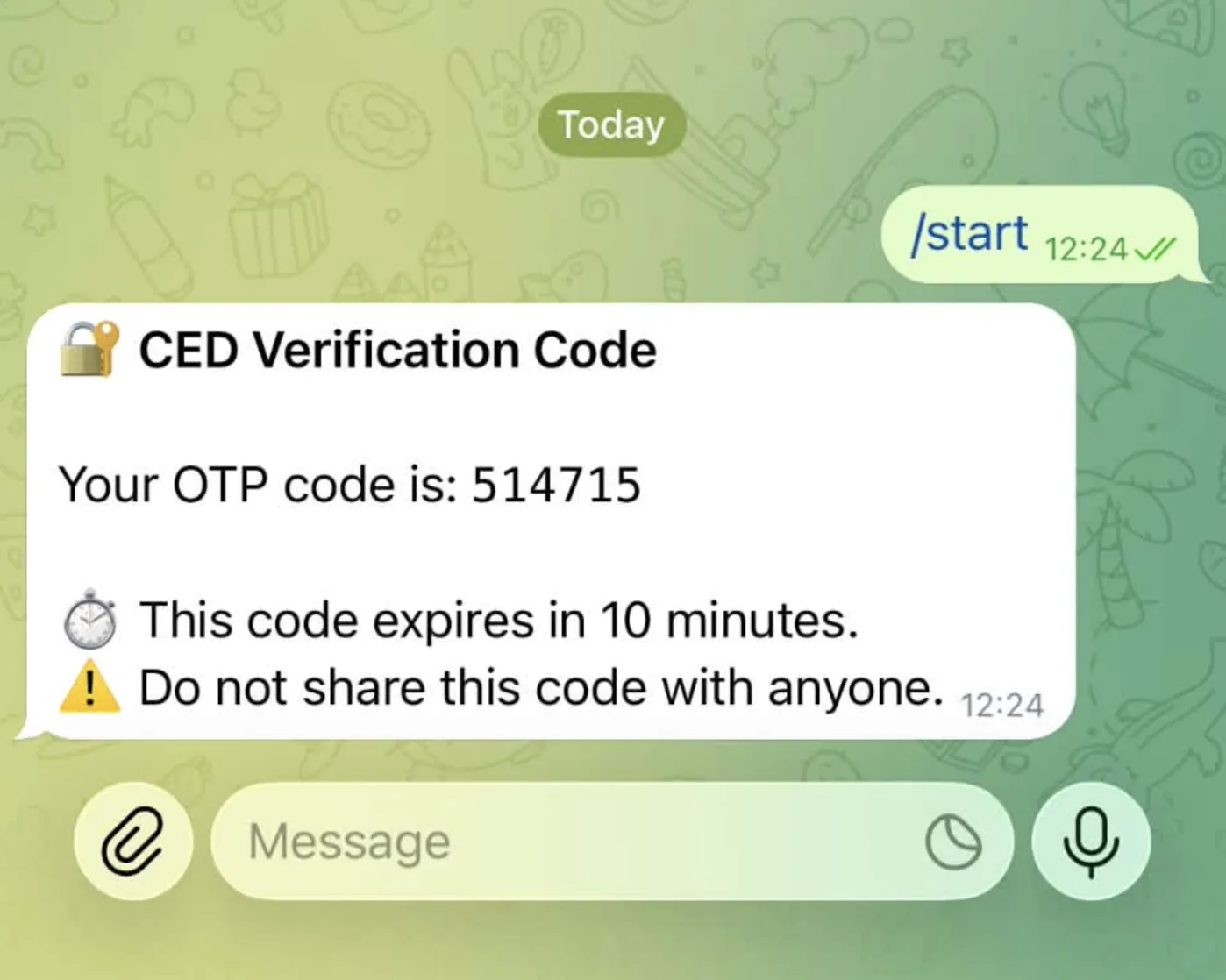
Verification code sent to Telegram
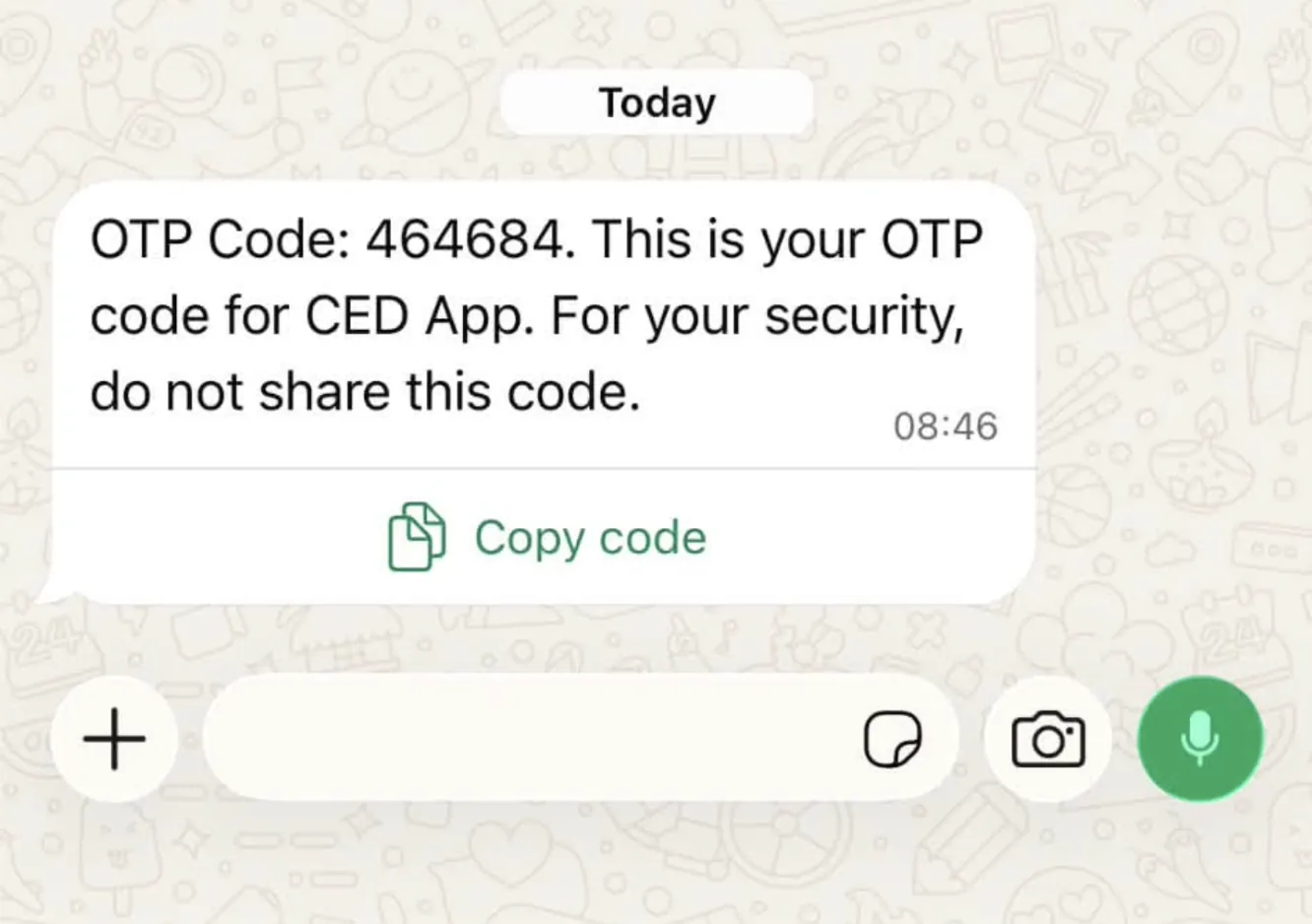
Verification code sent to your WhatsApp
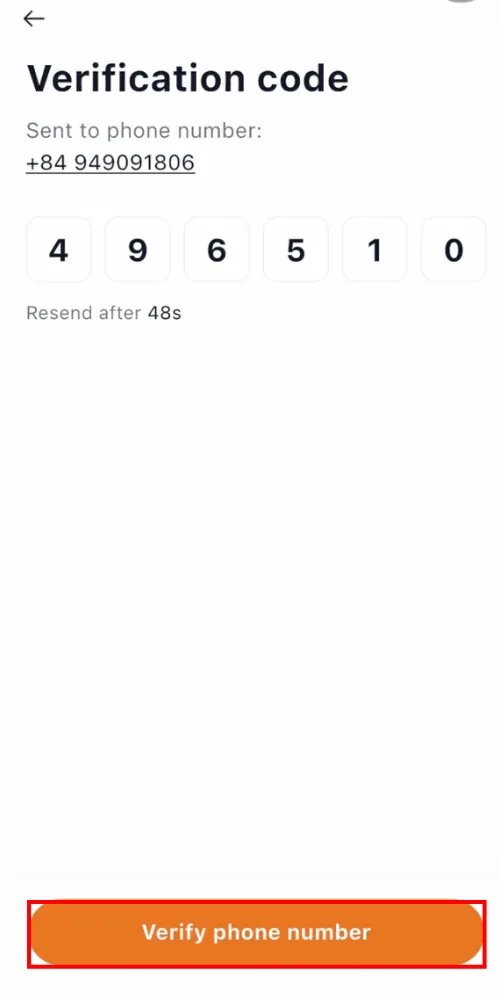
Enter Your OTP Code. Enter the 6-digit verification code into the boxes provided and select “Verify phone number”.
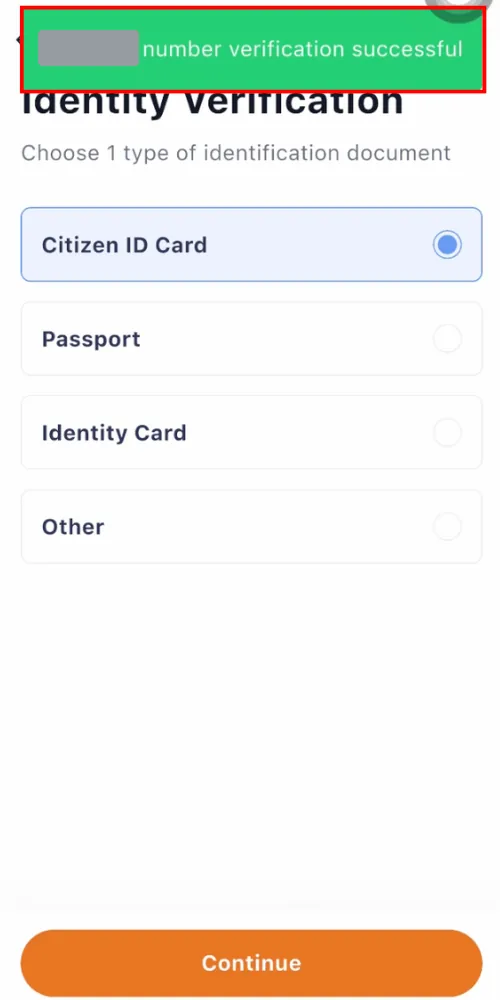
You will receive a message when your phone number was verified successfully
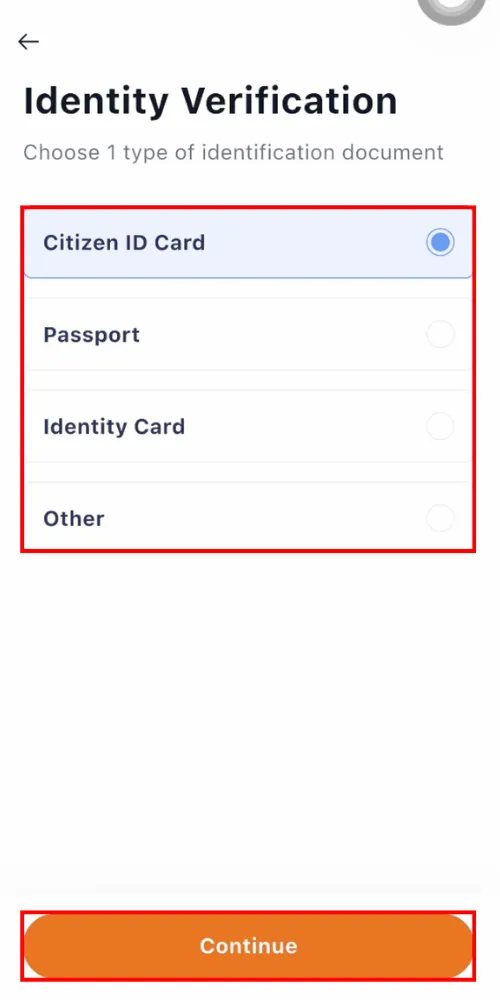
On the “ID Verification” screen, choose one type of identification document:
- Citizen ID Card
- Passport
- National ID
- Others
And click “Continue”
Upload or Capture Your chosen document
You can choose one of the following:
- “Take Photo” – capture your ID document immediately
- “Upload Photo” – upload an existing image from your device
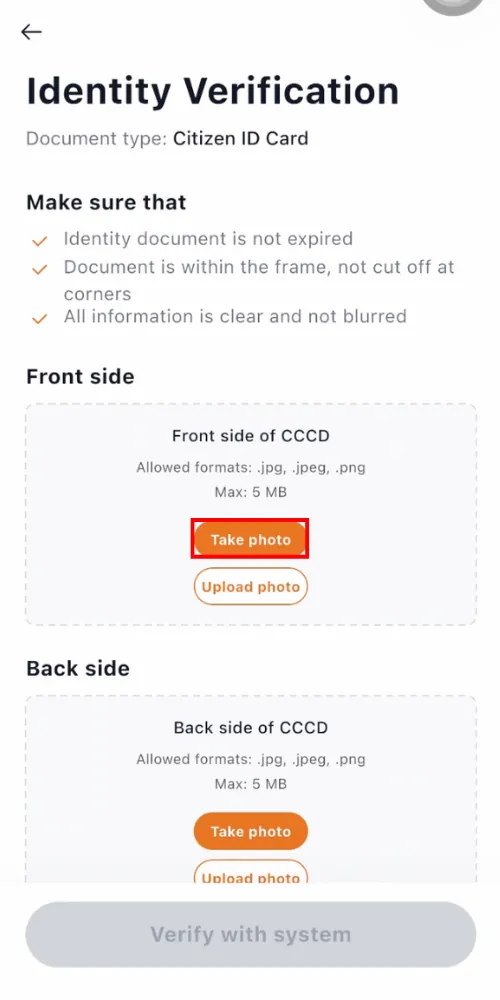
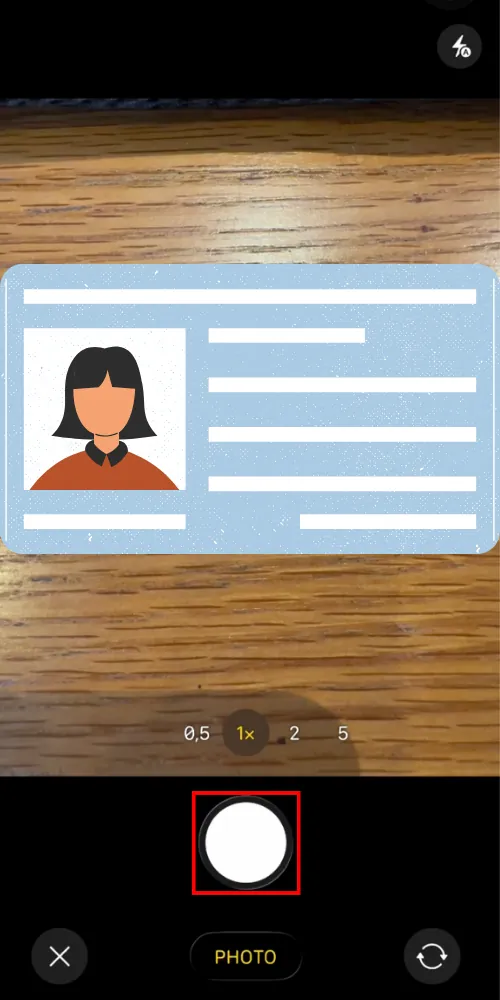
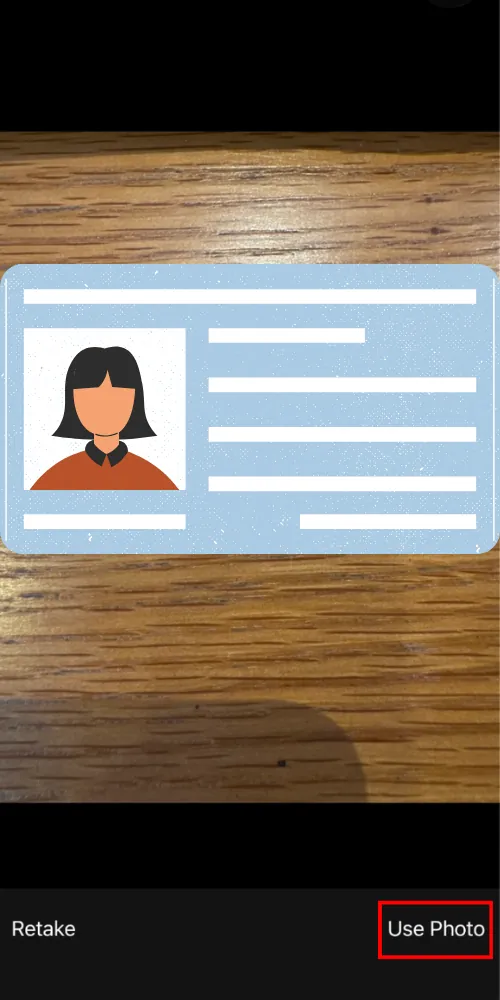
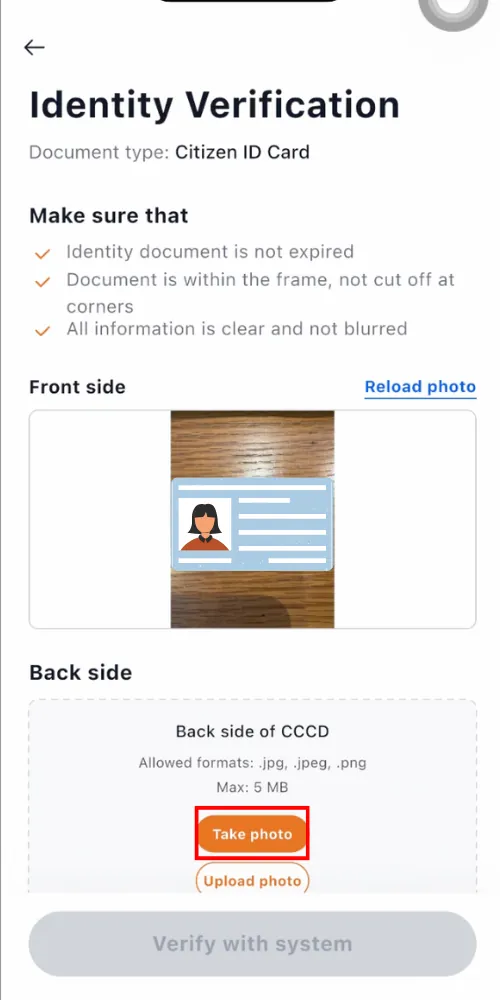
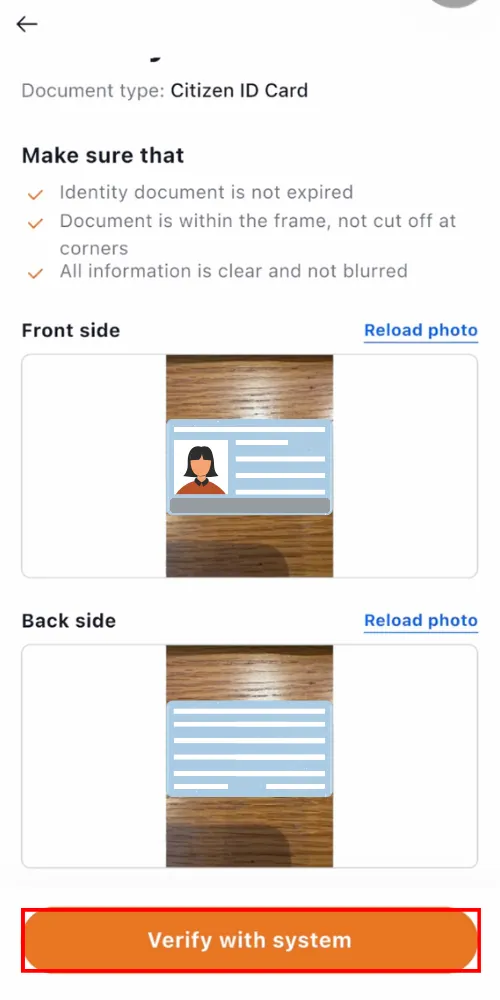
After uploading, select “Verify with System”
Note: You may choose “Re-upload Photo” if you want to replace the image.
Face Verification
You can select:
- “Take Photo” – capture your portrait now, or
- “Upload Photo” – upload an existing photo
You’ll be prompted to verify your identity with a portrait photo.
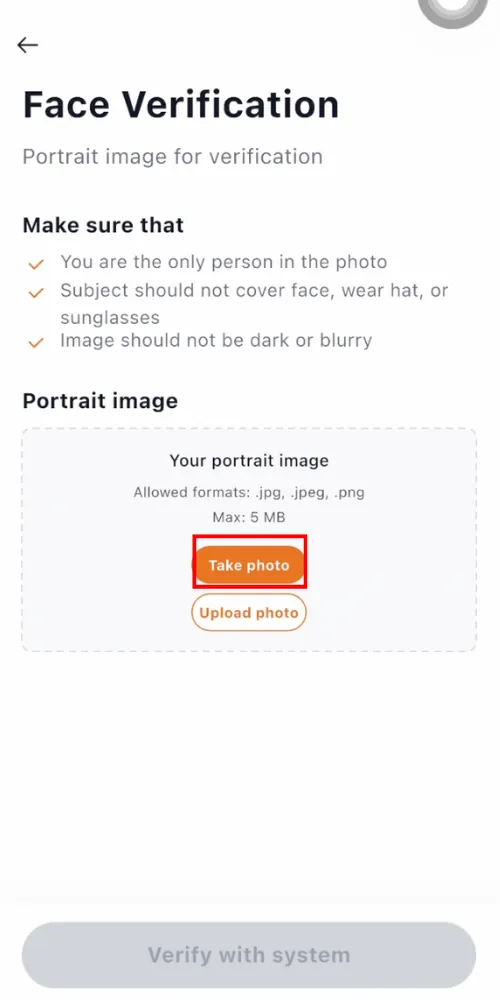
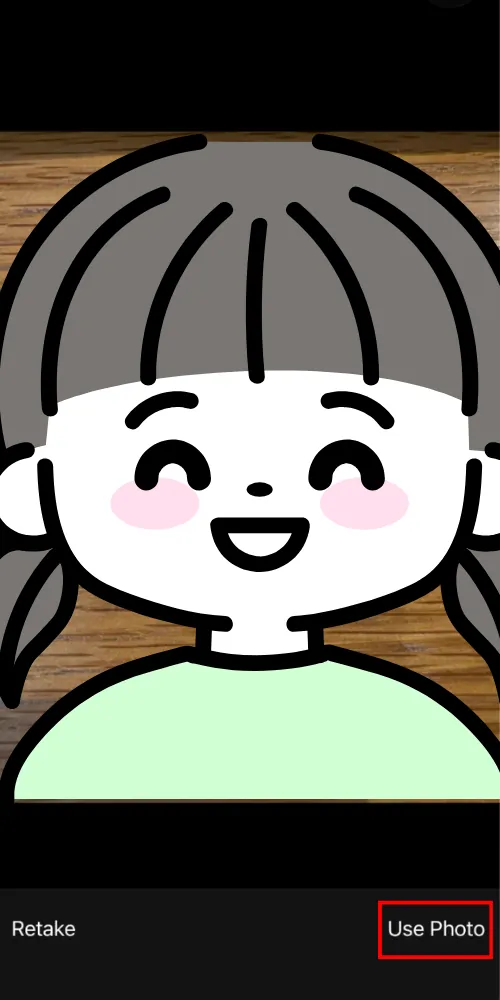
Then select “Verify with system”
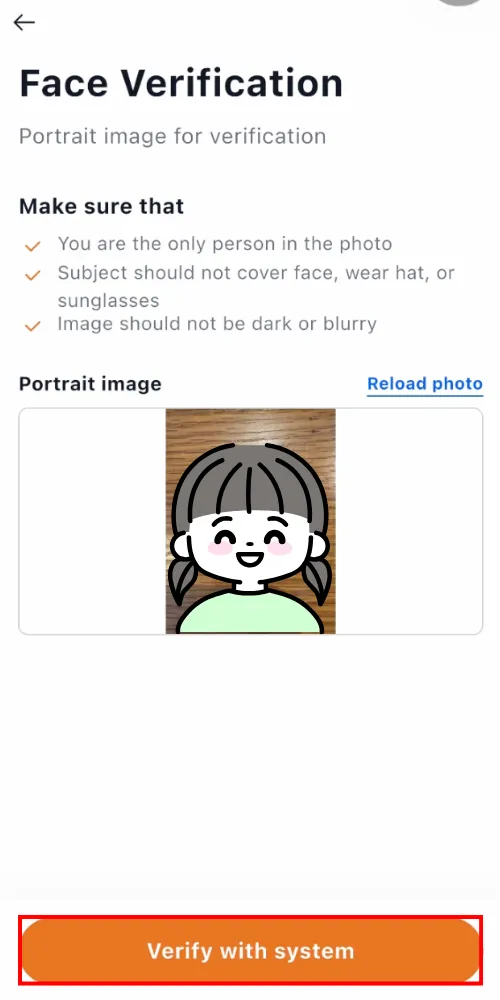
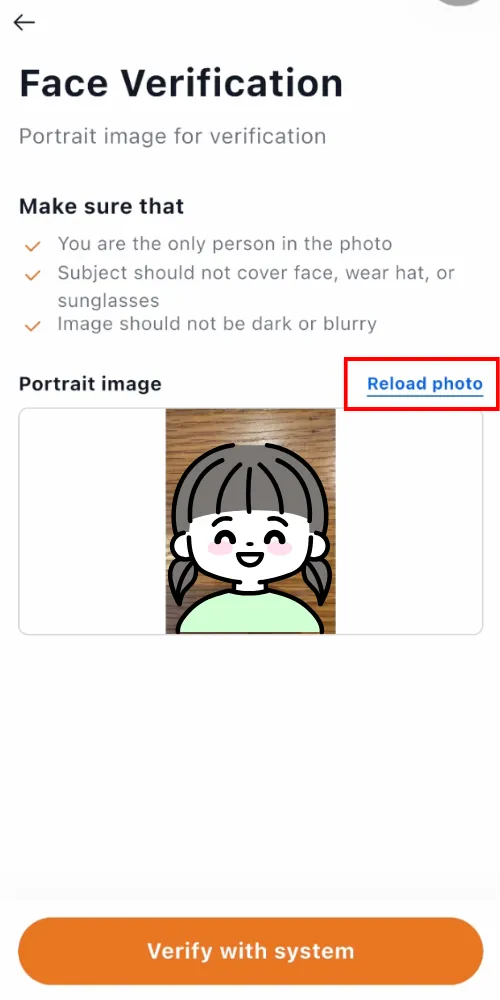
Note: You may choose “Re-upload Photo” if needed.
Submission Confirmation
Once all information is submitted successfully, the “Verification Submitted Successfully” screen will appear.
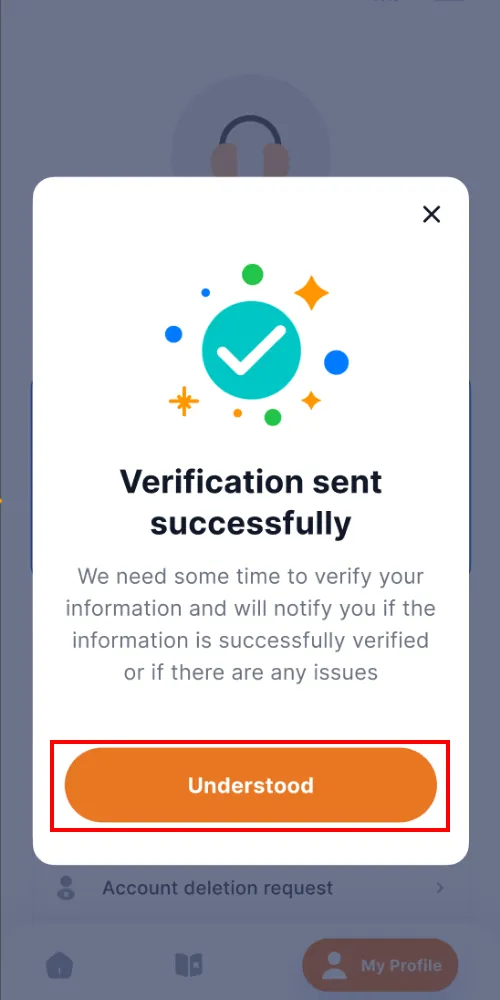
Verification Review Time
CED will review your verification within 2 business days. While your verification is being reviewed, the message “Your identity verification is under review” will appear. It will disappear automatically once your verification is approved.
Troubleshooting OTP Code Issues
Common Error Messages
- “Failed to send verification code” - The system could not send the OTP.
- “Verification code request timed out” - The request took too long to process.
How to Fix It
Step 1: Try again after 1 minute. Wait about 60 seconds before requesting the code again.
Step 2: Check your network connection.
- Switch between Wi-Fi and 4G/5G.
- Turn on Airplane Mode for 10 seconds, then turn it off to refresh the connection.
Step 3: Check your phone number
- Make sure you entered the correct phone number.
- Some carriers may block messages from service numbers.
- Ensure your phone or mobile provider is not automatically blocking service SMS messages.
Step 4: Check your SMS inbox
- Look in Spam, Junk, or Blocked Messages folders.
- Some devices automatically filter service-number messages.