
DEP – Cohort 2
XDAO Quick Start Guide
Submit proposals, vote, and manage DAO activity
XDAO is the platform you’ll use to collaborate with your DAO: propose actions, vote on them, and receive funding when approved.
You don’t need to know any coding or crypto mechanics - just follow this guide.
Login/Connect To Your DAO
1. Go to your DAO space on XDAO
- Each DAO has a separate link on XDAO (check DAO-specific links in Onboarding Hub page).
- Open your DAO’s page using Chrome with the MetaMask extension installed.
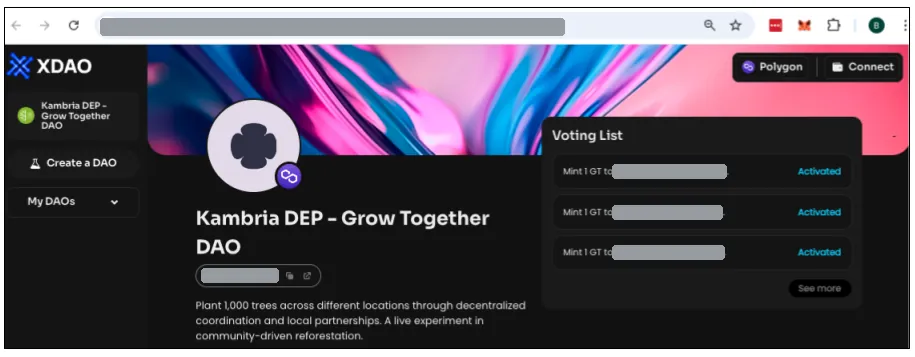
2. Connect Wallet
- Click “Connect Wallet” (top right):
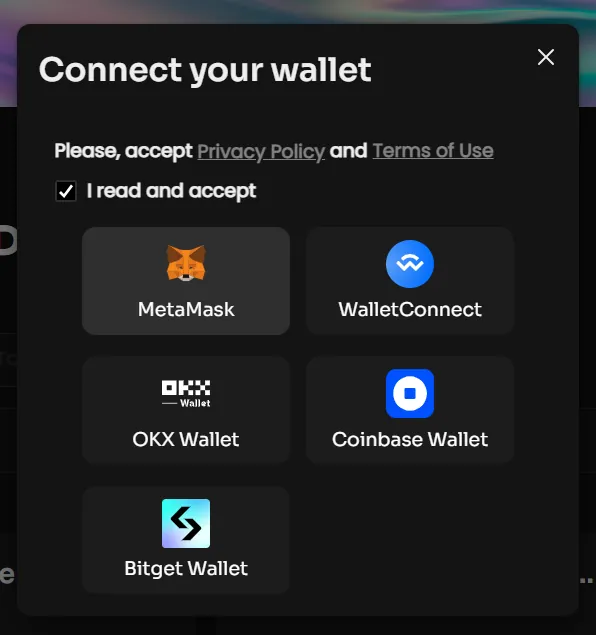
- Tick “I read and accept” XDAO terms and choose MetaMask:
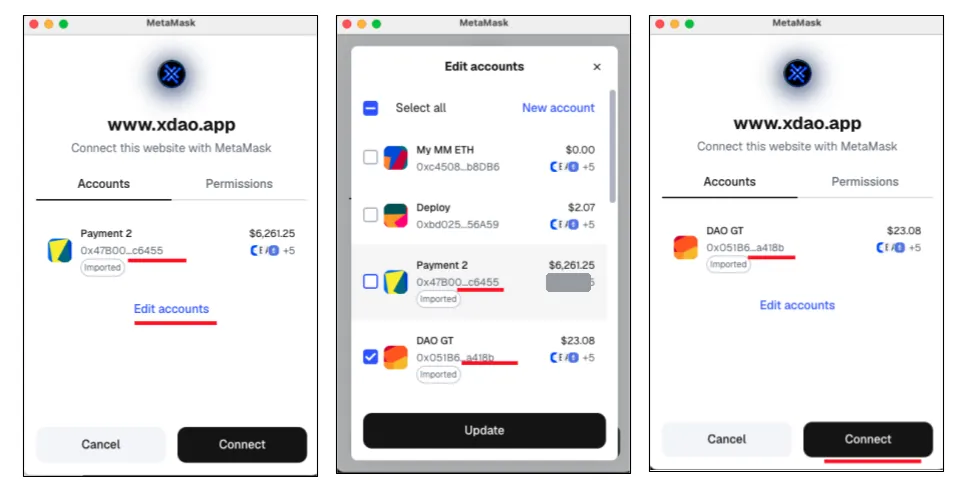
- Confirm the wallet to connect: Check if the wallet address is the one you provided to DEP. If not, click “Edit account” to choose the right wallet. Then click “Confirm”.
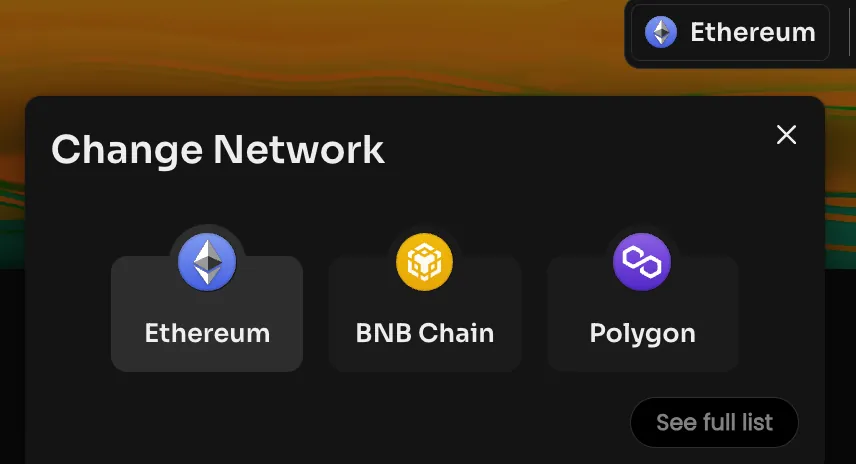
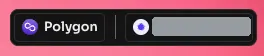
- Make sure you are connected to the correct network (Polygon). If not, change network by clicking on the Network name and select Polygon.
[DAO Leads & WG Leads] Create Proposal voting
DAO Leads and Working Group Leads submit DAO-wide and Working Group proposals on behalf of their DAO
Please note:
- This stage is for proposal approval only - no funds are transferred yet.
- All proposals should be submitted on the same day, as specified in the Onboarding Sync meeting.
Follow the steps below to submit your proposal:
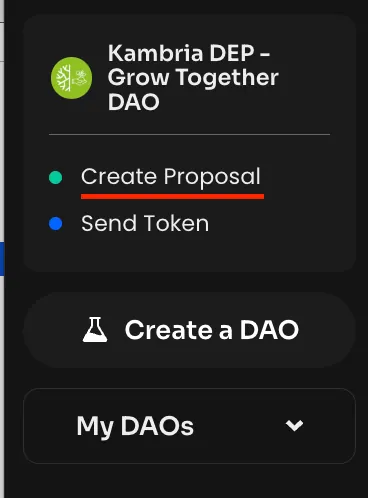
1. Click “Create Proposal:
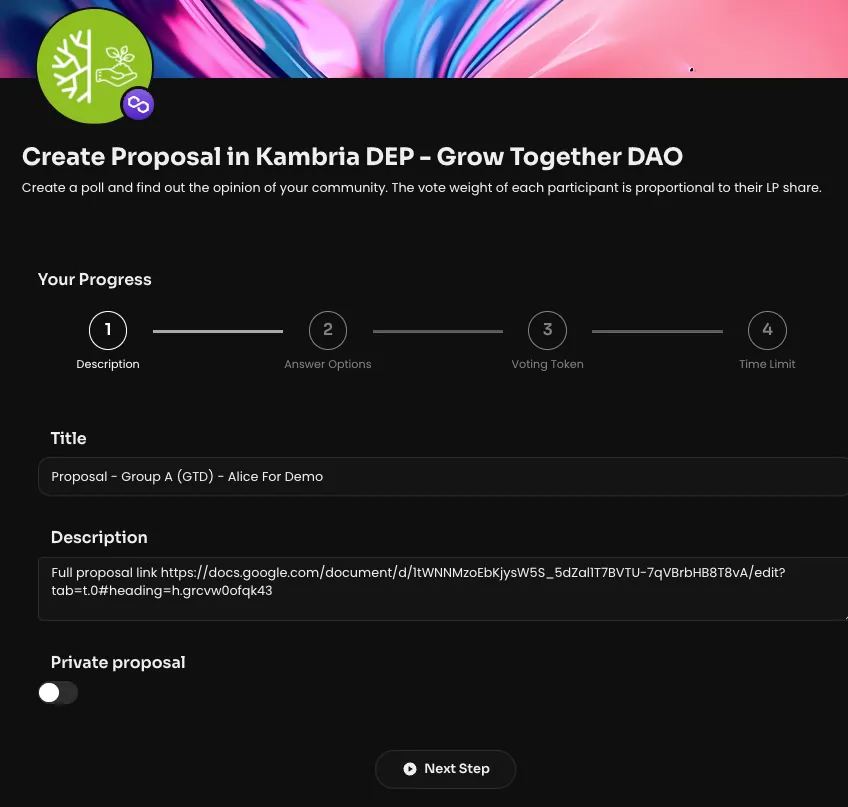
2. Proposal Description:
- Title: Follow the title format [DAO Code] - Master Plan and Working Group Proposals, for example “CCD - Master Plan & Working Group Proposals”
- Description: Google Docs links of DAO Master Plan & Working Group Proposals
- Private proposal: Unchanged
- Click “Next step”.
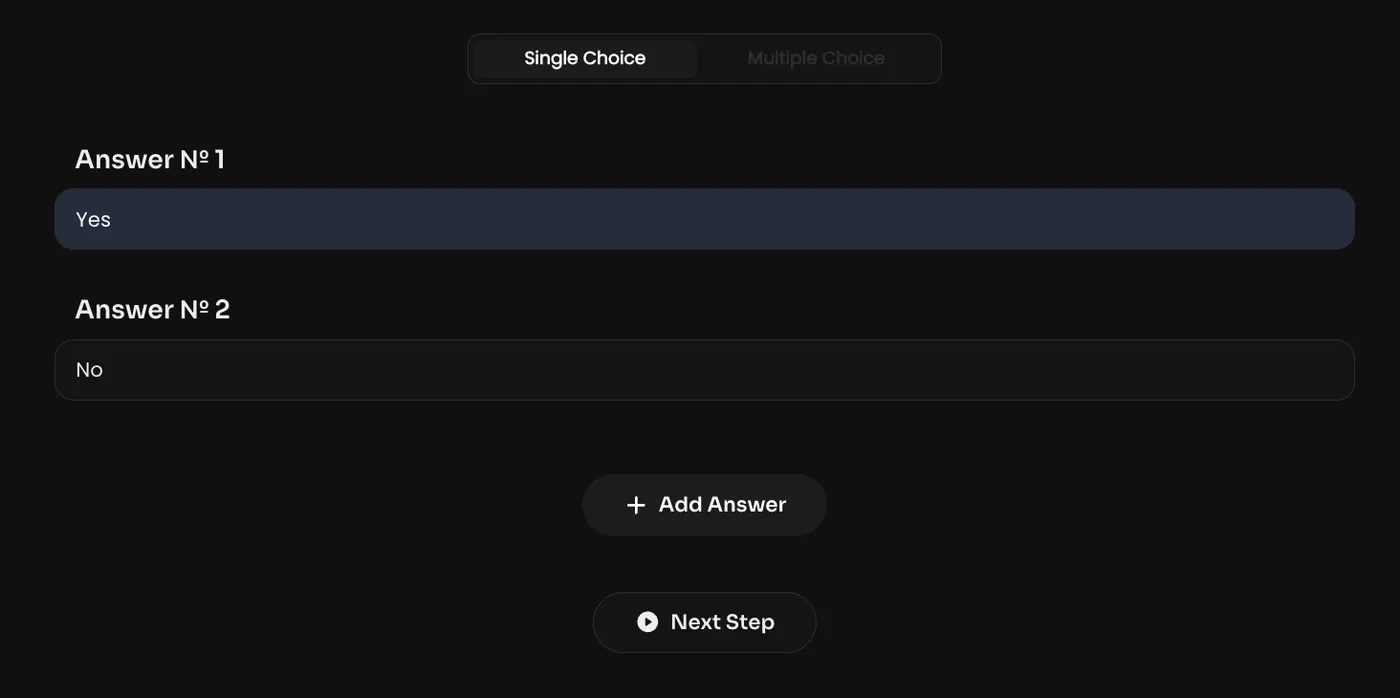
3. Answer Options:
Single Choice
- Answer № 1: Yes
- Answer № 2: No
Click “Next step”.
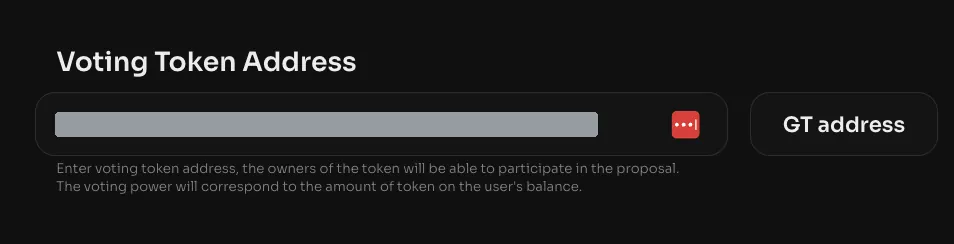
4. Voting Token:
- Click “GT Address” to auto fill-in (using DAO GT Token to vote)
- Click “Next step”.
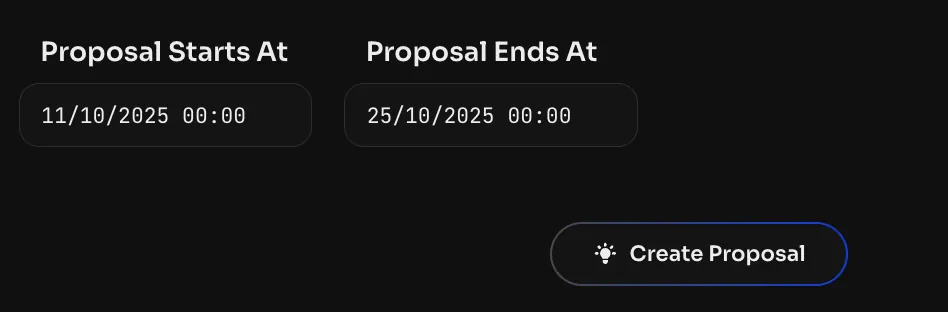
5. Time Limit:
- Set a 7-day voting period
- Proposal Starts At: 22/06/2026 00:00
- Proposal Ends At: 29/06/2026 00:00
- Then click "Create Proposal".
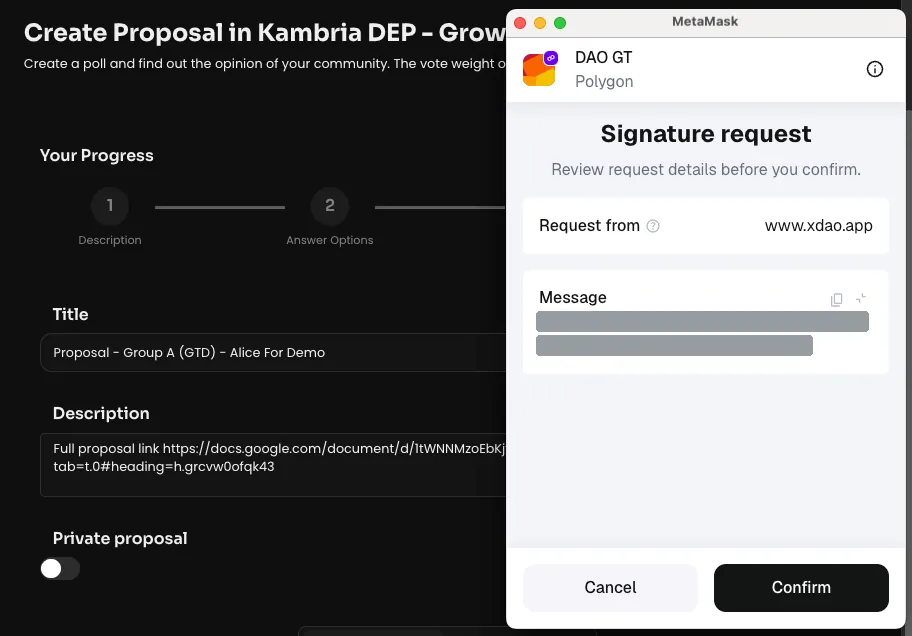
6. Confirm to create proposal:
- Click “Confirm” in MetaMask:
- Proposal voting is created (submitted successfully):
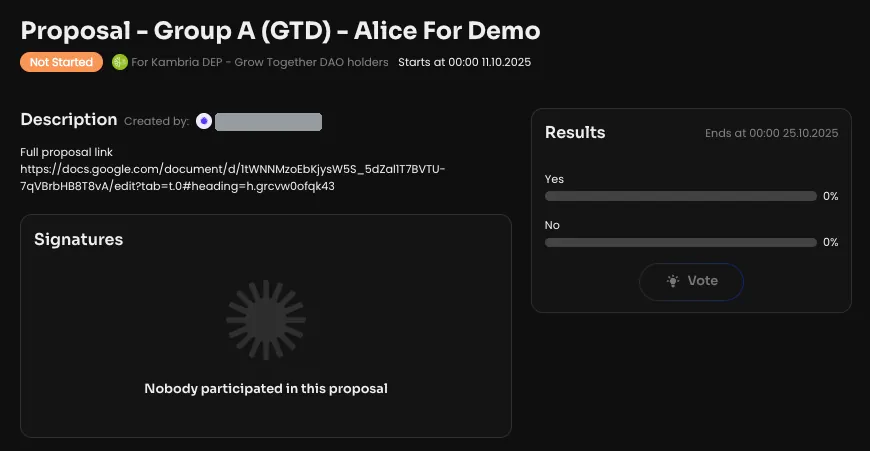
[DAO Facilitators] Proposal Preliminary Qualification
The proposals are preliminary qualified by DAO Facilitators.
Only the qualified proposals are listed in the DAO’s Voting tracking sheet (check DAO-specific links in Onboarding Hub page) for DAO members to review and vote.

[DAO Members] Review and Vote on Proposals
In the 7-day voting period, DAO members review and vote on proposals listed in the DAO’s Voting tracking sheet (check DAO-specific links in Onboarding Hub page).
Please follow the steps below for each proposal:
1. In the Voting sheet, click the Voting link corresponding to the proposal to view details on XDAO.
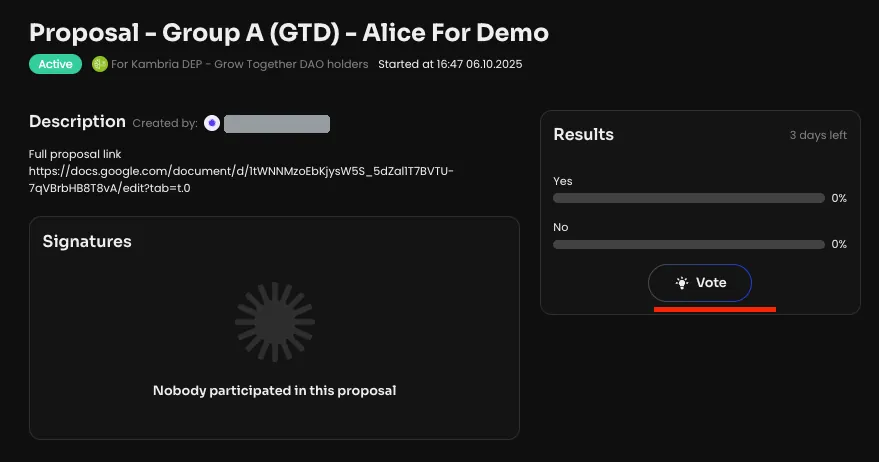
2. Review details and click “Vote”:
- The DAO members reference the Qualification checklists for DAO-wide proposal and WG proposal when reviewing and voting, helping uphold shared standards of quality, feasibility, and collective value.
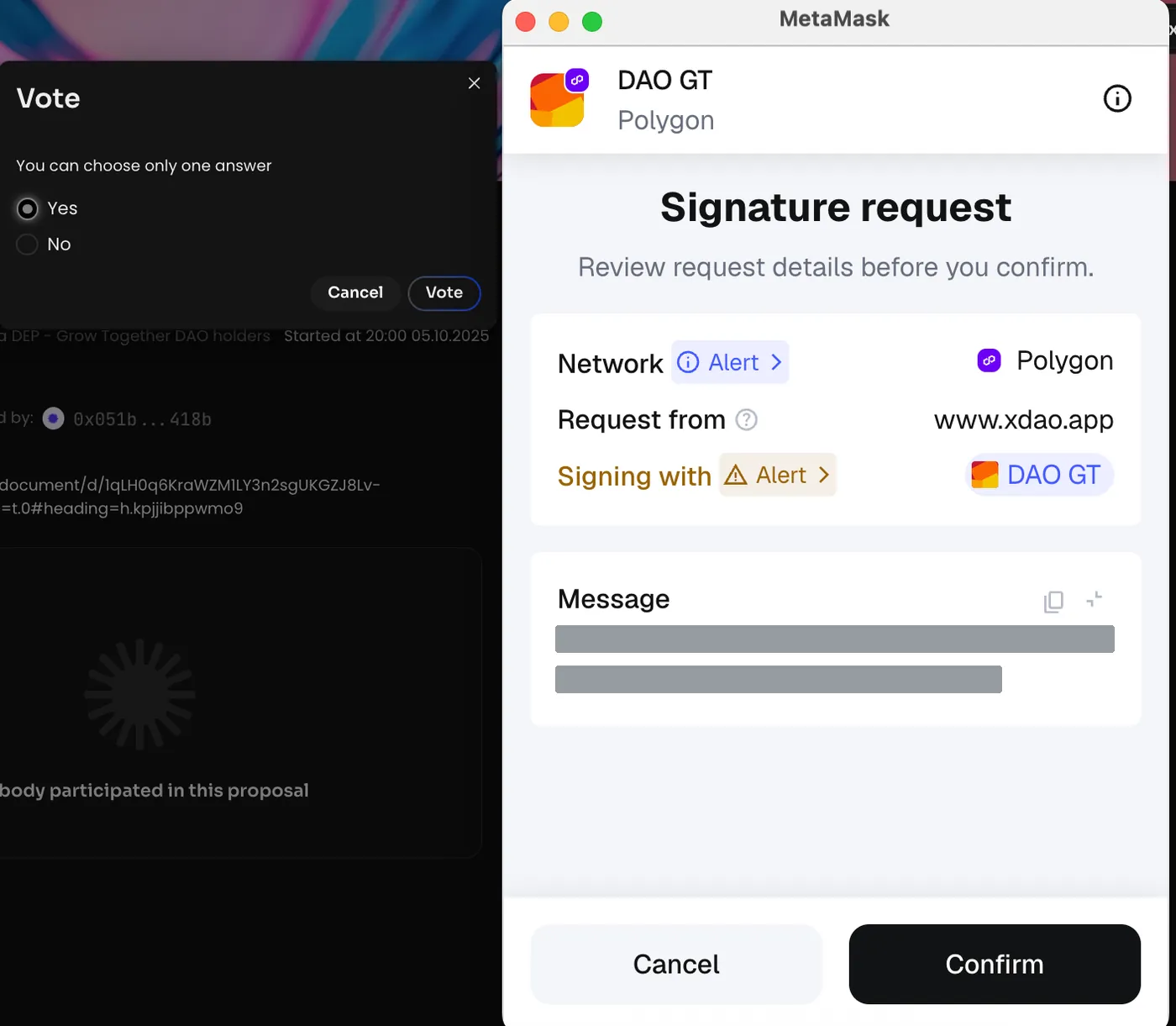
3. A voting option box will show as below.
- Choose your answer (Yes or No)
- Click “Vote”
- Confirm in MetaMask
You can change your vote during the voting period (by voting with another answer).
Each member has equal voting power.
[DAO Facilitators] Create Send Token voting for payment approval
70-30 payment model:
- 1st payment - 70%: Once quorum is met and the proposal is passed, DAO Facilitator will initiate a Send Token voting to transfer 70% of the requested budget (3-day voting period by default).
- 2nd payment - 30%: After execution, each DAO group submits a completion report. A second Send Token vote is initiated for the remaining 30% payout, contingent on report acceptance (this vote is only activated if the report is qualified).
Please follow the steps below for each payment:
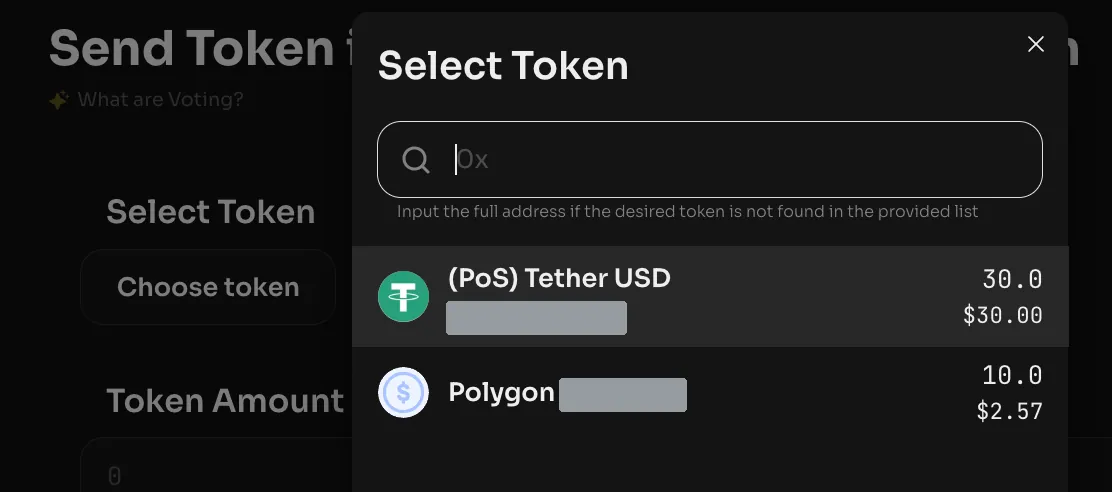
1. Click “Send Token” then “Choose token”:
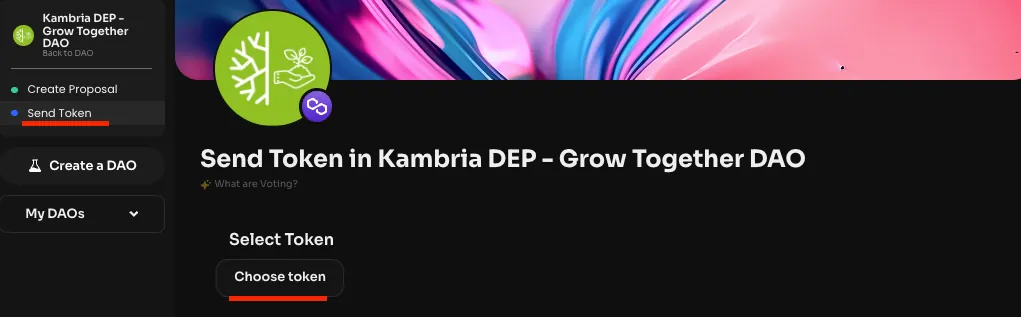
2. Choose payment token “(PoS) Tether USD” ie. USDT:
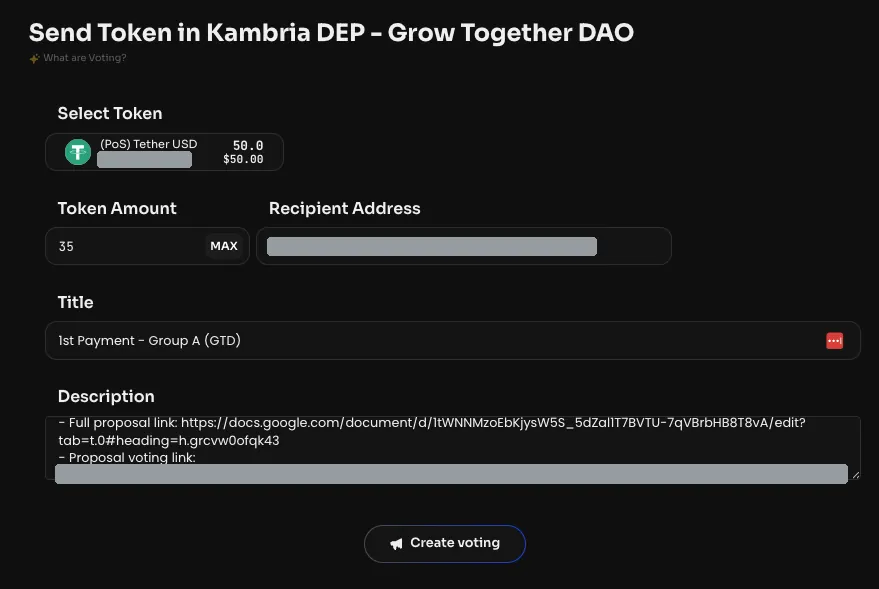
3. Fill in other fields:
- Token amount: Payment amount in USDT
- Recipient Address: Recipient wallet
- Title (max 60 characters): Follow the title format [DAO Code] - [1st / 2nd] Payment, for example “CCD - 1st Payment”
- Description:
- Full proposal link: …
- Proposal voting link: …
- Click “Create voting” and confirm in MetaMask
4. Send Token voting is created with 1 member signed (yourself) and 3-day voting period begins immediately:
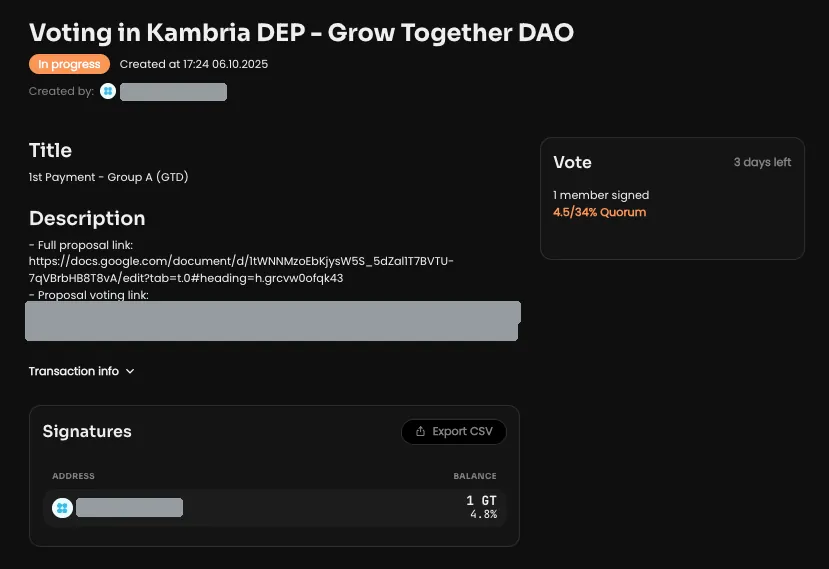
5. Add the voting to the DAO’s Voting tracking sheet.
Notify DAO members to review and vote to process payment.

[DAO Members] Vote to approve payment (Send Token voting)
Within 3 days after being notified by DAO Facilitators, DAO members should review and vote on the “Send Token” votings listed in their DAO’s Voting tracking sheet (see DAO-specific links in the Onboarding Hub).
Please follow these steps for each voting instance:
1. In the Voting Tracking Sheet, click the Voting link corresponding to the payment to be proceeded. This will open the detailed page on XDAO.
2. Review the full proposal and the corresponding voting details using the links provided in the Description box (copy and paste them into Chrome).
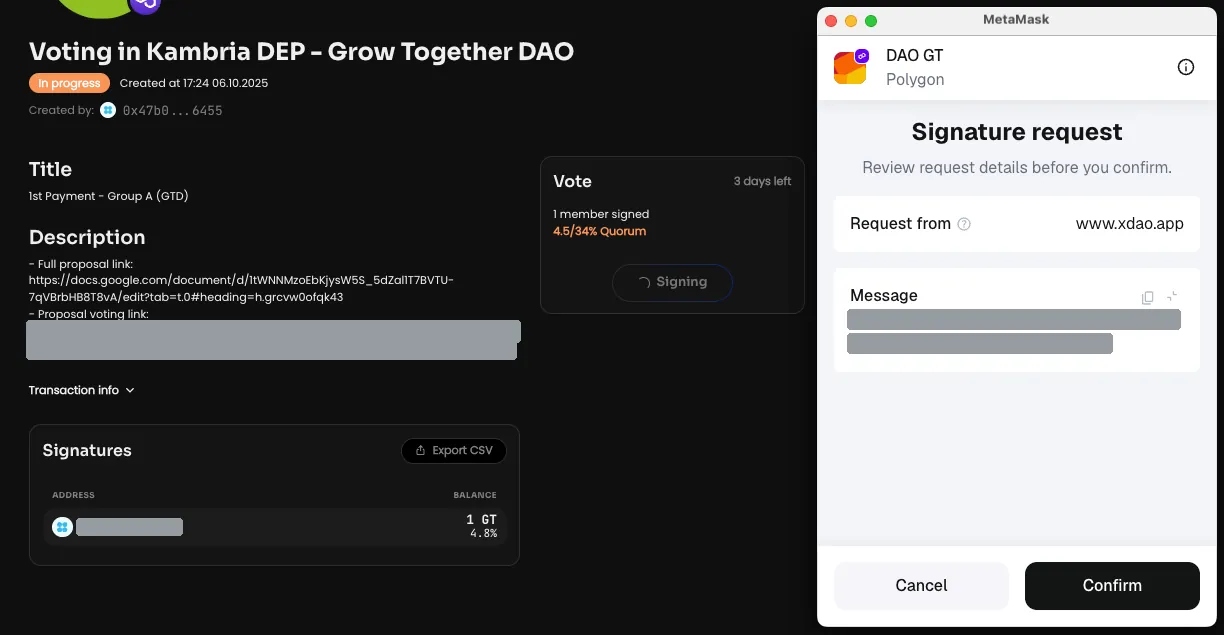
Then click “Sign” to confirm your agreement to proceed with the payment.
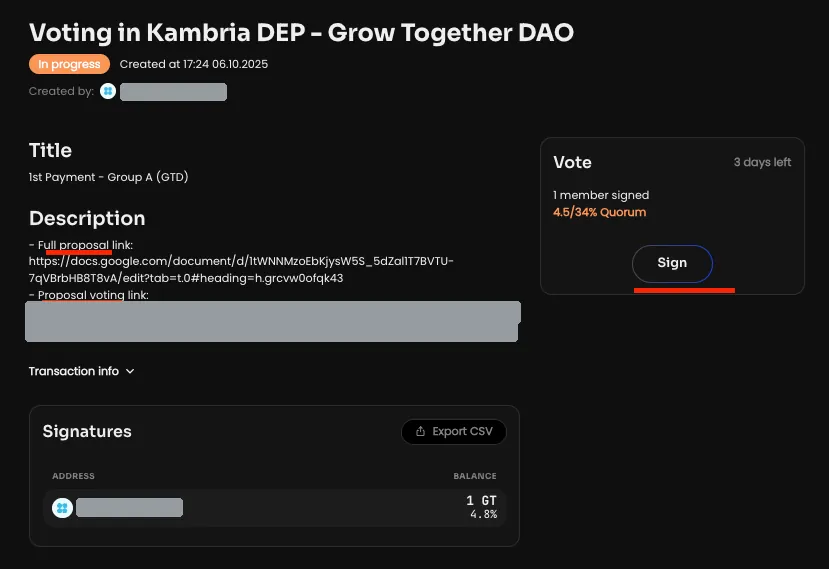
3. Click “Confirm” in MetaMask to sign.
[DAO Manager] Activate Send Token voting to execute payment
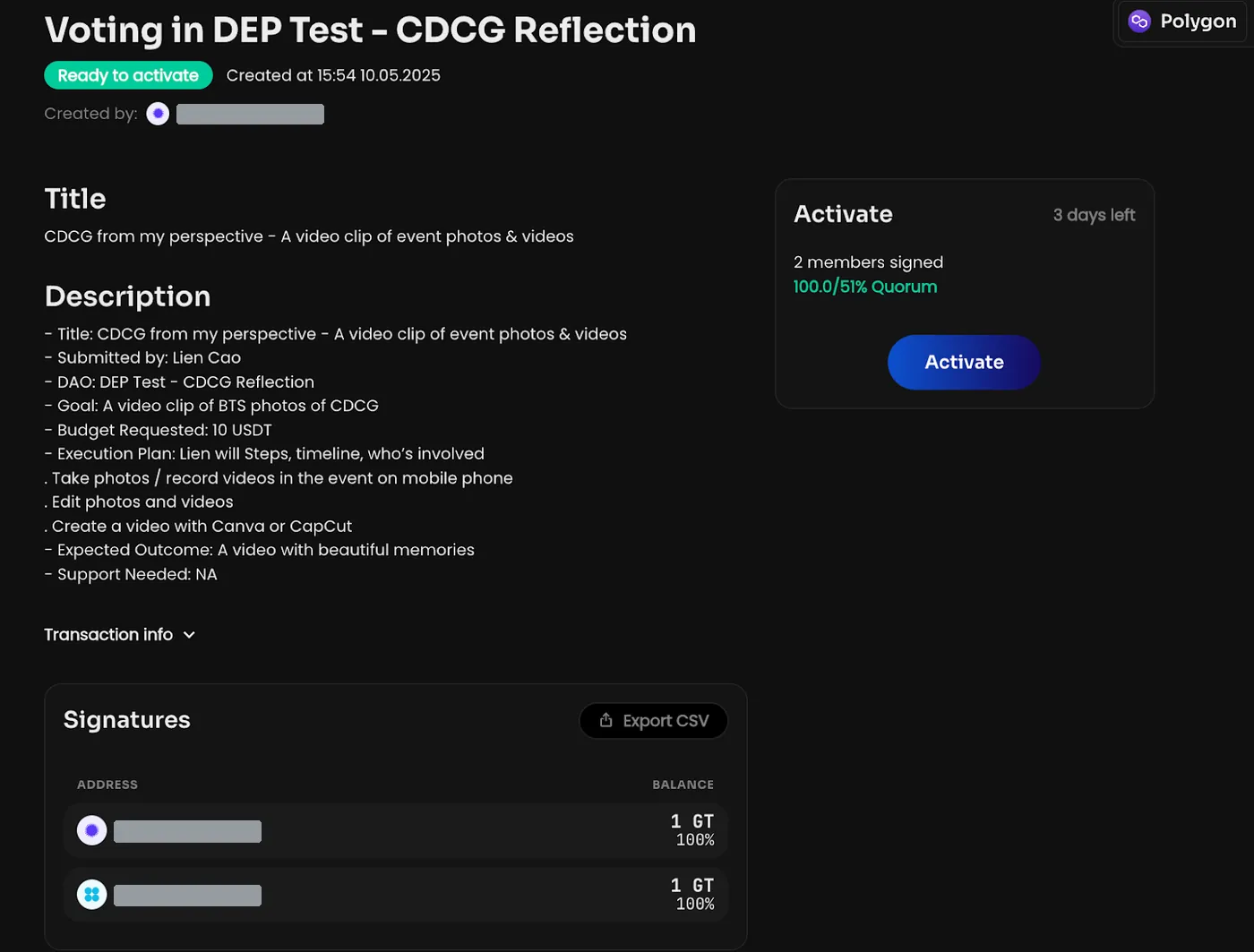
1. Voting can be activated by the DAO Manager when the 34% quorum is reached:
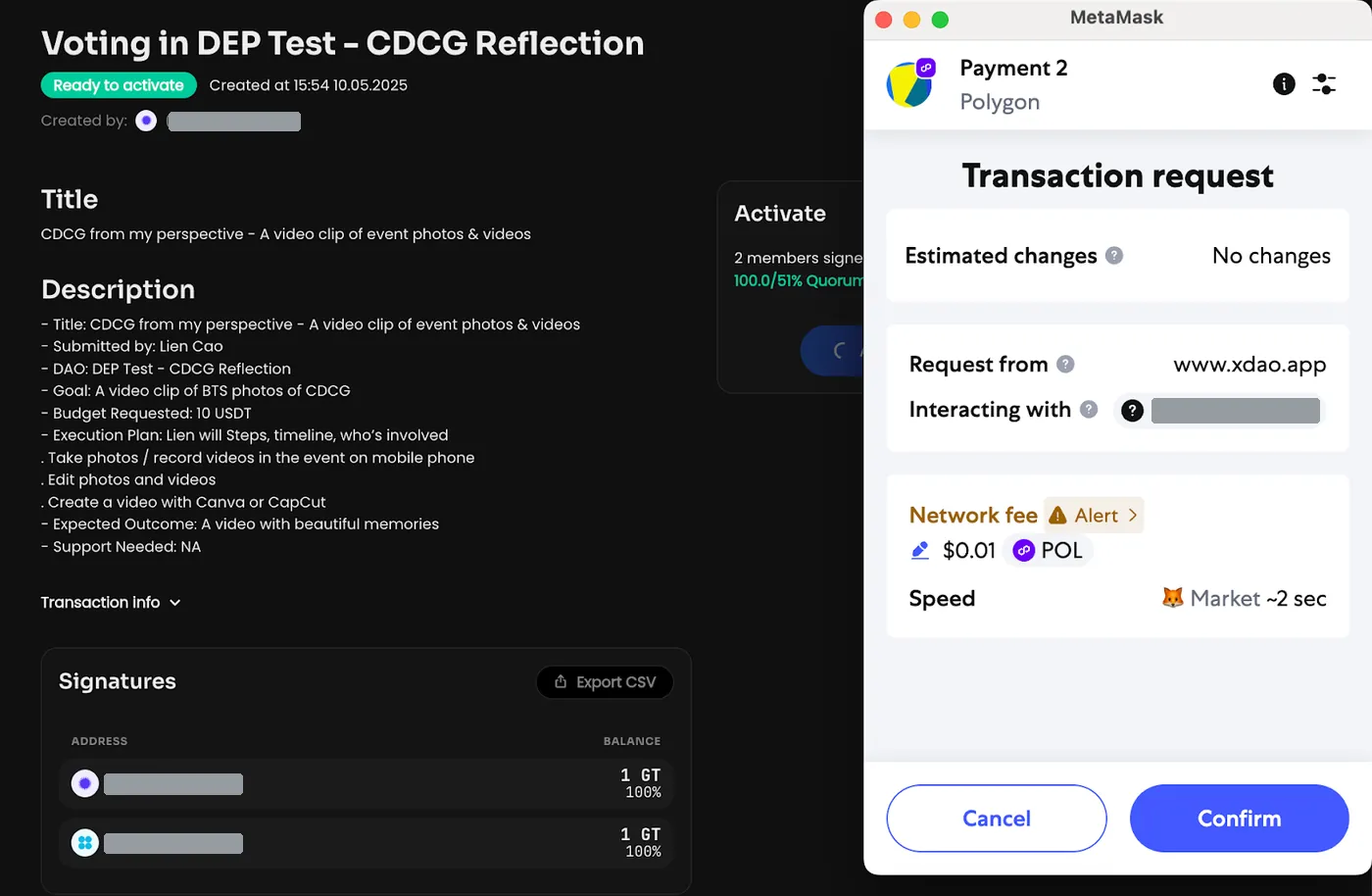
2. Click “Confirm” in MetaMask to activate:
3. After the Send Token voting is activated, payment is auto-processed from the DAO wallet to the recipient wallet.
View Transaction Information
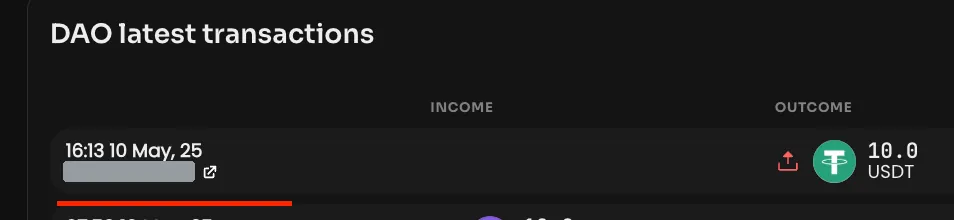
1. DAO members can view Transaction information in the tab “Info”, section “Transaction history”:
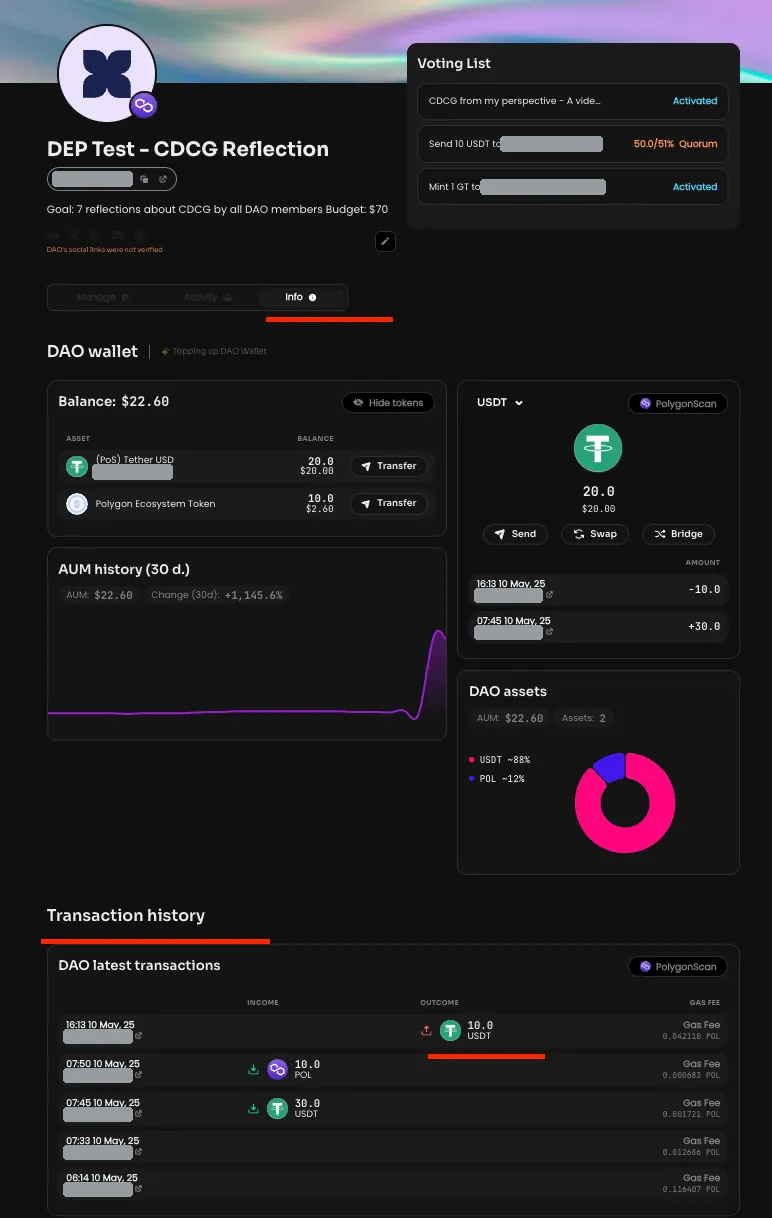
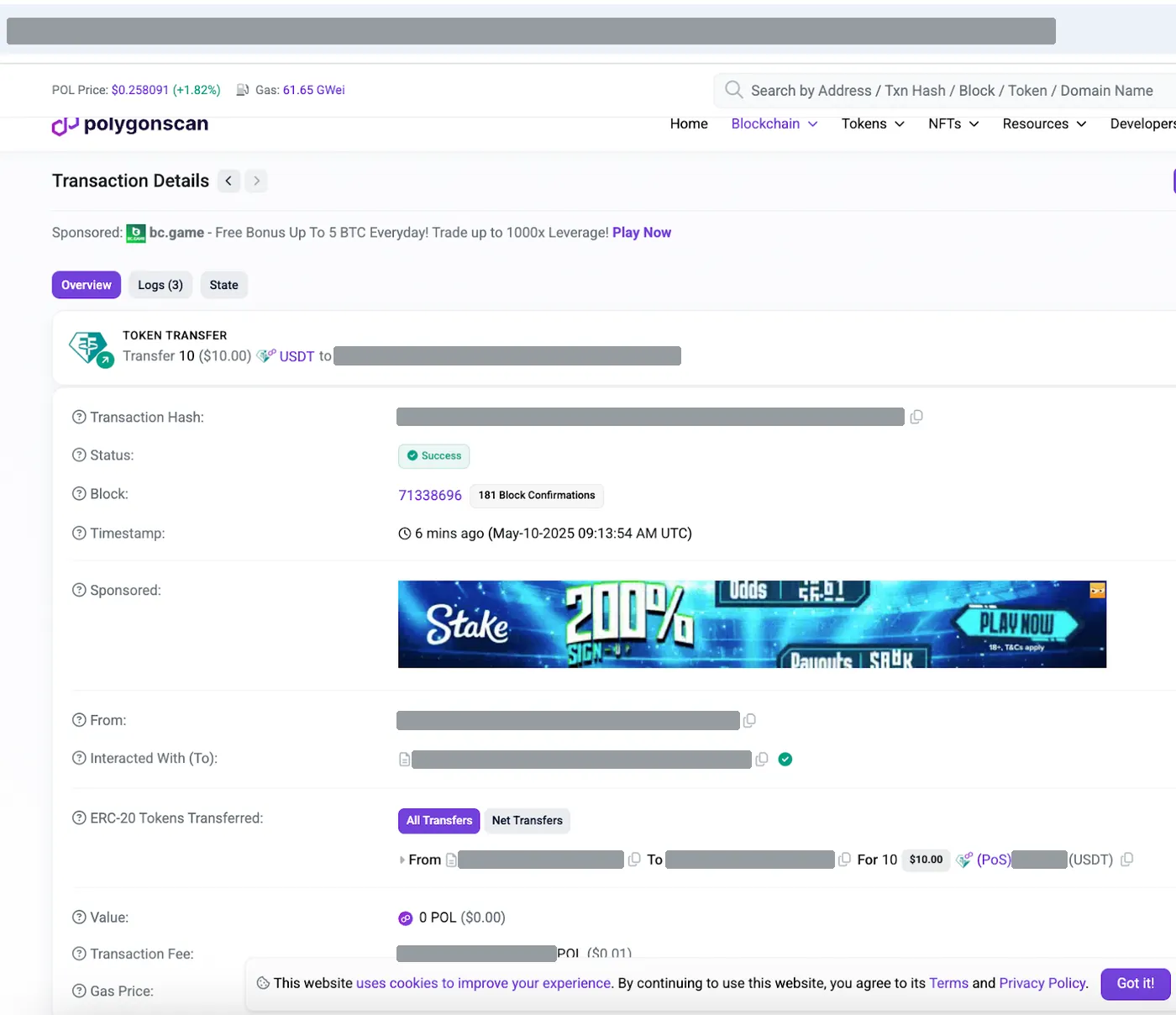
2. Click on Transaction ID to view transaction details on Polyscan:
3. Public transaction details on Polyscan:
Voting Title Format
Use clear titles for easy recognition. Max 60 characters:
- Mint GT: Add member [Participant name]
- Burn GT: Remove member [Participant name]
- Create Proposal: [DAO Code] - Master Plan and Working Group Proposals
- Send Token: [DAO Code] - [1st / 2nd] Payment
Tips & Reminders
- Always confirm you’re on the correct network (Polygon)
- Proposals must include clear goals, budget, and execution plan
- Use the official templates and submission forms provided
- Never share your wallet’s Secret Recovery Phrase
- Reach out in Discord if you need help writing or submitting a proposal.