
DEP – Cohort 2
MetaMask Setup Guide
For DAO Experimentation Program Participants
MetaMask is a free crypto wallet that lets you interact with DAOs, receive funds, and submit proposals. You’ll use it to connect to XDAO and manage your DAO-related activity.
Step 1: Install MetaMask
On Desktop (Recommended)
1. Go to https://metamask.io/
2. Click Download and choose Chrome, Firefox, or Brave browser
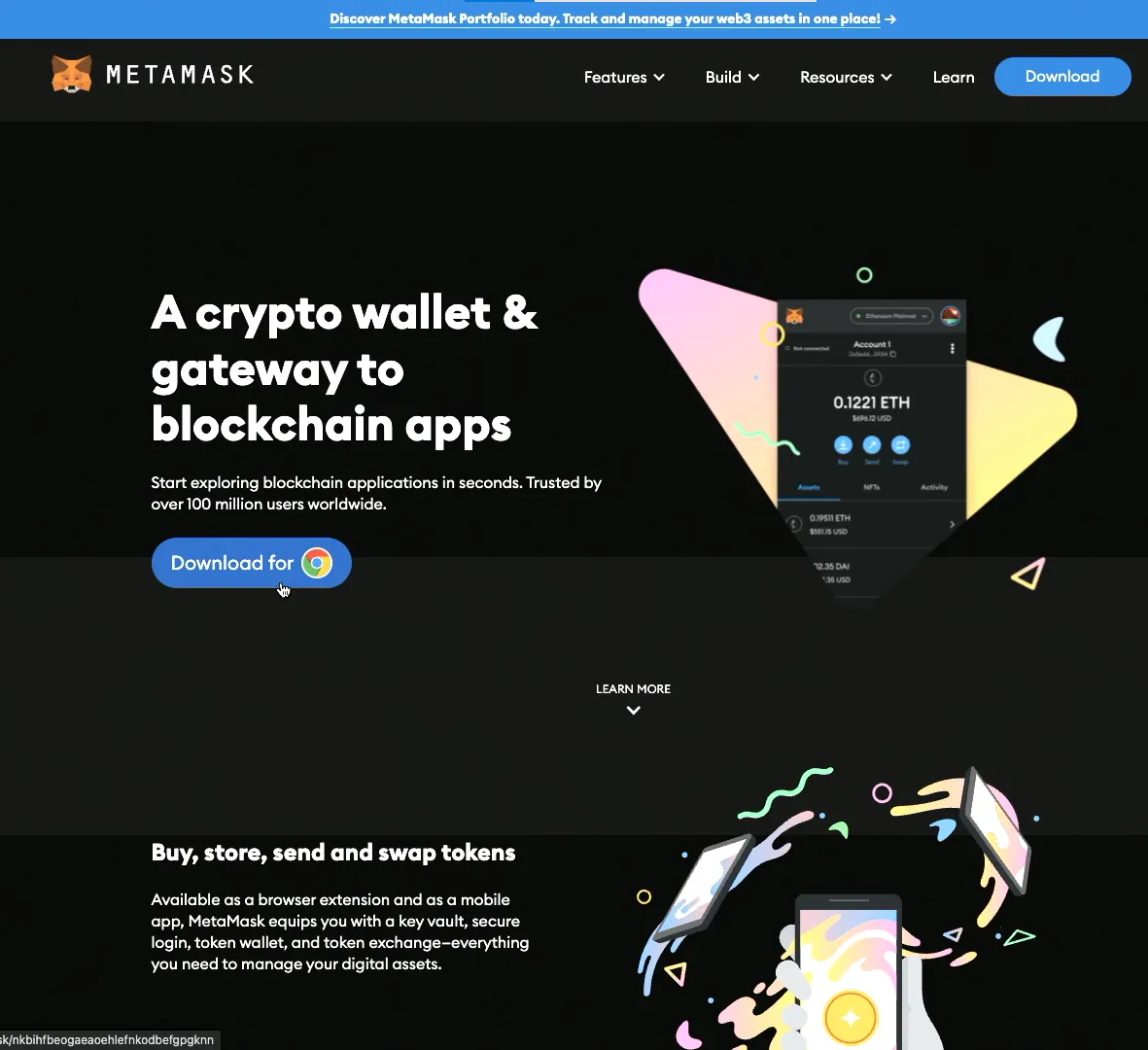
3. Install the MetaMask browser extension
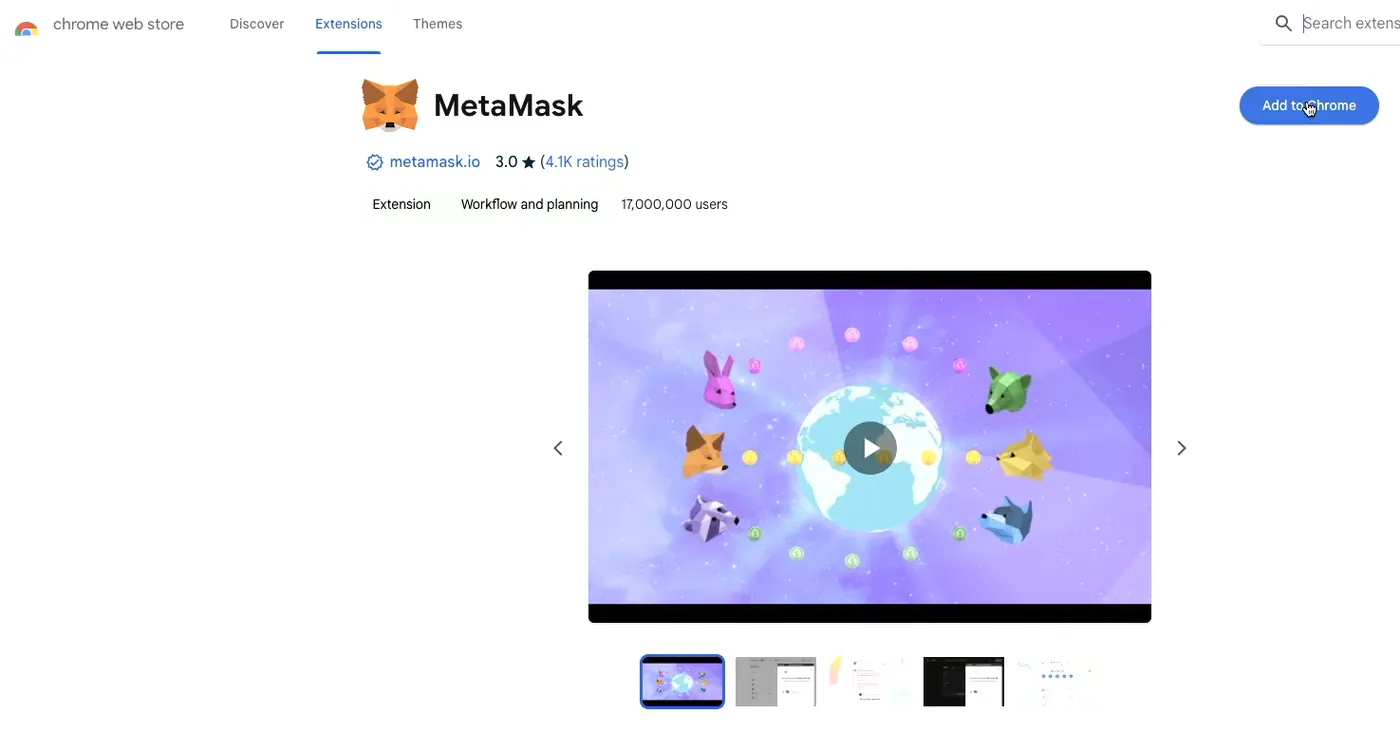
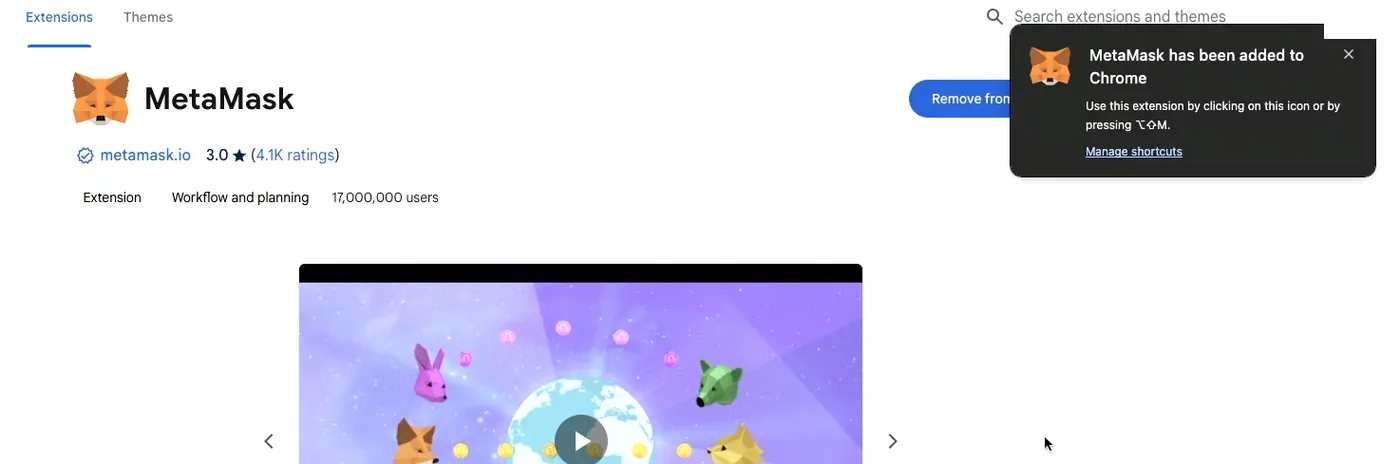
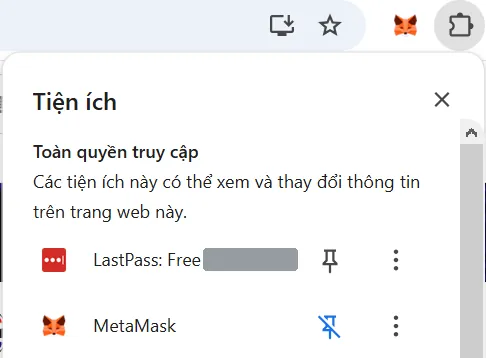
4. Pin the MetaMask icon for quick access
On Mobile (Optional)
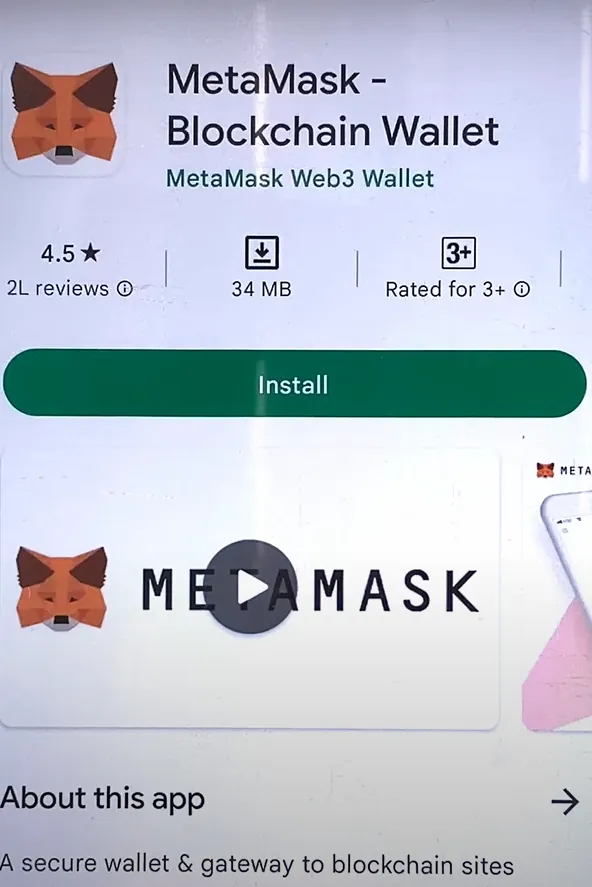
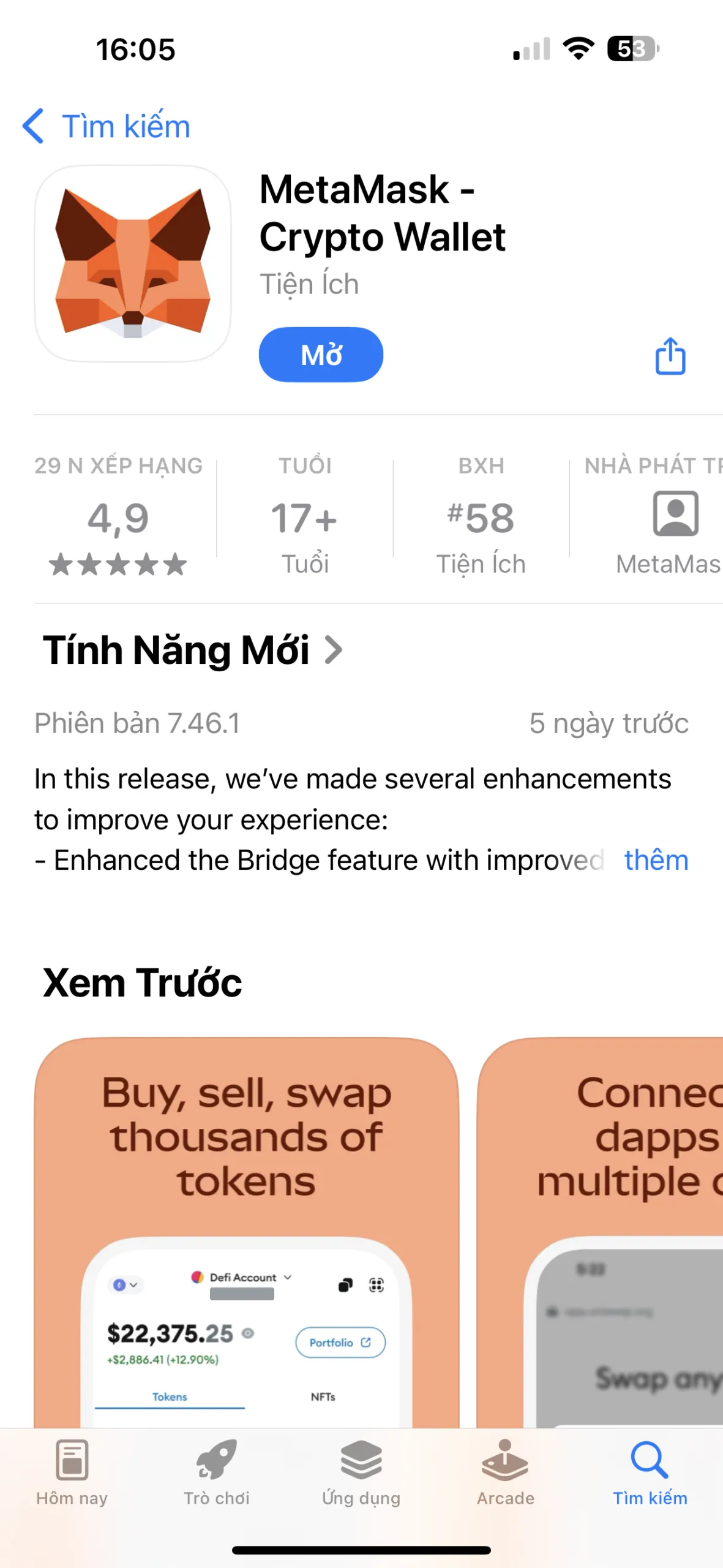
- Download the MetaMask app from Google Play or App Store
- Google Play
- App Store
Step 2: Create Your Wallet
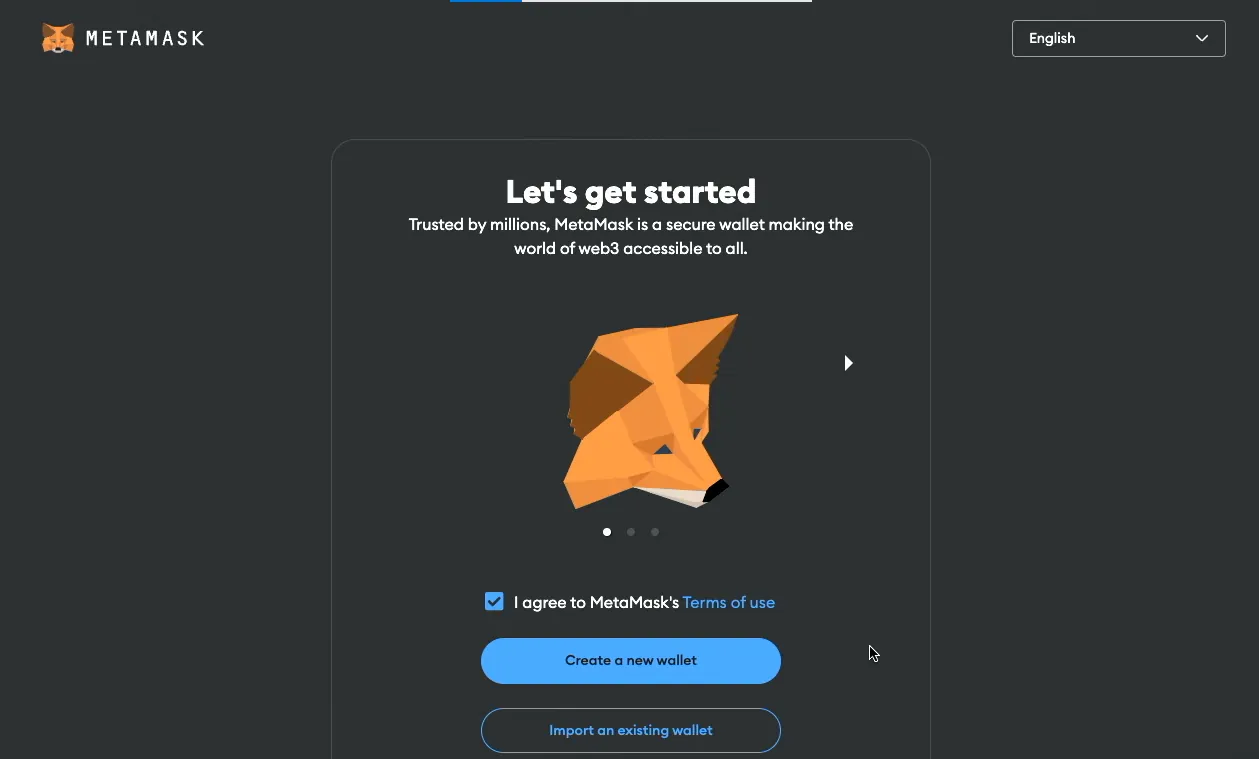
- Click “Create a new wallet”
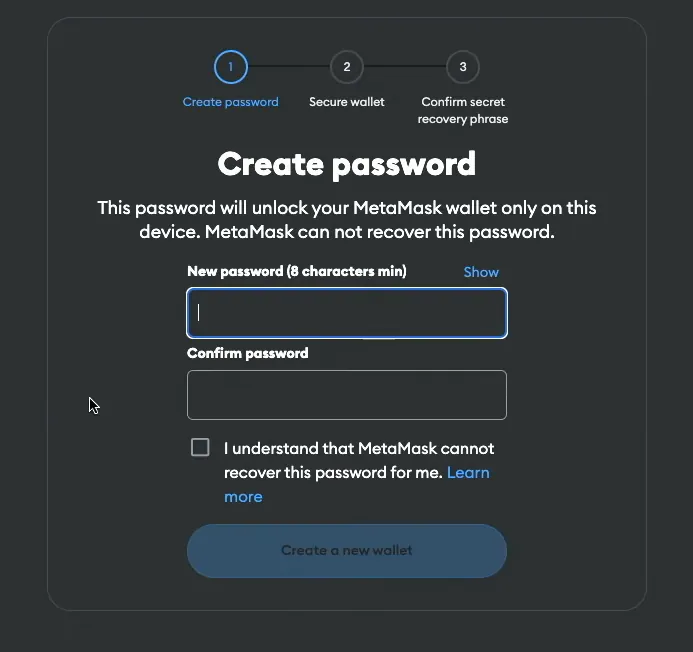
2. Set a strong password
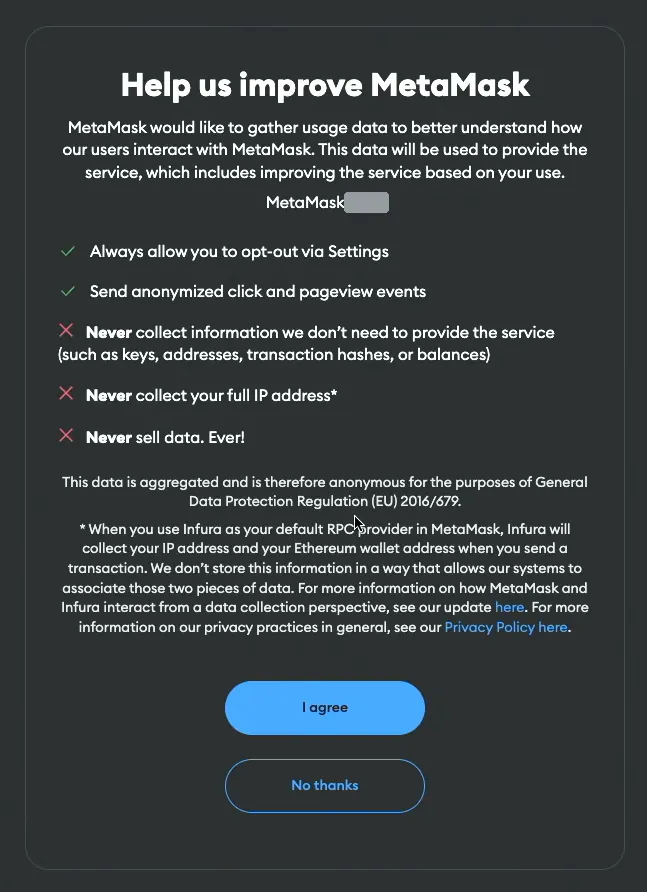
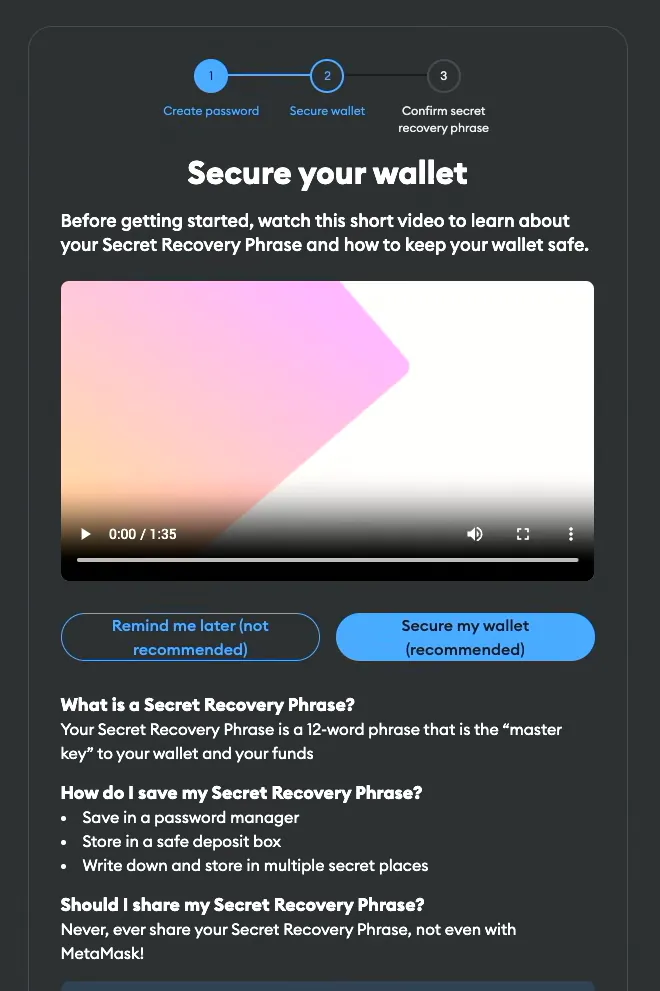
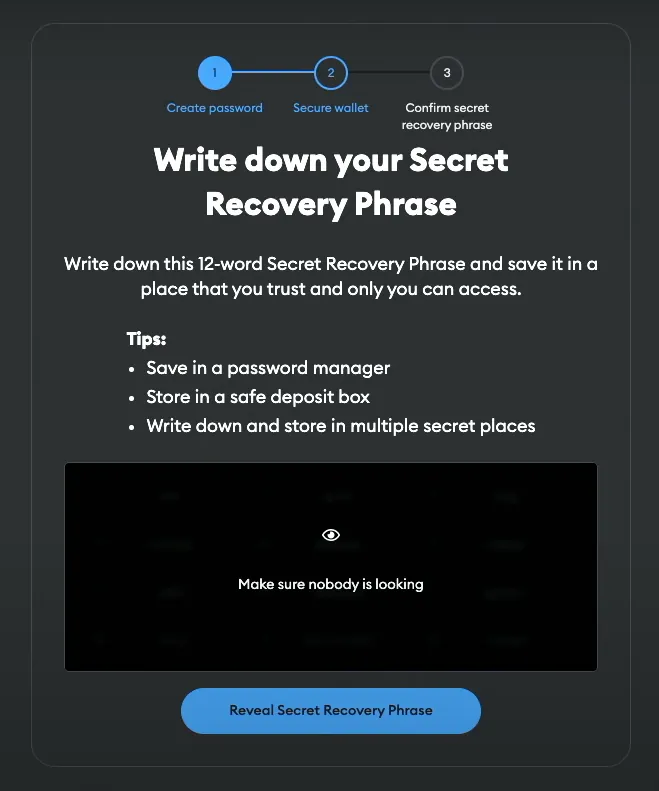
3. Write down your Secret Recovery Phrase (12 words)
- Store it offline (not in email, Google Docs, or screenshots)
- Do not share it with anyone - this is the key to your wallet
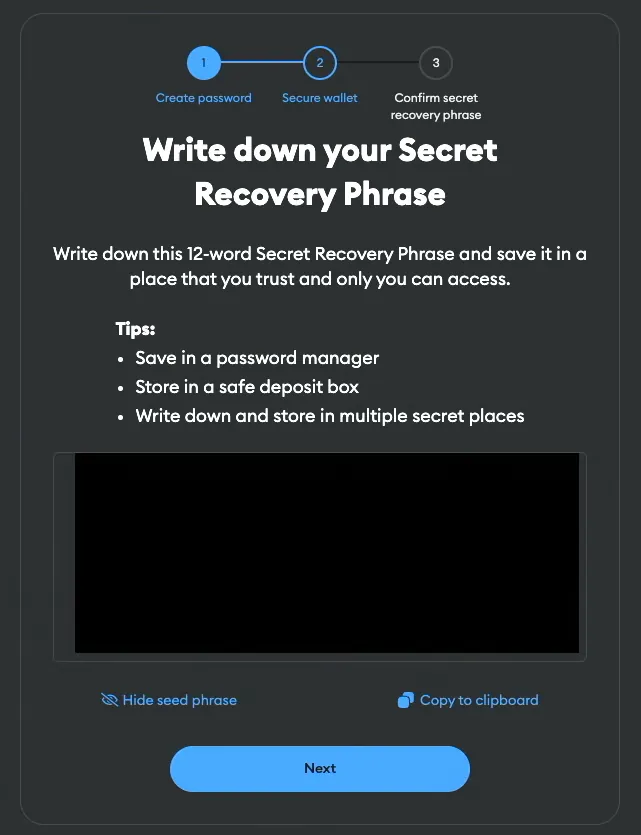
4. Confirm your phrase when prompted
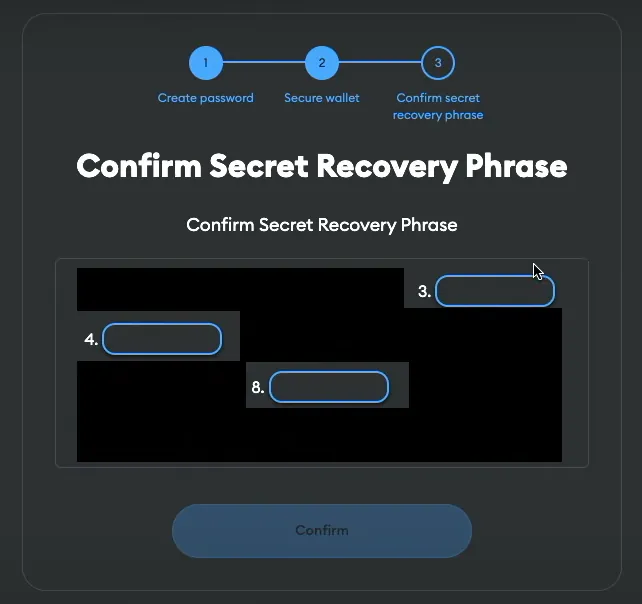
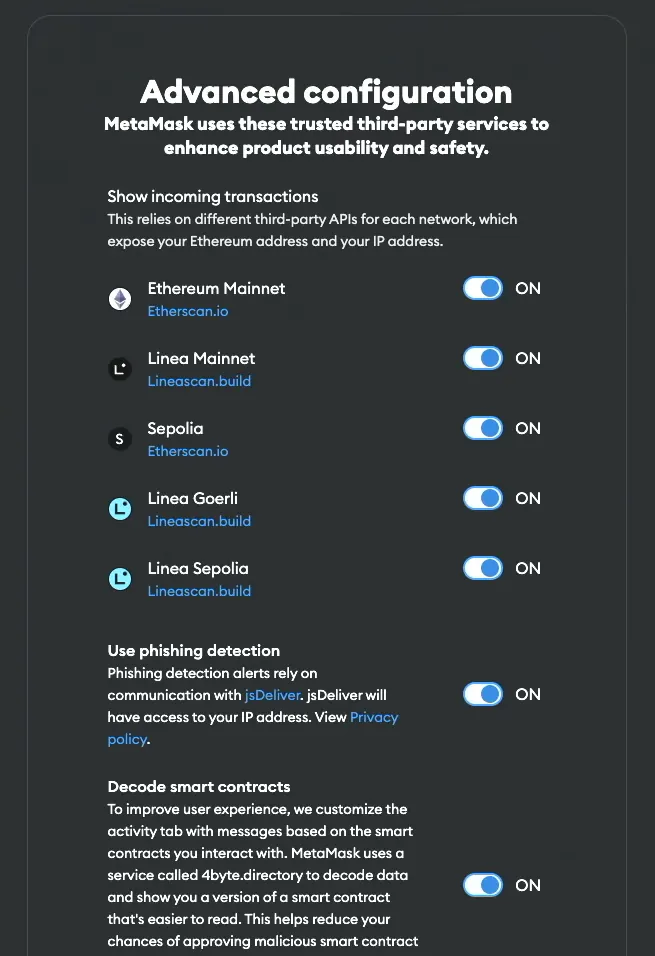
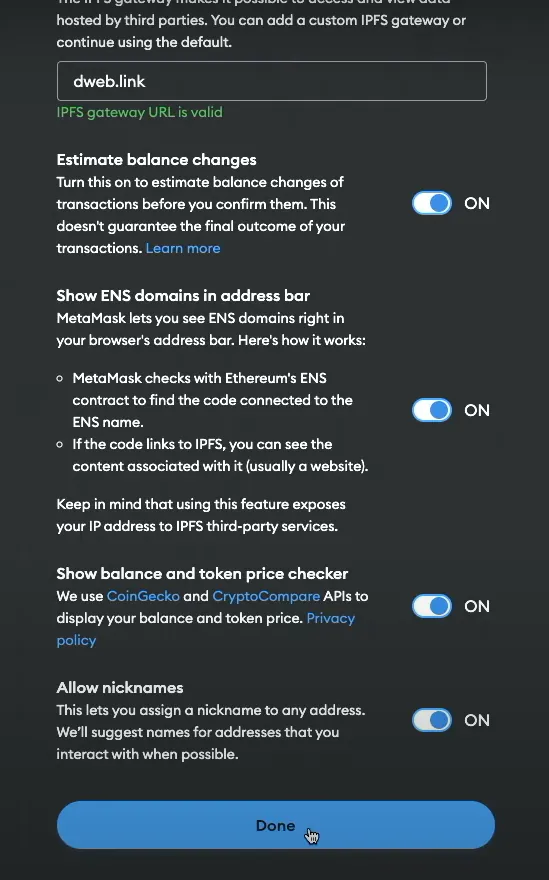
5. You’re now inside your MetaMask wallet
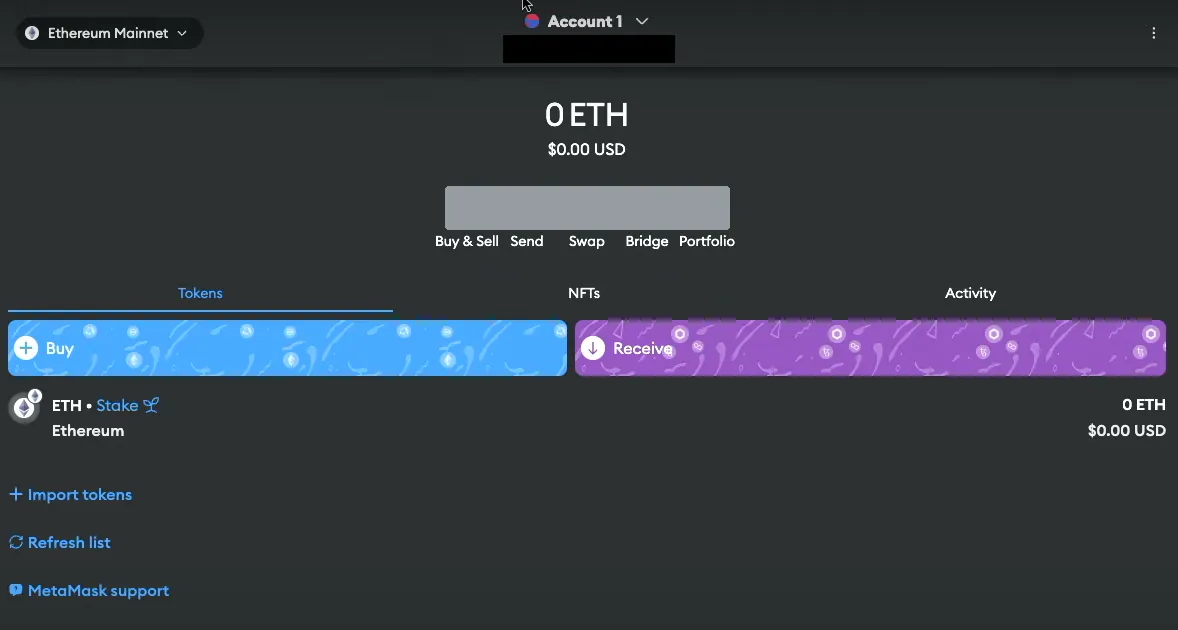
6. You can use the same wallet across desktop and mobile by syncing
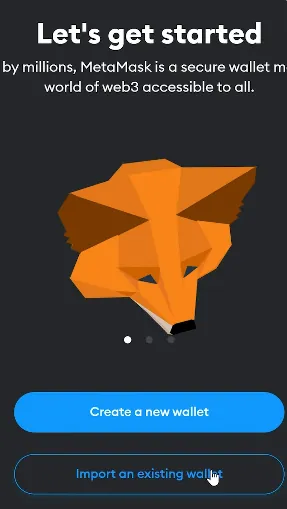
6.1. Click "Import an existing wallet"
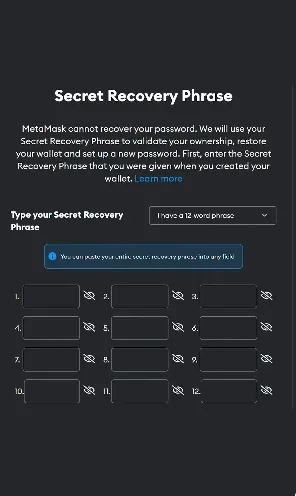
6.2. Type your Secret Recovery Phrase
Step 3: Connect to the Polygon Network
Connect Automatically
On desktop
- On polygonscan, scroll to the bottom of the page, and click "Add Polygon Network."

- A MetaMask notification will appear. Click “Approve” to proceed.
- In the network dropdown list, you'll go straight to Polygon PoS Mainnet.
- Done!
Connect Manually
On mobile
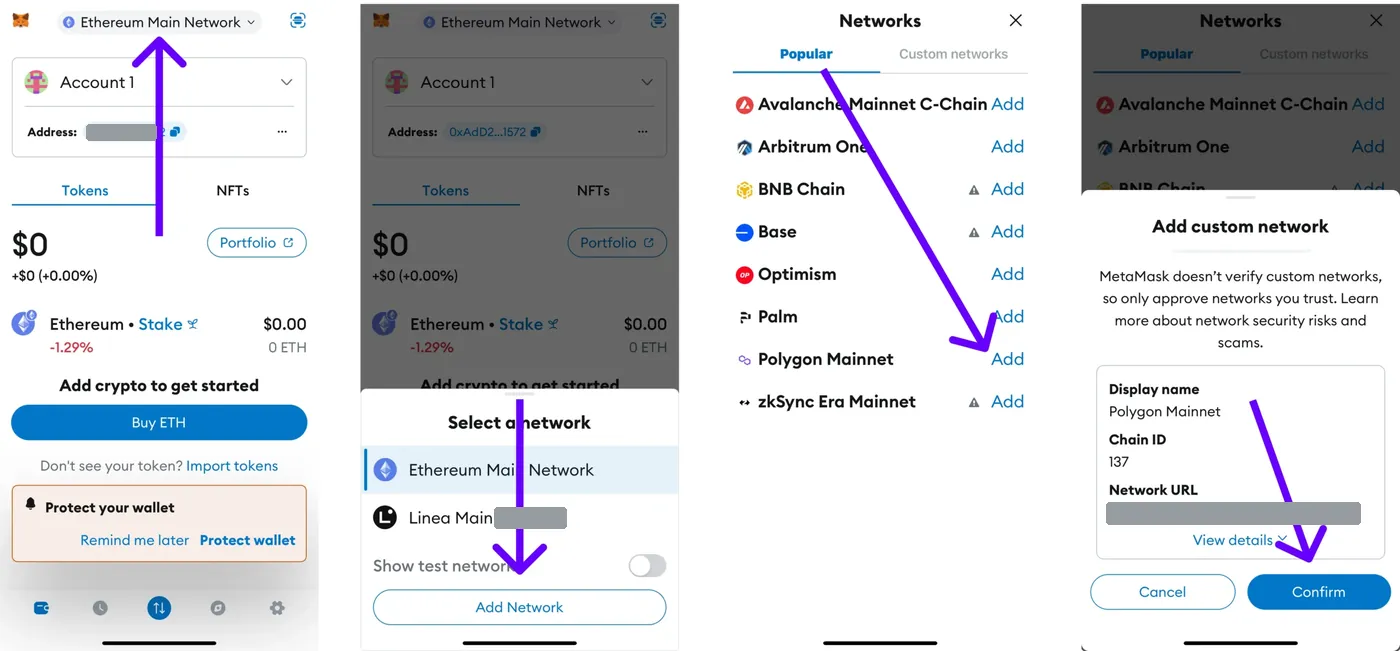
- Click the network icon on the top middle. Select "Add Network." Choose "Polygon Mainnet" from popular chains, and confirm.
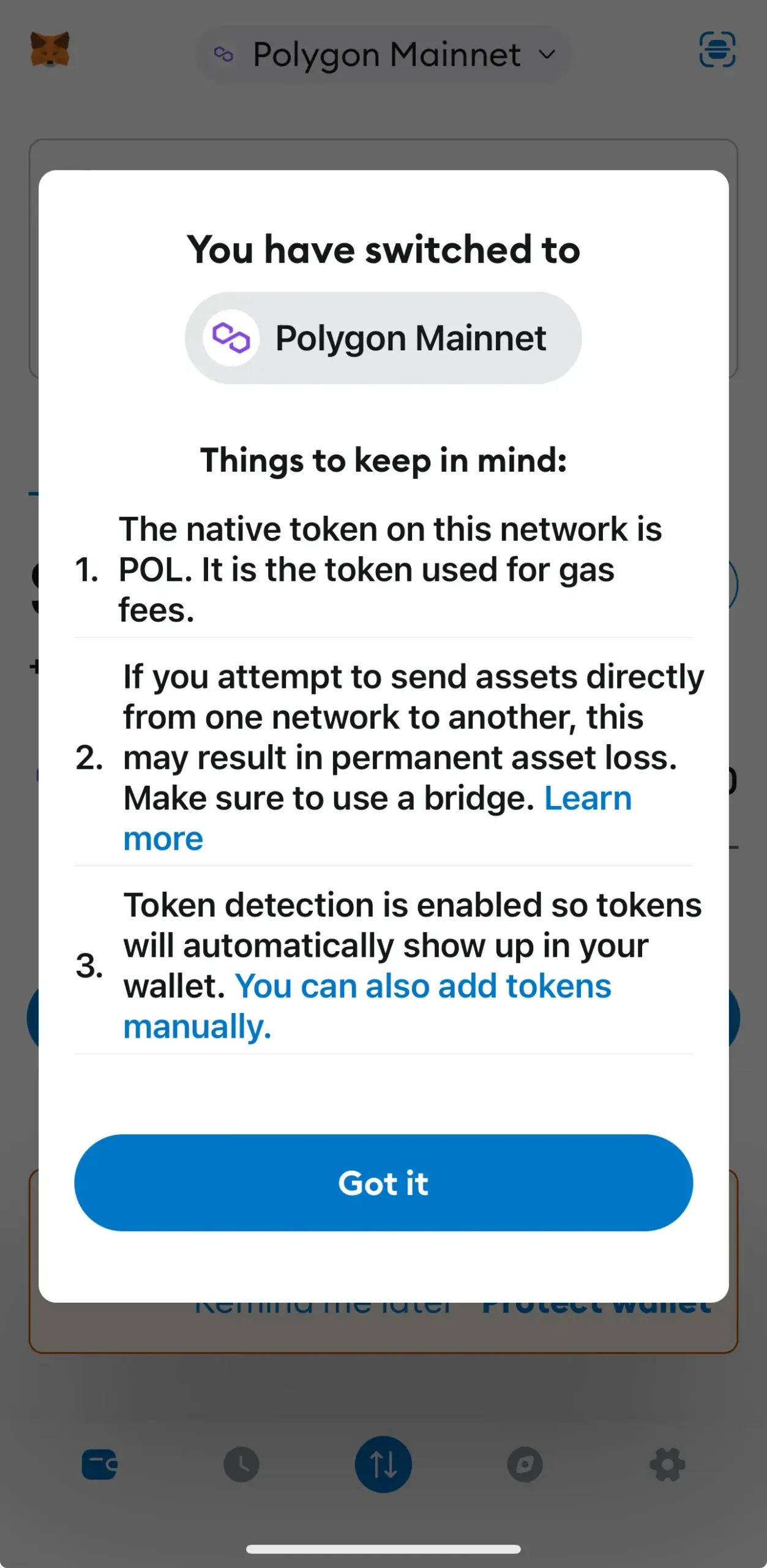
- You can switch to Polygon Mainnet, after which you'll get a notification that the network token is POL. You're good to go!
On desktop, as a browser extension
- Like above, click the dropdown of the current network (in the top left corner) and click 'Add Network' button.
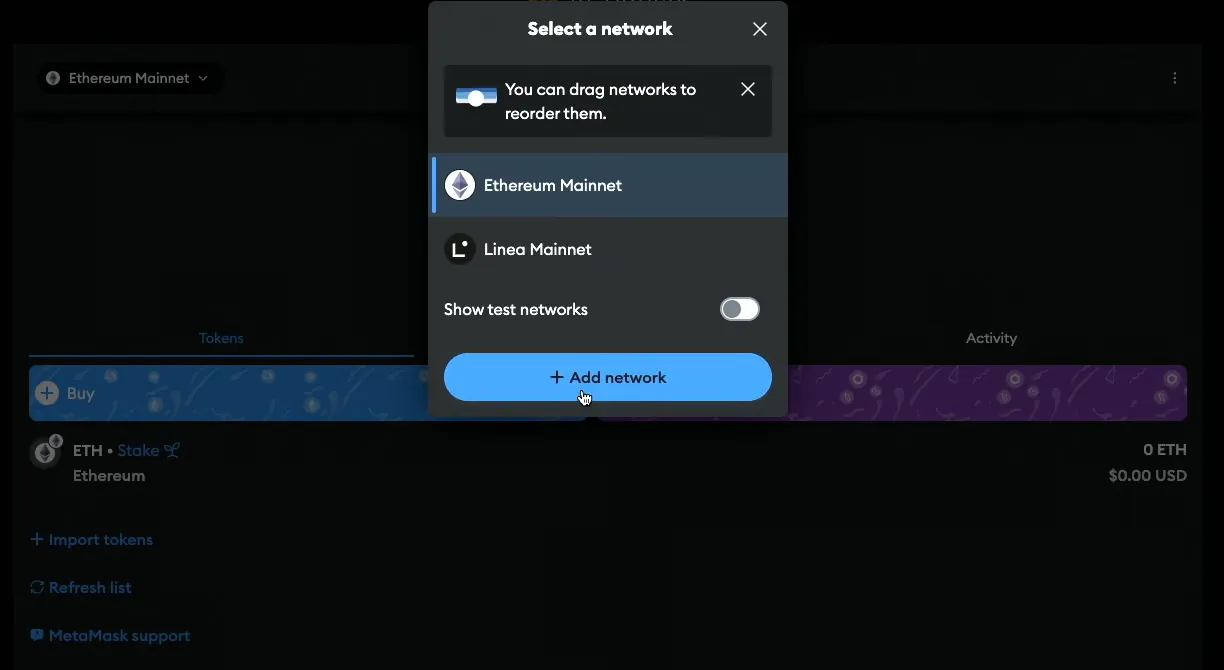
- Select Polygon Mainnet and enter below details:
- Network Name: Polygon Mainnet
- New RPC URL: https://polygon.drpc.org
- Chain ID: 137
- Currency Symbol: POL
- Block Explorer URL: https://polygonscan.com
- Click “Save.”
- You are now connected to Polygon PoS!
Step 4: Share Your Wallet Address
- Click your MetaMask wallet icon
- Copy your wallet address (starts with 0x...)
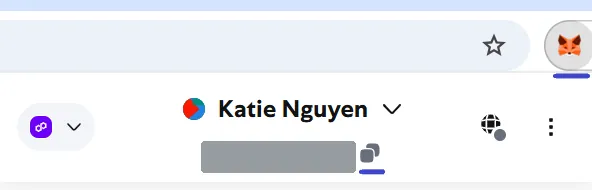
3. Share this address only with program admins when asked (e.g., to receive funds from DAO)
FAQs
Q: Do I need to fund my wallet? No. You’ll receive any crypto needed from the DAO if your proposal is approved.
Q: What if I lose my Secret Phrase? You will permanently lose access to your wallet. Save it carefully!
Q: Can I use an existing wallet? Yes, as long as it’s secure and you’re comfortable using it with XDAO.